

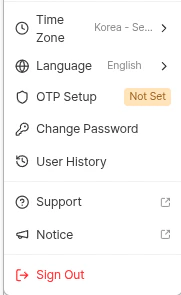
Dashboard profile menu
Time Zone
Sets the reference time zone for all dates and times shown in the dashboard. Submission timestamps, user history, and event logs are all displayed in the selected time zone.- Default: Korea - Seoul (KST)
- The change is applied across the dashboard immediately.
Language
Select the dashboard UI language. The currently supported languages are:The dashboard UI language is independent from the end user’s language in the KYC liveform. For liveform language, see the Query String and Token Guide.
OTP Setup
Enables One-Time Password (OTP) two-factor authentication for dashboard sign-in. Once OTP is set up, you must enter an OTP code after your password to complete sign-in.How to configure
1
Click OTP Setup
In the profile menu, click OTP Setup.
2
Register with an authenticator app
Scan the on-screen QR code with a TOTP-compatible app such as Google Authenticator or Authy.
3
Enter the OTP code
Enter the 6-digit code shown in your authenticator app to finish enrollment.
Change Password
New in 2026-04 Previously, changing your password required signing out and going through the Forgot Password flow. You can now change your password directly from the profile menu via Change Password while signed in. The flow branches based on whether OTP is enabled.When OTP is not set
1
Click Change Password
In the profile menu, click Change Password to open the modal.
2
Enter current password
Enter your current password to verify your identity.
3
Enter new password
Enter the new password, confirm it in the second field, and save.
When the change succeeds, the modal closes with a success message. Your existing session stays active — you do not need to sign back in.
When OTP is set
1
Click Change Password
In the profile menu, click Change Password.
2
Verify with OTP
Enter the OTP code from your authenticator app to verify your identity.
3
Enter new password
Enter the new password, confirm it in the second field, and save.
When the change succeeds, the modal closes with a success message.
User History
Review the recent activity of the currently signed-in account — sign-in timestamps, source IPs, and major dashboard setting changes — in chronological order.Support and Notice
- Support: Opens the ARGOS Identity customer support page in a new tab.
- Notice: Opens the product announcements and updates page in a new tab. You can also browse the same content in the Product Updates overview.