

Use Cases
Financial Service Brand Consistency Maintenance
Financial Service Brand Consistency Maintenance
Banks or fintech services can provide next step guidance (account opening, card issuance, etc.) along with welcome messages upon approval, and guide retry methods or customer center contact information upon rejection. For pending status, clearly guide additional document submission methods and expected processing time to alleviate customer anxiety.
Global Service Multi-country Support
Global Service Multi-country Support
Platforms providing international services can configure result pages in each country’s language to provide localized user experiences. User-friendly interfaces can be built by utilizing images and messages reflecting each region’s cultural characteristics.
E-commerce Platform Seller Onboarding
E-commerce Platform Seller Onboarding
Online marketplaces can guide sales start guides and promotion benefits when seller authentication is completed, and provide improvement plans and reapplication procedures in detail upon rejection.
Step 1: Access Result Page Settings
Access the result page settings menu for the project in the dashboard to customize the ID check project’s result page.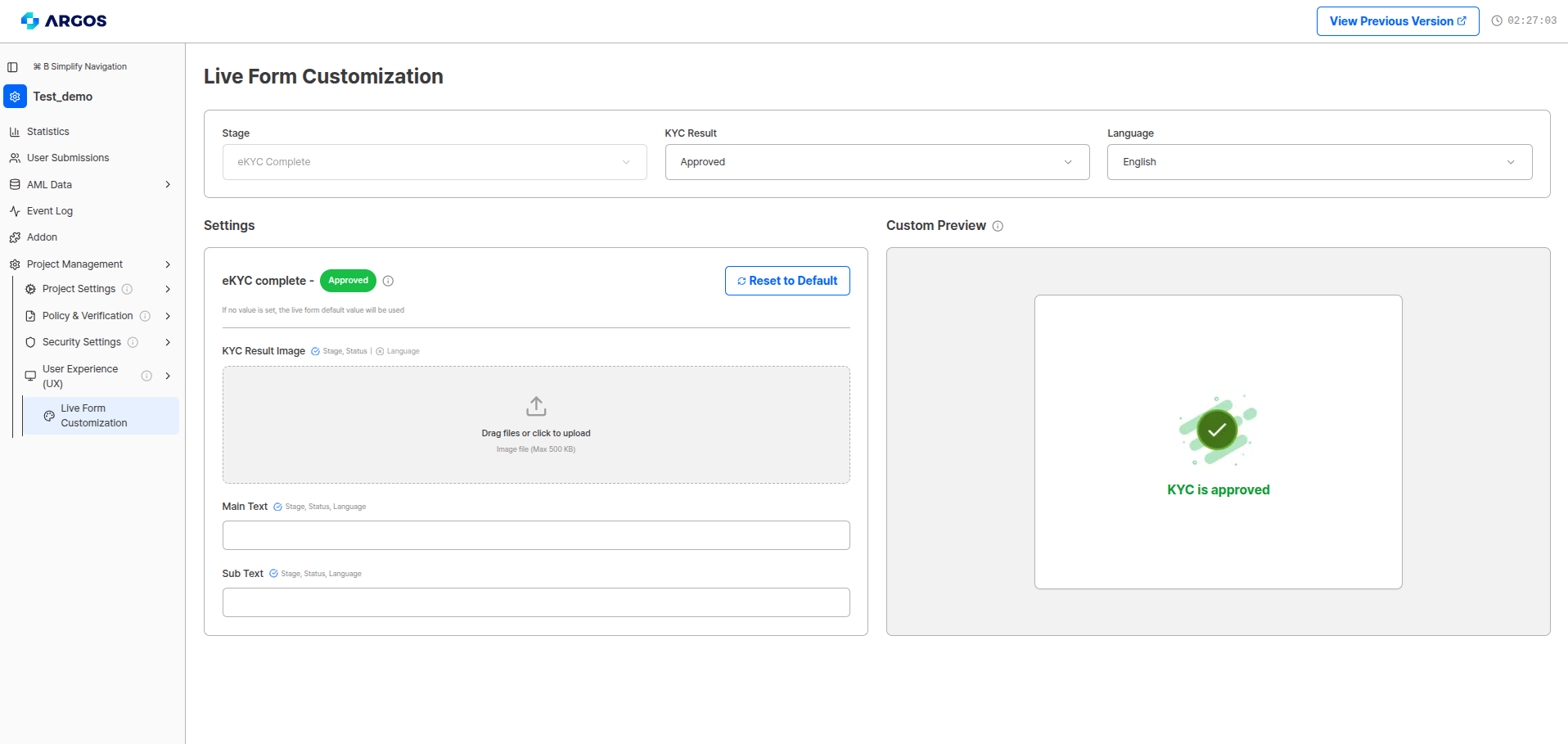
Result Page Customization Settings Screen
Step 2: Status and Language Settings
Select the status and language combination to configure the result page.Configurable by StatusIndividual settings are possible for each status: Approved, Rejected, and Pending, and different pages can be configured for all supported languages.
Step 3: Visual Element Settings
Configure visual components for each result page.Step 4: Text Content Writing
Write messages to deliver to users.Text Writing GuidelinesEnter main text and sub text for approval/pending/rejection status for each supported language (top right). Detailed rejection messages that users can see are not customizable.
Step 5: Testing and Optimization
After completing result page settings, you can verify and optimize in the following ways:1
Test by Status
Check result pages through test submissions for each status.
2
Review Language Settings
Review page display in various language settings.
3
Check Brand Consistency
Check brand consistency of images and text.
4
Continuous Improvement
Continuously improve effectiveness by analyzing user behavior data and feedback.
Benefits of Result Page Customization
Brand Consistency
Multi-country Support
User Satisfaction Improvement
Service Completion Rate Improvement
Liveform customization function is continuously being upgraded. We will provide identity authentication functions connected to your service through more diverse options.
Custom Theme (query string)
Custom Theme is not configured from this dashboard page. It is applied by appending query string parameters directly to the liveform URL.
mainColor and innerColor query string parameters. This enables you to maintain consistent branding throughout the entire KYC flow.
Query string parameters
Example URL:
The Liveform URLs on this page are for US region projects. KR region projects use the host
form-kr.argosidentity.com. See Regions for details.The content inside
encrypted must be encrypted. The URL above is shown unencrypted for illustration only.Color preview
mainColor: #AEFF00innerColor: #FFFFFF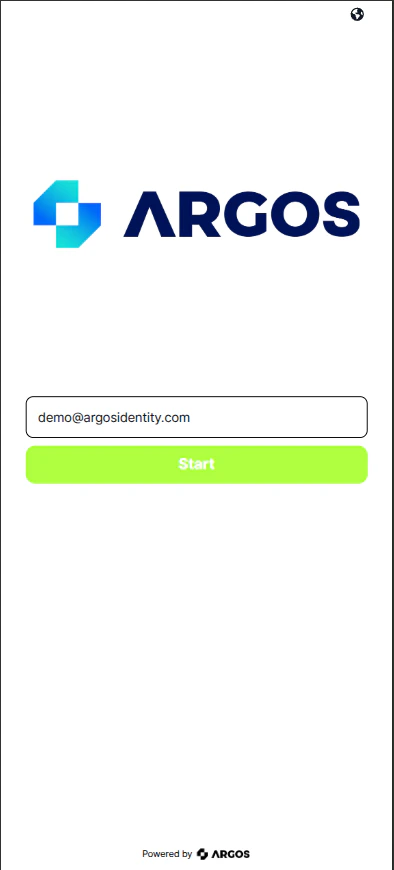
Liveform with Custom Theme applied (mainColor: #AEFF00, innerColor: #FFFFFF)
What changes
mainColor — affected elements by screen
innerColor — affected elements
Not affected
Custom Theme currently applies only to positive action elements such as CTA buttons and approval-related UI. Negative indicators (rejected, warning) and existing black text are not affected. Support for these elements is planned for a future update.