
Documentation Index

Fetch the complete documentation index at: https://developers.argosidentity.com/llms.txt

Use this file to discover all available pages before exploring further.

The ID check dashboard uses role-based access control (RBAC) to assign different permissions to each administrator invited to a project. This page covers the role hierarchy, per-role PII visibility policies, and how feature access is controlled.
Role assignment is managed under Project Management > Project Settings > System Operation. Go to System Operation

Administrator Roles

When inviting an administrator to a project, you assign one of four roles. Each role grants the following permissions for all options and submissions.
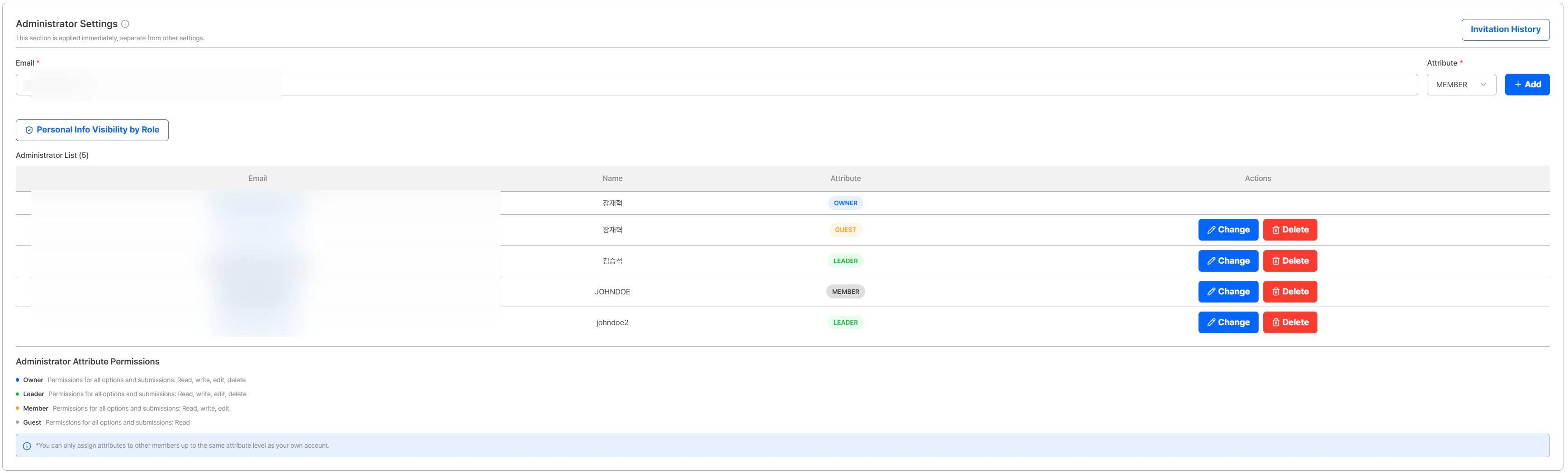
Administrator list by role
RoleReadWriteEditDelete
OwnerOOOO
LeaderOOOO
MemberOOO-
GuestO---
  • Owner / Leader: Full access — read, create, edit, and delete all options and submissions.
  • Member: Can read, create, and edit, but cannot delete.
  • Guest: Read-only access.
When assigning a role to another administrator, you can only grant up to the same role level as your own account. For example, an administrator with the Member role can only assign Member or Guest to others.

PII Visibility by Role

For each role, you can individually configure which personal information fields are displayed in the submission detail view. Fields that are unchecked are masked for administrators with that role.
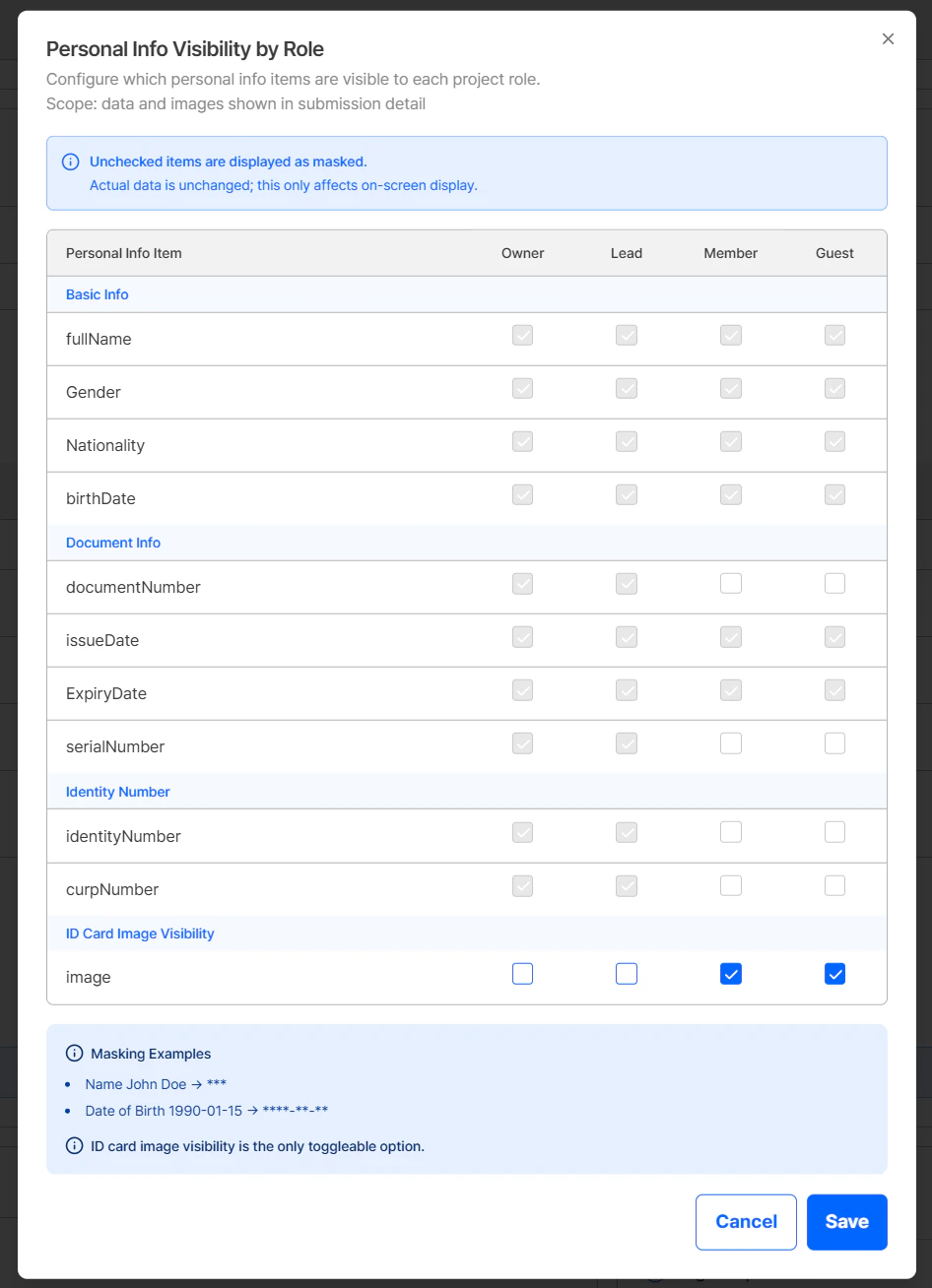
PII visibility settings by role
Configurable fields are as follows.
CategoryFields
Basic InformationfullName, Gender, Nationality, birthDate
Document InformationdocumentNumber, issueDate, ExpiryDate, serialNumber
Identity NumbersidentityNumber, curpNumber
ID Photoimage (can be toggled on/off)
Masking examples:
  • Name: John Doe***
  • Date of birth: 1990-01-15****-**-**
Role-based PII masking applies only to what is displayed on the dashboard screen. Actual stored data and API responses are not affected.

Relationship with the Project-Level Setting

The Privacy Display Settings (project-level) toggle applies a blanket blur/mask to specific fields for all administrators at once. The role-based PII visibility setting is a finer-grained layer on top, allowing you to control which fields are exposed per role independently.

Permission-Based Feature Control

Actions that exceed an administrator’s permissions (for example, a Member attempting to delete a submission) result in the corresponding button being hidden or a permission notice being shown. This prevents administrators from inadvertently performing actions outside their authorized scope.

Where to Configure

Role assignment and PII visibility settings are both managed under Project Management > Project Settings > System Operation.

System Operation

Manage administrator role assignment and PII visibility settings

May 2026 Update

New feature updates including the RBAC release