

Use Cases
Maintaining Brand Consistency for Financial Services
Maintaining Brand Consistency for Financial Services
Banks or fintech services can provide welcome messages with next-step guidance (account opening, card issuance, etc.) upon approval, and provide retry methods or customer service contact information upon rejection. In Pending status, clearly guide additional document submission methods and expected processing times to reduce customer anxiety.
Multi-country Support for Global Services
Multi-country Support for Global Services
Platforms providing international services can deliver localized user experiences by configuring result pages in each country’s language. Build user-friendly interfaces using images and messages that reflect each region’s cultural characteristics.
Seller Onboarding for E-commerce Platforms
Seller Onboarding for E-commerce Platforms
Online marketplaces can guide selling start guides along with promotional benefits upon seller verification completion, and provide detailed improvement guidance and re-application procedures upon rejection.
Step 1: Access Result Page Settings
Access the result page settings menu for your ID check project in the dashboard to customize result pages.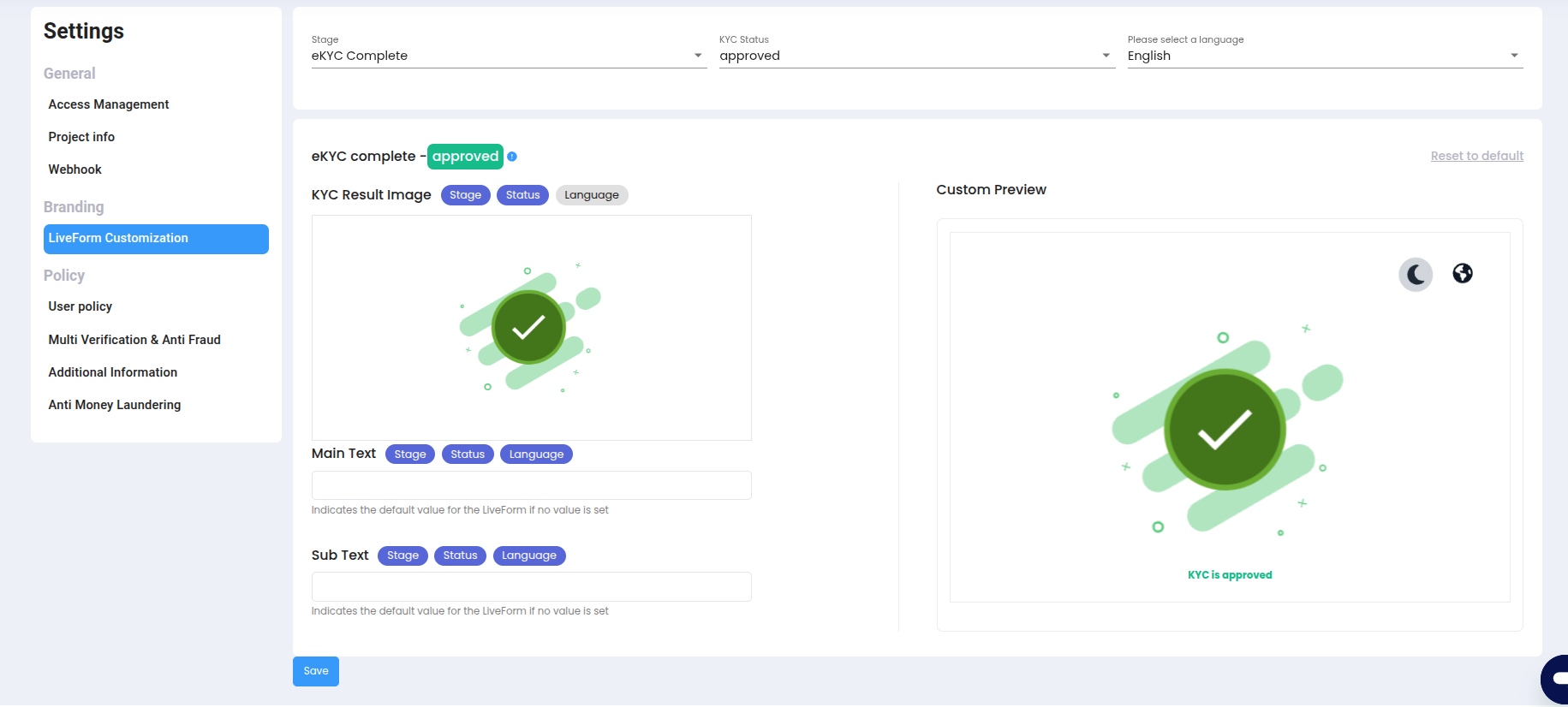
Result Page Customization Settings Screen
Step 2: Status and Language Settings
Select the status and language combination for which to configure result pages.Status-specific Configuration AvailableIndividual settings are available for Approved, Rejected, and Pending statuses, and different pages can be configured for each supported language.
| Setting | Description |
|---|---|
| Status & Language | Select the result status (approved/rejected/pending) and language combination to customize. |
| Preview Feature | During configuration, you can check results in real-time through the preview window on the right. |
Step 3: Visual Element Settings
Configure visual components for each result page.| Setting | Description |
|---|---|
| KYC Result Image | Upload images to display on each page to reflect brand identity. |
| Image Optimization | Recommended image specifications suitable for various devices and screen sizes. |
Step 4: Write Text Content
Write messages to deliver to users.| Field | Description | Limit |
|---|---|---|
| Main Text | Intuitive and clear main message matching identity verification results | Maximum 125 characters |
| Sub Text | Detailed information supplementing main text and guiding user follow-up actions | Maximum 100 characters |
Text Writing GuidelinesEnter main text and sub text for approved/pending/rejected statuses for each supported language (top right). Detailed rejection messages that users may encounter are not customizable.
Step 5: Testing and Optimization
After completing result page settings, you can verify and optimize as follows:1
Status-specific Testing
Verify result pages through test submissions for each status.
2
Review Language Settings
Review page display across various language settings.
3
Check Brand Consistency
Check brand consistency of images and text.
4
Continuous Improvement
Continuously improve effectiveness by analyzing user behavior data and feedback.
Benefits of Result Page Customization
Brand Consistency
Provide user experience maintaining brand consistency.
Multi-country Support
Language-specific customization available for multi-country services.
Improved User Satisfaction
Improve user satisfaction through optimized messaging by status.
Improved Service Completion Rate
Improve service completion rates through follow-up action guidance.
Liveform customization features are continuously being upgraded. We will provide identity verification features connecting to your service through even more diverse options.