

Key Use Scenarios
By re-confirming identity with just one selfie instead of passwords or authentication codes, you can strengthen security while reducing user friction.Device Change
Used as a re-authentication method by financial institutions to reduce account takeover risk during device or phone number changes.
Re-authentication on Anomaly Detection
ATO Prevention - Apply access block/unblock policies with additional facial authentication when high-risk login, overseas access, or mass attempts are detected.
Periodic Identity Re-verification
Periodic KYC Refresh - Use as a periodic identity verification procedure for high-value services and regulated industries.
Password Recovery/Information Change
Insert as an identity verification step before password reset, payment method, or contact information changes.
How It Works (3-Step)
1
Prerequisites
An approved Submission from eKYC must exist. (Reference)
2
Process
Call Add-On URL (include pid + Submission ID) → Capture selfie
When entering from desktop, a QR is displayed → Continue on mobile to capture.
3
Determination/Storage
Automatic comparison of registered vs verification selfie → Results are stored in the dashboard as Auth ID (submission).
Benefits of FACE AUTH
| Benefit | Description |
|---|---|
| Fast Re-authentication | Complete with just one selfie without re-capturing ID document |
| Enhanced Security | Account protection as an additional factor combined with password/OTP |
| Policy Flexibility | Granular settings for facial match threshold, liveness, occlusion blocking by situation |
| Simple Integration | Maintains operational consistency as an add-on dependent on existing eKYC project |
Project Creation and Settings
To use FACE AUTH, first create an Add-On project in the dashboard and configure policies (threshold, liveness, occlusion).Step 1: Create Add-On Project
Select Add-On menu → ‘Create Project’ in the dashboard to create a new FACE AUTH project. Upon creation, a dependent connection to the eKYC project is formed, and the Add-On URL and API key are automatically mapped.
Screen Before Project Creation

Screen After Project Creation
Step 2: Project Information Settings
In the settings screen, specify the project name and logo, and set the button/URL to navigate to after authentication submission is complete.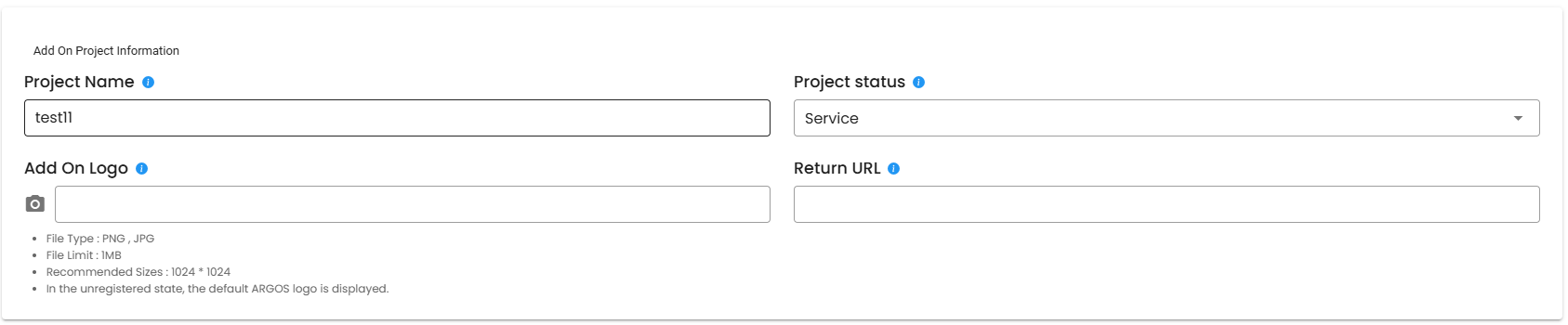
Project Information Settings Screen
| Setting Item | Description |
|---|---|
| Project Name | Displayed as the title on the authentication start screen |
| Project Status | Service (normal operation) / Closed (authentication not available) |
| Add on Logo | Displayed at the top of the first authentication screen (ARGOS logo displayed if not set) |
| Return URL | URL where the user is redirected after authentication completion |
Step 3: Policy (Threshold) Settings
Thresholds are more lenient when lower, stricter when higher. Adjust gradually according to your service risk and UX goals.
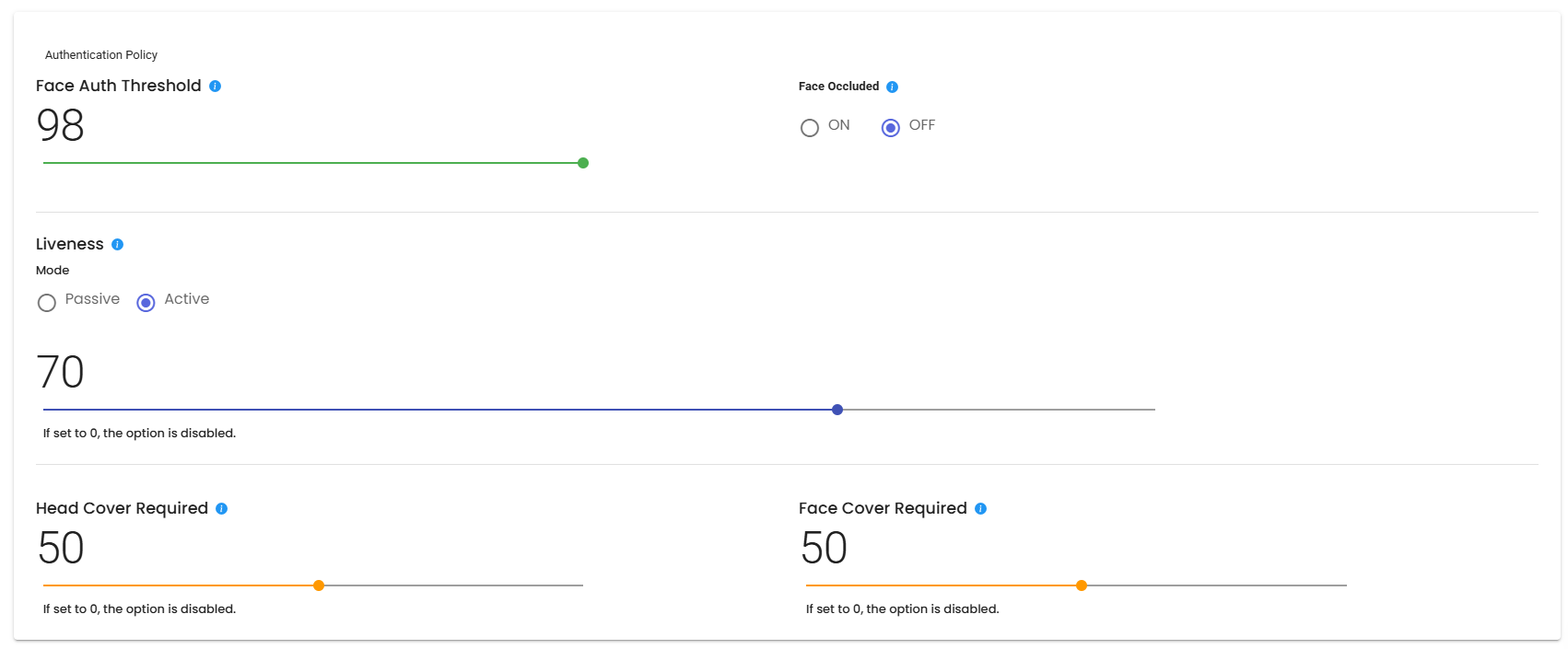
Project Policy Settings Screen
| Policy Item | Description | Recommended Value |
|---|---|---|
| Face Authentication Threshold | Criteria for determining identity match with eKYC approved user’s face | 98 points |
| Liveness | Determines if the captured selfie is a real living person (Passive/Active) | 70 points |
| Face Occlusion | Checks if the face is not obscured by other objects during authentication | - |
Face occlusion and face occlusion threshold cannot be used simultaneously.
- Head Occlusion Threshold: For environments requiring helmet use (motorcycles, construction sites, etc.)
- Face Occlusion Threshold: For environments requiring mask use (hospitals, construction sites, etc.)
Step 4: Add-On URL Parameters and Encryption Settings
Required parameters must be registered to use the FACE AUTH URL. Required Parameters:| Parameter | Description |
|---|---|
pid | Add-On Project ID (included in URL path/parameter) |
sid | eKYC Submission ID (Add-On authentication only available in approved state, encryption required) |
Token Expiration Condition Settings
Limited access control can be configured through Token ID.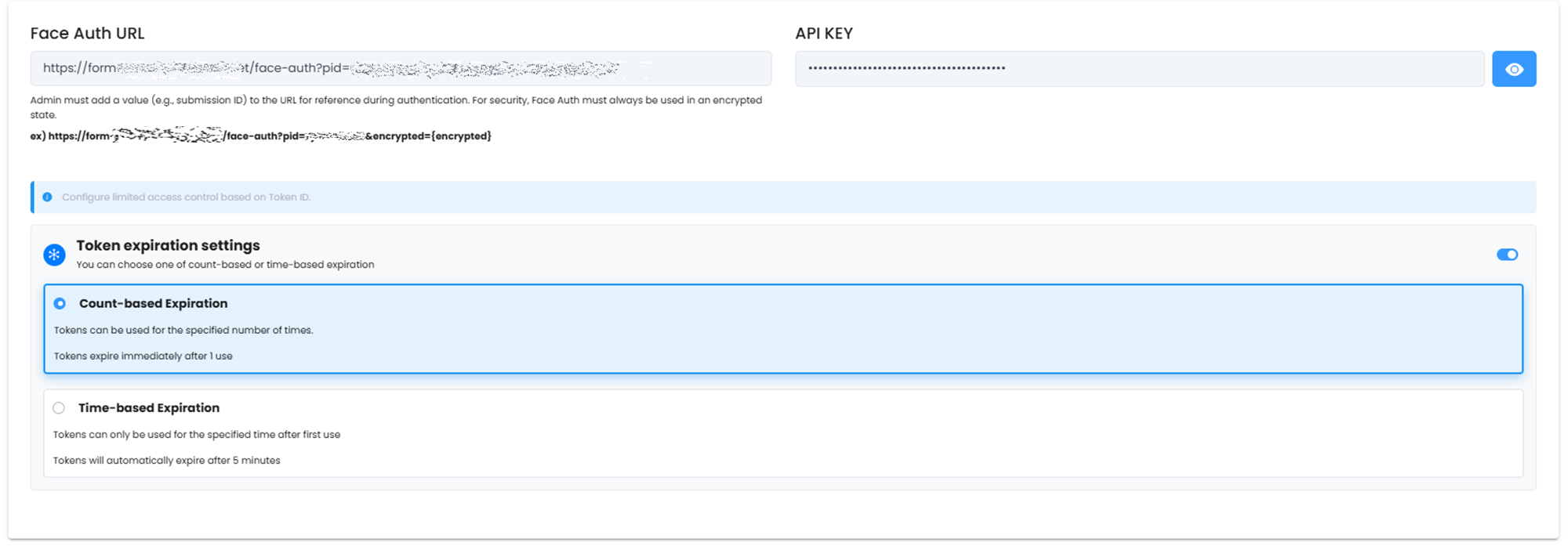
Project Token Settings Screen
| Expiration Condition | Description |
|---|---|
| Count-based Expiration | Expires Token ID when token is used once |
| Time-based Expiration | Expires Token ID after measuring time from when token is first used |
The expiration triggering condition is when the “Start” button is clicked on the first FACE AUTH screen.
Providing to Users
FACE AUTH can be provided in two ways.- A. Add-On URL (Recommended)
- B. API-based Integration
Guide users to open the Add-On URL and proceed with re-authentication through selfie capture on the web screen.Required Parameters:
pid={AddOn Project ID}submissionId={Approved eKYC Submission ID}
Checklist
- ✅ Connect Add-On URL to link/button
- ✅ Verify submissionId is not missing/unapproved
- ✅ If desktop traffic is high, pin QR transition guide text at the top
Verification (Smoke Test)
- Check if authentication screen appears when calling Add-On URL with approved submissionId
- Check if QR display and mobile transition work smoothly on PC entry
- Check if results are saved and queryable as Add-On submission (Auth ID) after capture
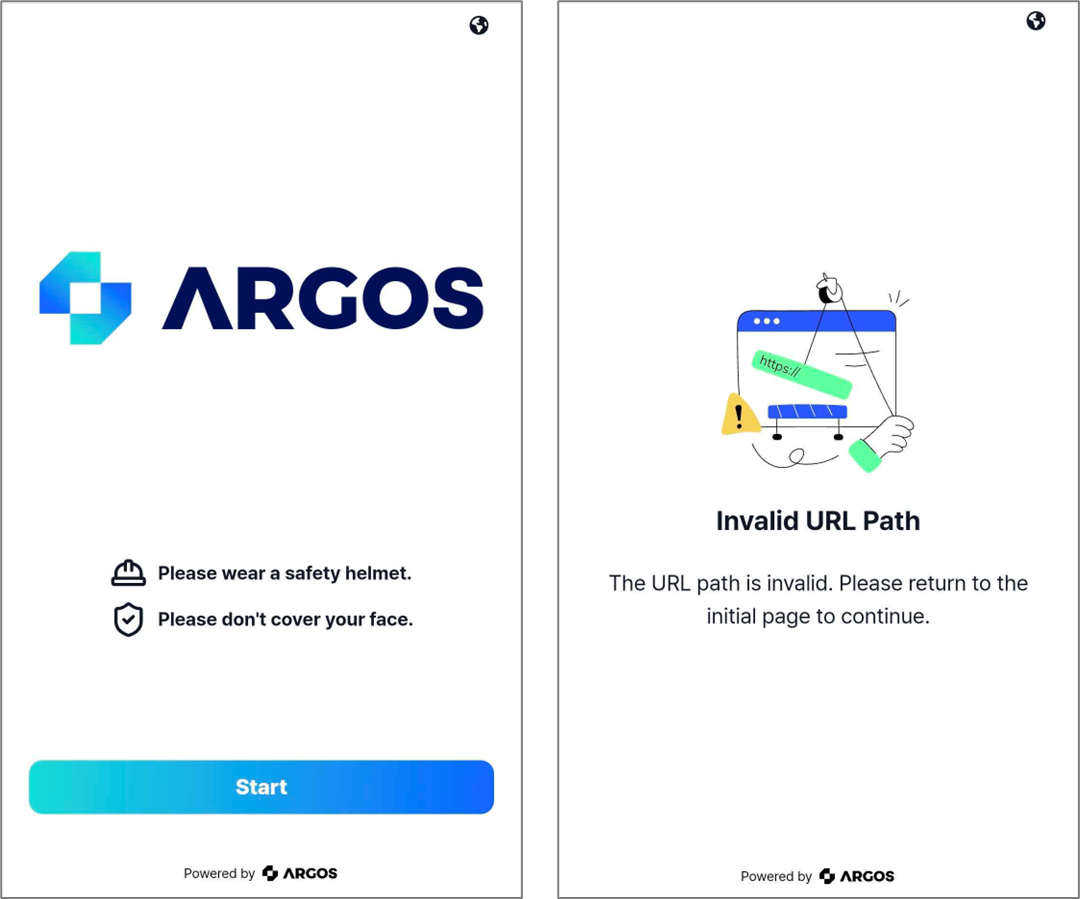
Normal authentication screen and error screen when using incorrect sid
AUTH ID - Checking Authentication Results
Auth ID refers to the result (submission) of a single FACE AUTH (add-on). It records the identity determination comparing the registered selfie (previously approved via eKYC) with the current selfie (verification), along with the applied policy snapshot and processing timeline.Checking Results in Dashboard
- Time
- AUTH ID (TARGET)
- Submission ID (Reference)
- Status
- Policy snapshot
- Score/threshold
- Liveness and occlusion results
- Comparison images
- Logs
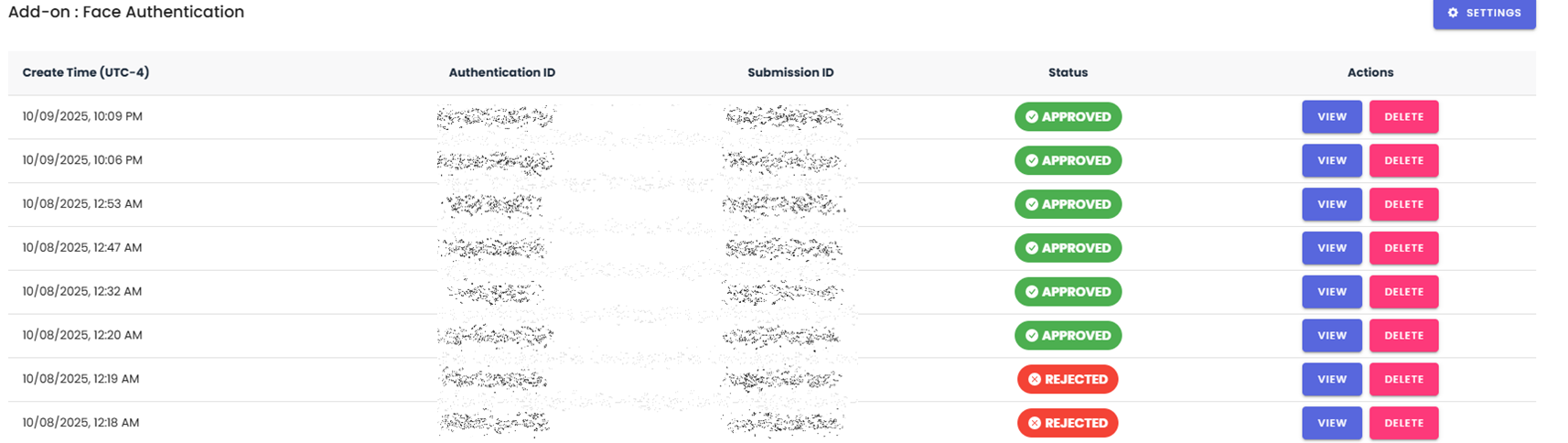
Auth ID Dashboard of Add-On Project
Auth ID Detailed Information
| Field | Description |
|---|---|
| Authentication ID | Unique identifier for this submission |
| Submission ID | Previously approved submission referenced for comparison at submission time |
| Status | Authentication result displayed as Approved or Rejected |
| Policy | Project options applied when this submission was processed |
| FACE Similarity | Similarity measured between selfie images during authentication |
| Liveness | Liveness score of the submitted selfie |
| Face Occluded | Pass / Fail result determining if face was occluded |
Reference information prioritizes comparing Selfie, and if Selfie is unavailable, the portrait from the ID document is used as secondary comparison.
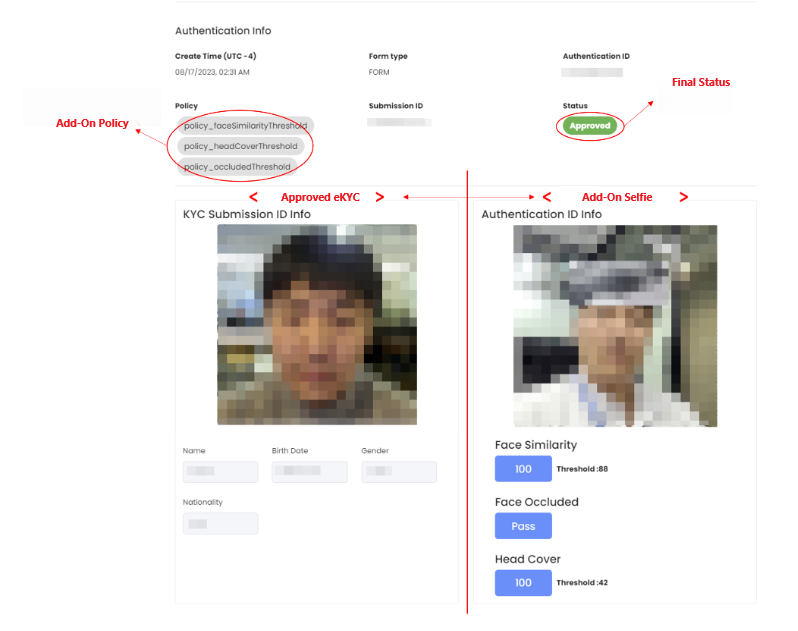
Auth ID Detail Screen of Add-On Project
Real-time Integration via Webhook
When FACE AUTH is completed and final results are determined, results are automatically sent to the Webhook URL registered in the existing ID Check project. Trigger type:"faceAuth"
Implementation Checklist
- ✅ Register Webhook URL (per project) and confirm receipt with 2xx response
- ✅ Implement duplicate receipt prevention: Check duplicates based on Authentication_id
- ✅ Timezone handling: Create_Time (UTC+0) → Convert to internal standard time if needed
- ✅ Key mapping: Map to internal users/requests using Submission_id, User_id, cf1~3
- ✅ Audit logging: Store original payload along with routing results
Quick Deployment Checklist
1
Create Project
Create a FACE AUTH project in Dashboard → Add On.
2
Configure Policy Values
Set face match threshold / liveness / occlusion blocking (ON/OFF).
3
Secure eKYC Approved Submission
An approved eKYC Submission is needed to use as Reference.
4
Design Call Flow
Include pid + Submission ID in Add-On URL (consider desktop→QR→mobile flow)
5
Result Verification Routine
Monitor Auth ID (submission) status, policies, and comparison results in dashboard.