

- iOS / iPhone / iPad
- Android
How to Re-enable Camera Permission on iPhone
1) Allow Website Camera Permission in Safari
1
Open the current page in Safari
Open the current page (service page) in Safari.
2
Tap the AA icon
Tap the 「AA」 icon on the left side of the address bar.
3
Select Website Settings
Select 「Website Settings」.
4
Allow camera permission
Change the 「Camera」 option to 「Allow」.
5
Refresh the page
Refresh the page and try shooting again.
2) Check Safari Camera Permission in iOS Settings
1
Open the Settings app
Open the 「Settings」 app on iPhone.
2
Select Safari
Scroll down and select 「Safari」.
3
Change camera permission
Find the 「Camera」 option and change it to 「Allow」 or 「Ask」.
4
Restart Safari
Close Safari completely, restart it, and revisit the page.
3) (For App Use) Allow iOS App Camera Permission
1
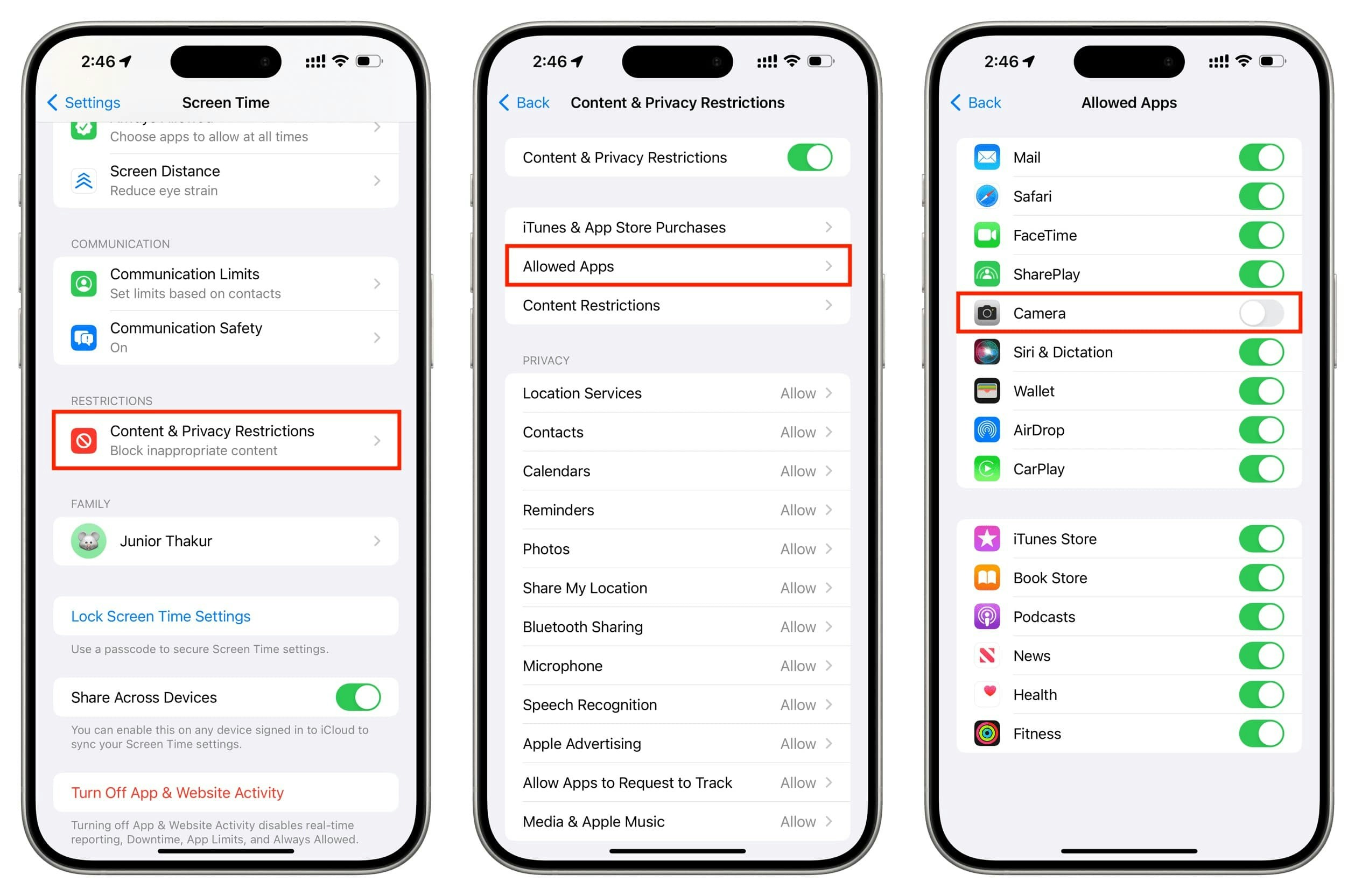
Go to Privacy & Security
Go to 「Settings」 → 「Privacy & Security」.
2
Select Camera
Select 「Camera」.
3
Allow app permission
Find your app name in the app list and turn the toggle ON.
4
Restart the app
Fully close the app, then restart it and try shooting.
Even when using an in-app browser (WebView), shooting is not possible if iOS app camera permission is turned off.
Please Check After Changing Settings
1
Refresh the page
After allowing all permissions using the methods above, please refresh the page (F5 or pull to refresh).
2
Fully close app and restart
If you’re using an app, please fully close it from the recent apps list and restart.
3
Try another browser
If problems persist, try again in another browser (other than Chrome / Safari) or contact customer support. If the camera fails to open on Android or in an in-app browser (WebView), also see Android & WebView Camera Troubleshooting.
This guide page is designed to supplement the technical limitation where browsers cannot re-request camera permission after it has been denied once. Please follow the steps above in order to use the service.