

Understanding the Problem
This error occurs when WebAssembly functionality is blocked by iOS security settings or browser environment. In particular, when Lockdown Mode is enabled, WebAssembly execution is forcibly blocked in Safari, causing aReferenceError: Can't find variable: WebAssembly error. Check each method below one by one.
Solutions
1. Check and Disable Lockdown Mode
If Lockdown Mode is enabled on iOS 16 or later, WebAssembly will be blocked. Lockdown Mode is hidden at the bottom of the menu due to its high security level.1
Open Settings app
Open the Settings app on your iPhone.
2
Navigate to Privacy & Security
Select the Privacy & Security menu.
3
Scroll to the bottom
Scroll to the very bottom (all the way down) of the screen.
4
Check Lockdown Mode
Find the Lockdown Mode option at the bottom of the Security section and check its current status.
5
Disable Lockdown Mode
If Lockdown Mode is set to On, tap the toggle to change it to Off.
If the Lockdown Mode menu is not visible:
- Check iOS version: Lockdown Mode is only supported on iOS 16 or later. If you’re using iOS 15 or earlier, this menu will not appear. (You can check your version in Settings > General > About)
- Device restrictions: In rare cases, if your device is managed by a company or school with an MDM (Mobile Device Management) profile installed, certain security settings may be restricted and the menu may not be visible.
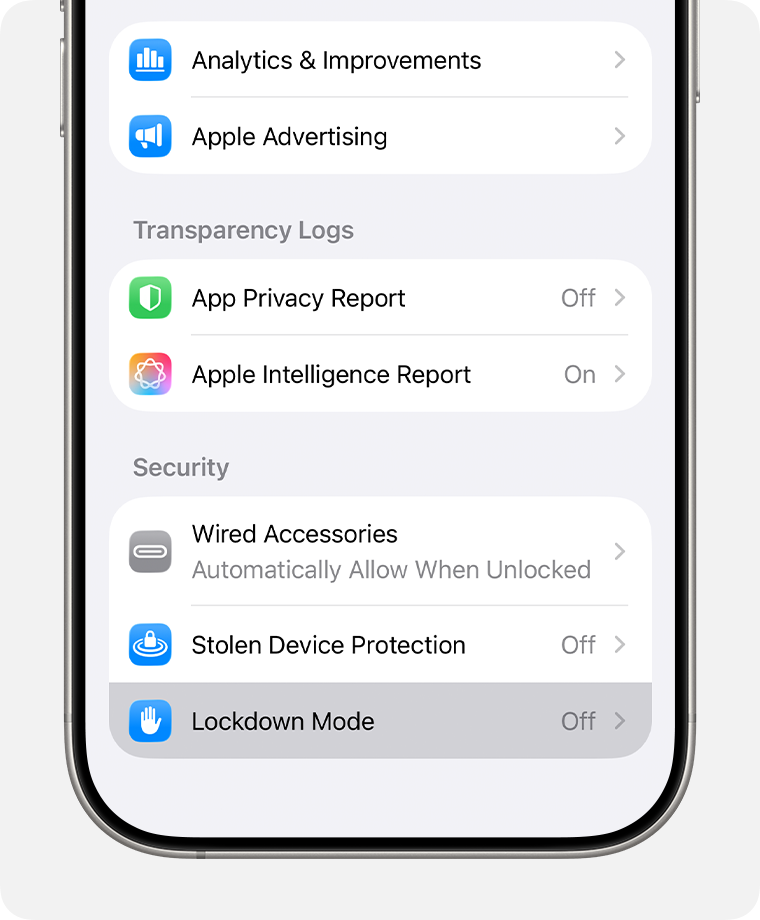
iOS Settings > Privacy & Security > Security section showing Lockdown Mode location
2. Open in Safari Browser Directly
Issues may occur when using in-app browsers or apps added to the home screen.1
Open Safari browser
Launch the Safari app directly on your iPhone.
2
Enter URL in address bar
Enter the full address of the ID Check page in Safari’s address bar.
3
Retry the page
Refresh the page or start over from the beginning.
3. Check Safari Experimental Features
WebAssembly may be disabled in Safari’s experimental features settings.1
Open Settings app
Open the Settings app on your iPhone.
2
Navigate to Safari
Select the Safari menu.
3
Select Advanced
Select the Advanced menu at the bottom of the screen.
4
Check Experimental Features
Select the Experimental Features menu.
5
Verify WebAssembly
Find the WebAssembly item in the list and verify it is set to On.
WebAssembly is enabled by default in most recent iOS versions. However, if it was manually changed previously, you may need to verify this setting.
4. Check iOS Version
WebAssembly is only supported on iOS 11 or later.1
Open Settings app
Open the Settings app on your iPhone.
2
Select General
Select the General menu.
3
Check About
Select the About menu.
4
Check Software Version
Check your current iOS version in the Software Version item.
5. Clear Cache and Data
The issue may be caused by browser cache or stored data.1
Open Safari settings
Go to Settings > Safari.
2
Clear History and Website Data
Select Clear History and Website Data.
3
Confirm
Select Clear in the confirmation message.
4
Retry the page
Open Safari again and reload the ID Check page.
If the Problem Persists
If you’ve tried all the methods above and the problem still persists:- Restart device: Turn off your iPhone completely and turn it back on.
- Restart Safari app: Completely close the Safari app and launch it again.
- Check network: Verify you’re using a stable Wi-Fi or cellular connection.
In most cases, disabling Lockdown Mode or opening the page directly in Safari browser resolves the issue. If the problem persists, please contact customer support.