

MCP overview
Connecting the ARGOS Identity MCP server to ChatGPT gives you instant access to the latest developer guide from both the web and desktop apps. The steps below apply to both platforms, and once the server is added it syncs across your entire account.Only ChatGPT Plus, Team, and Enterprise accounts can enable the MCP beta. Make sure Settings → Apps & Connectors → Advanced settings -> Developer mode (BETA) is turned on.
Requirements
- Latest ChatGPT web or desktop application
- ChatGPT account with the MCP beta enabled
- Stable network connection
1. Copy the ARGOS Identity MCP server URL
- Copy the Web URL provided at the bottom of this guide.
2. Register the MCP server in ChatGPT
1
Enable ChatGPT beta mode
- Open Settings from the lower-left profile menu.
- In Apps & Connectors, enable Advanced settings at the bottom.
2
Add the Argos Identity MCP server
- From Settings, return to Apps & Connectors.
- Click Create at the top of the panel.
- Paste
https://developers.argosidentity.com/mcpand name the connectorargosidentity. - Change Authentication to No authentication, then click Create.
3
Verify the connection
- Start a new chat and open Connectors → MCP in the left sidebar.
- Confirm that
argosidentityis listed, then try a prompt like@argosidentity "Summarize the MCP connector setup guide"to ensure it responds.
If the reply cites ARGOS Identity documentation, the connector is working.
2-1. Screen walkthrough
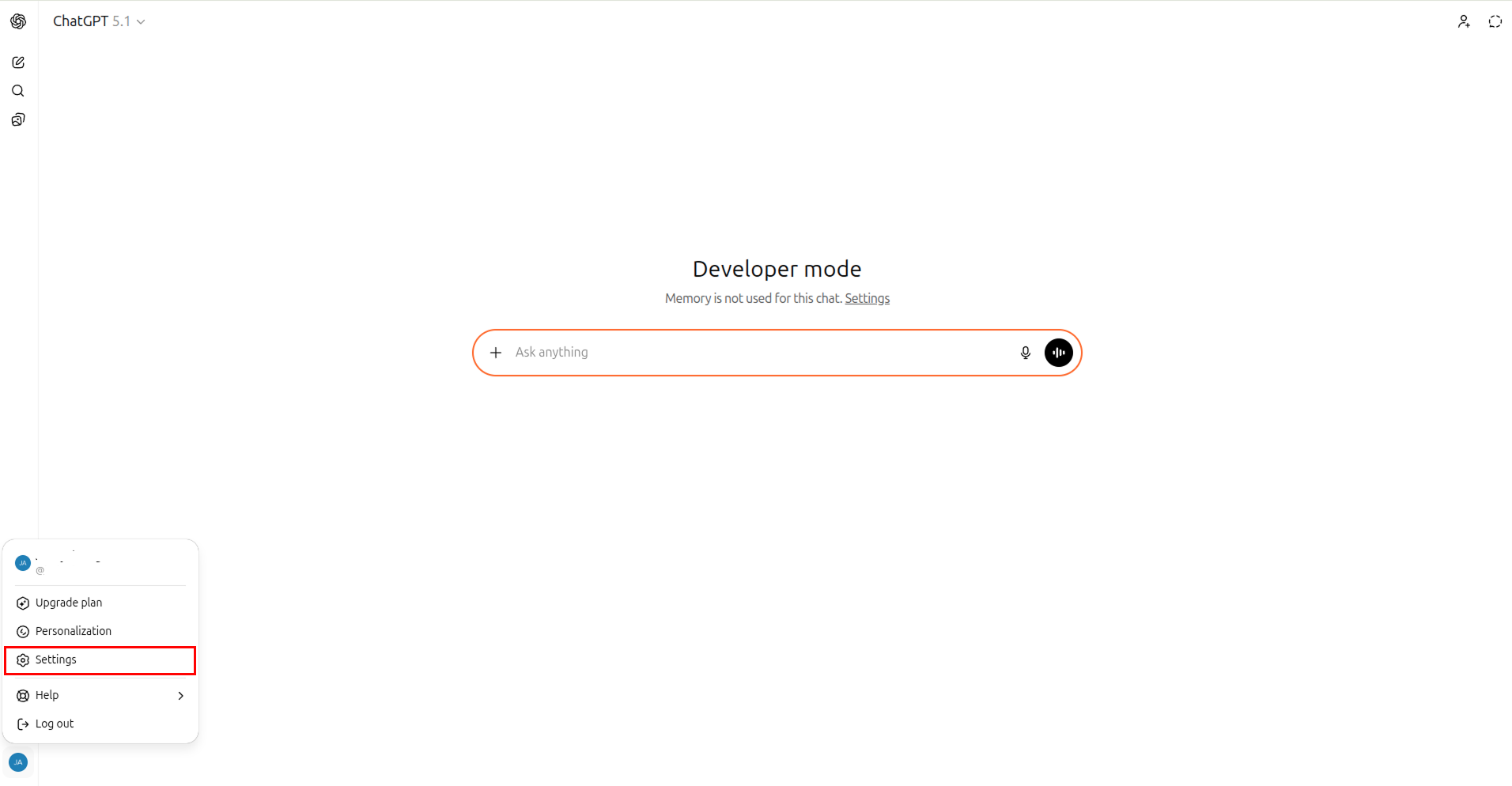
- Select Settings from the lower-left profile menu
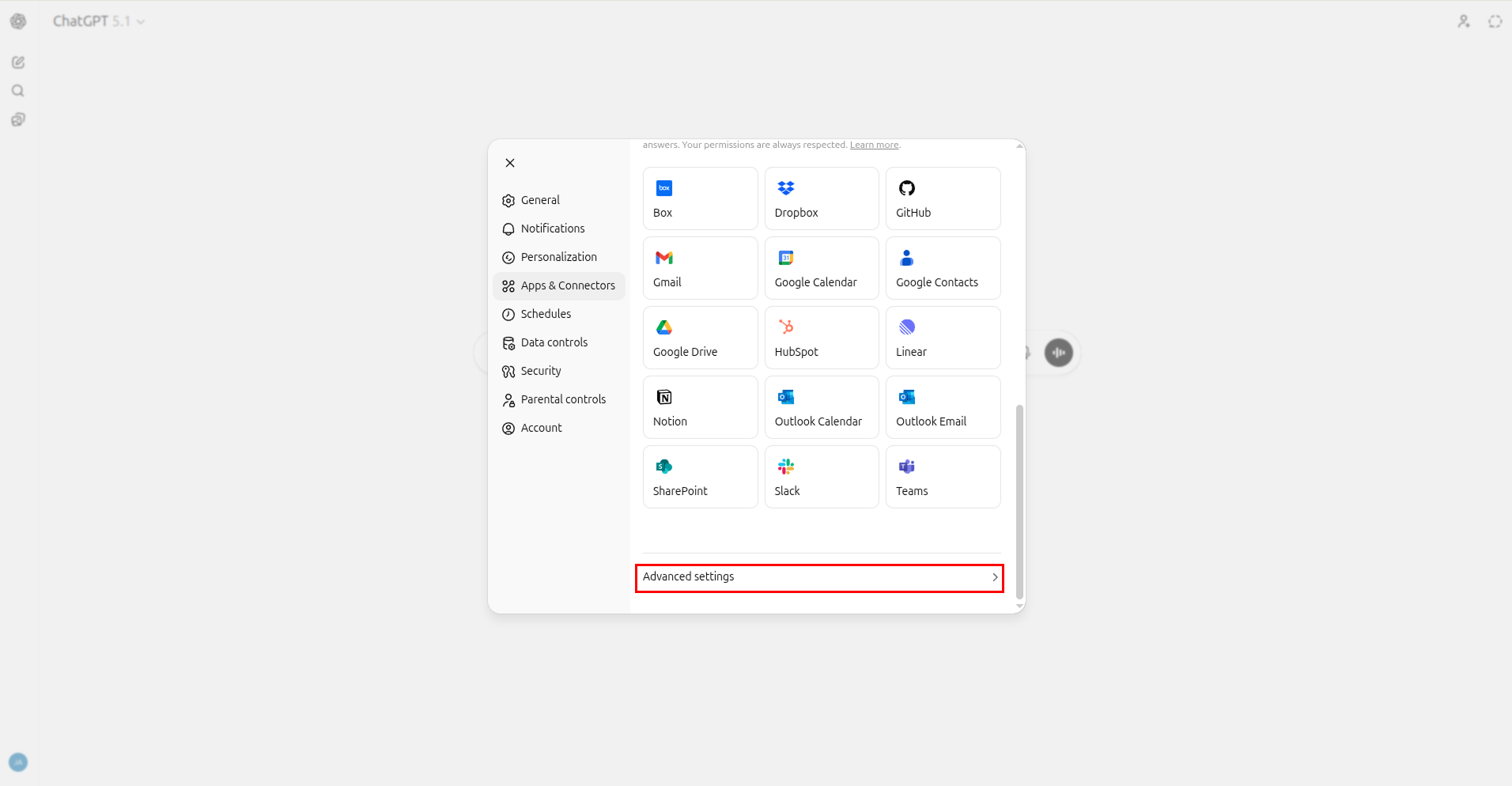
- Open Apps & Connectors and enable Advanced settings
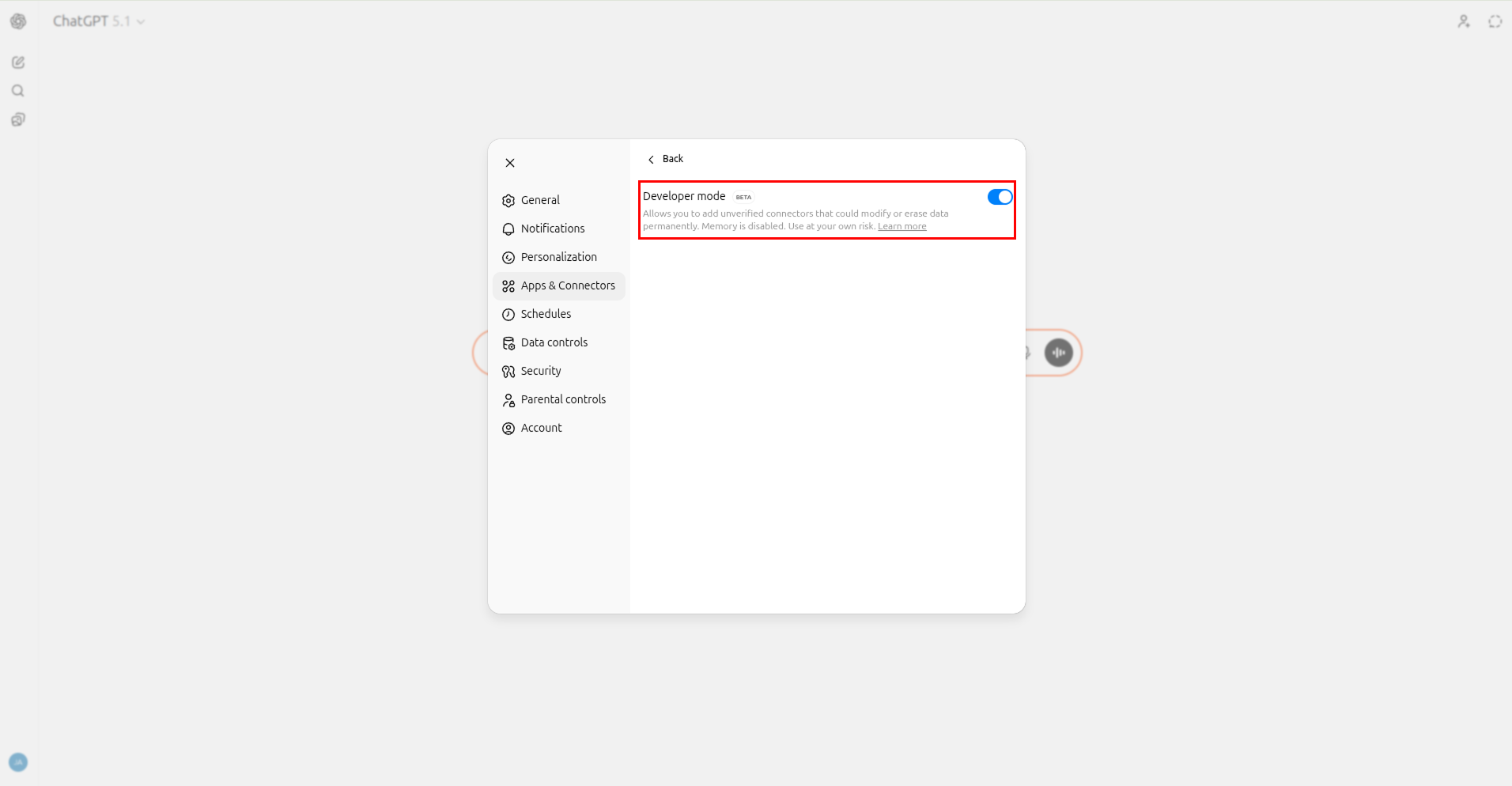
- Turn on Developer mode
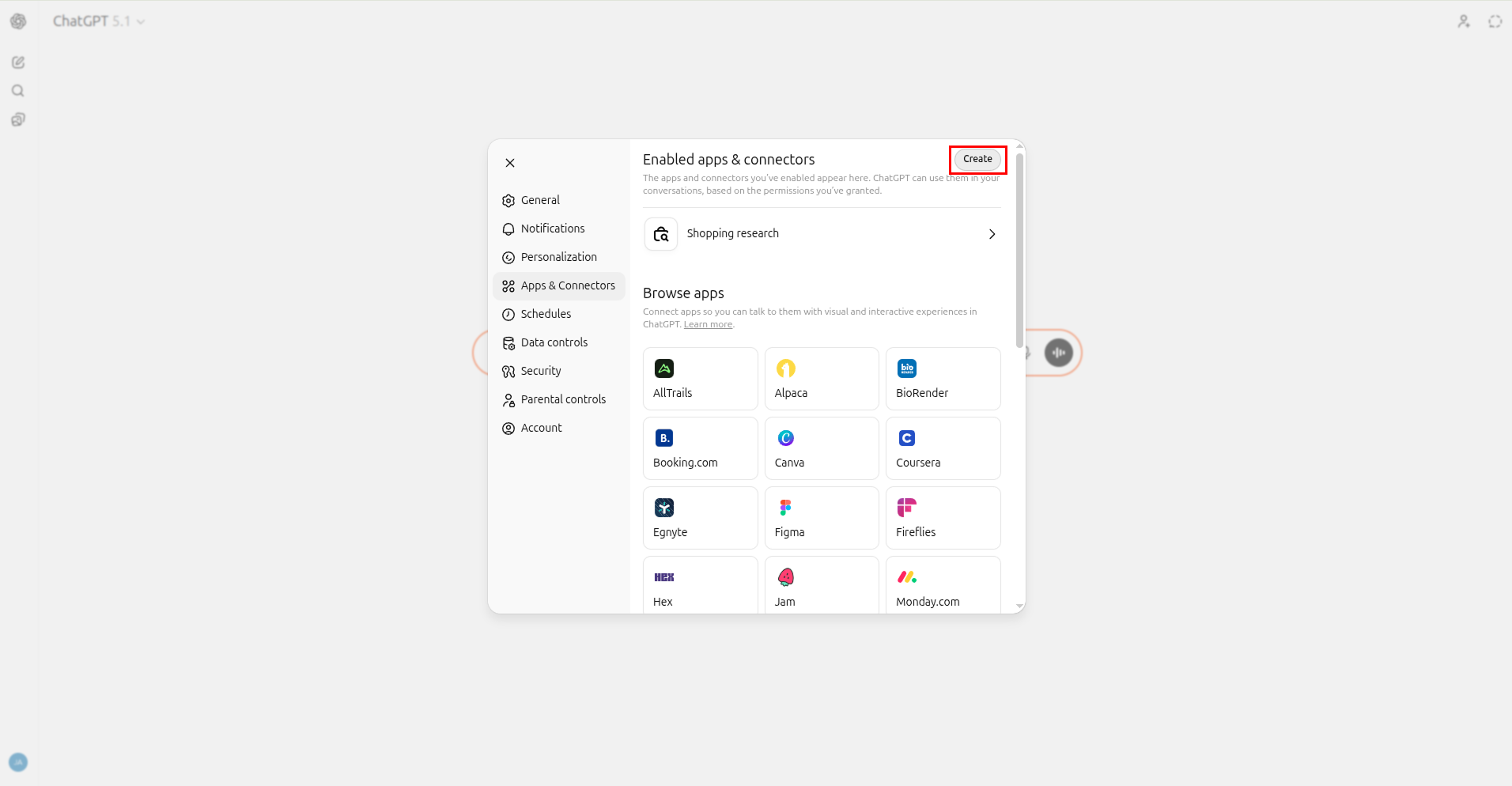
- Click Create at the top of the Apps & Connectors panel
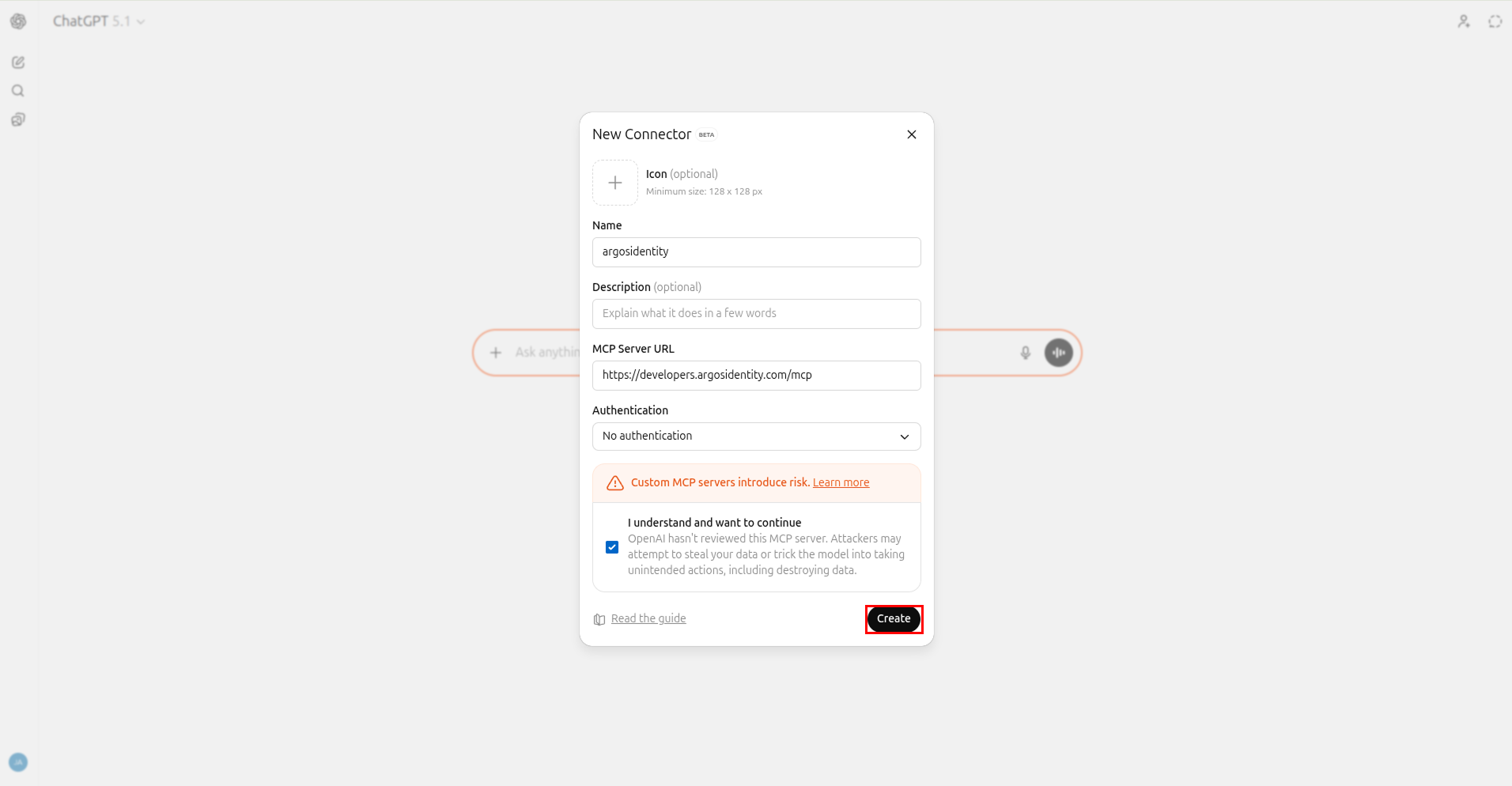
- Enter the ARGOS Identity MCP server details
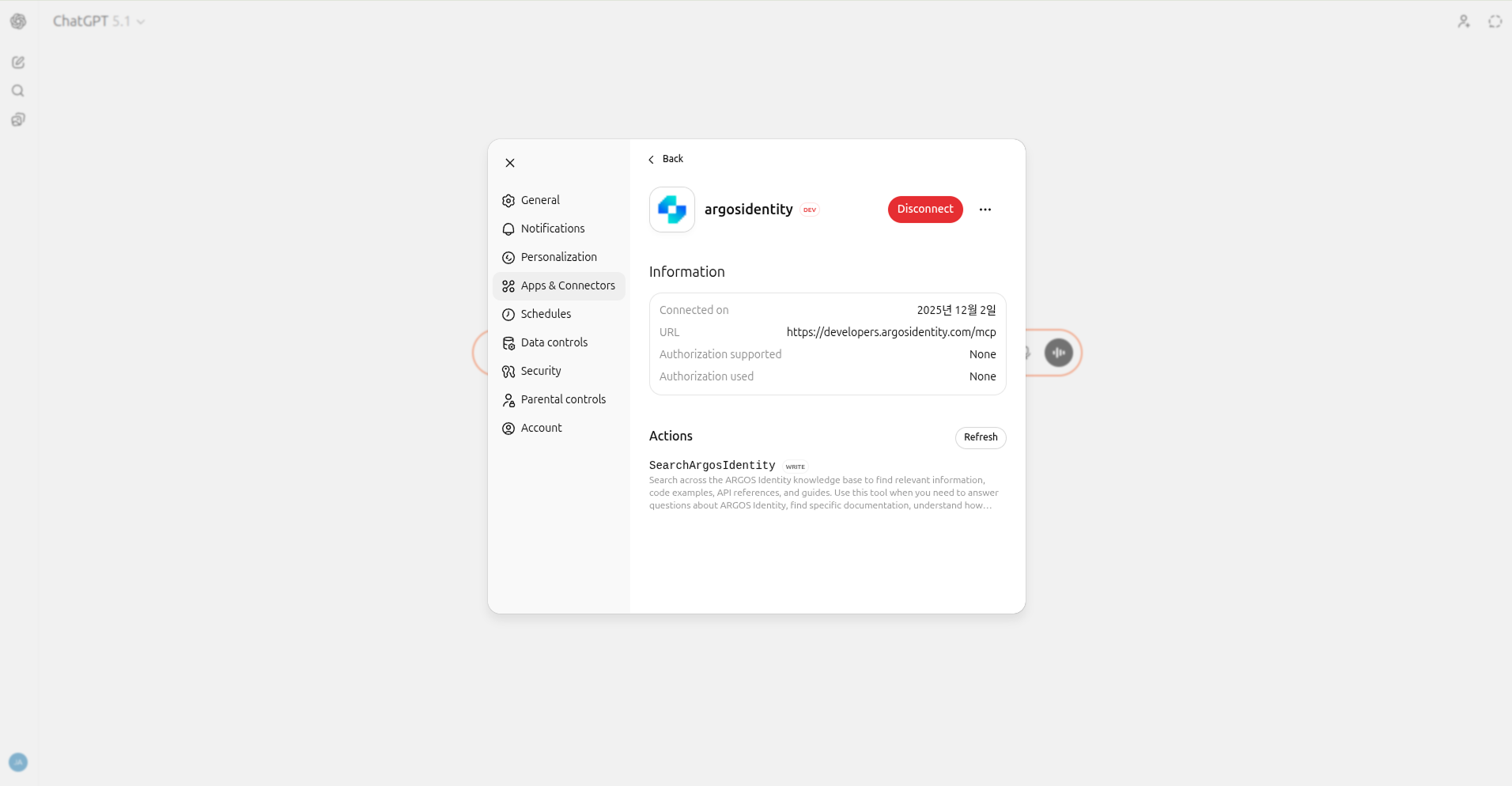
- Check that argosidentity is connected
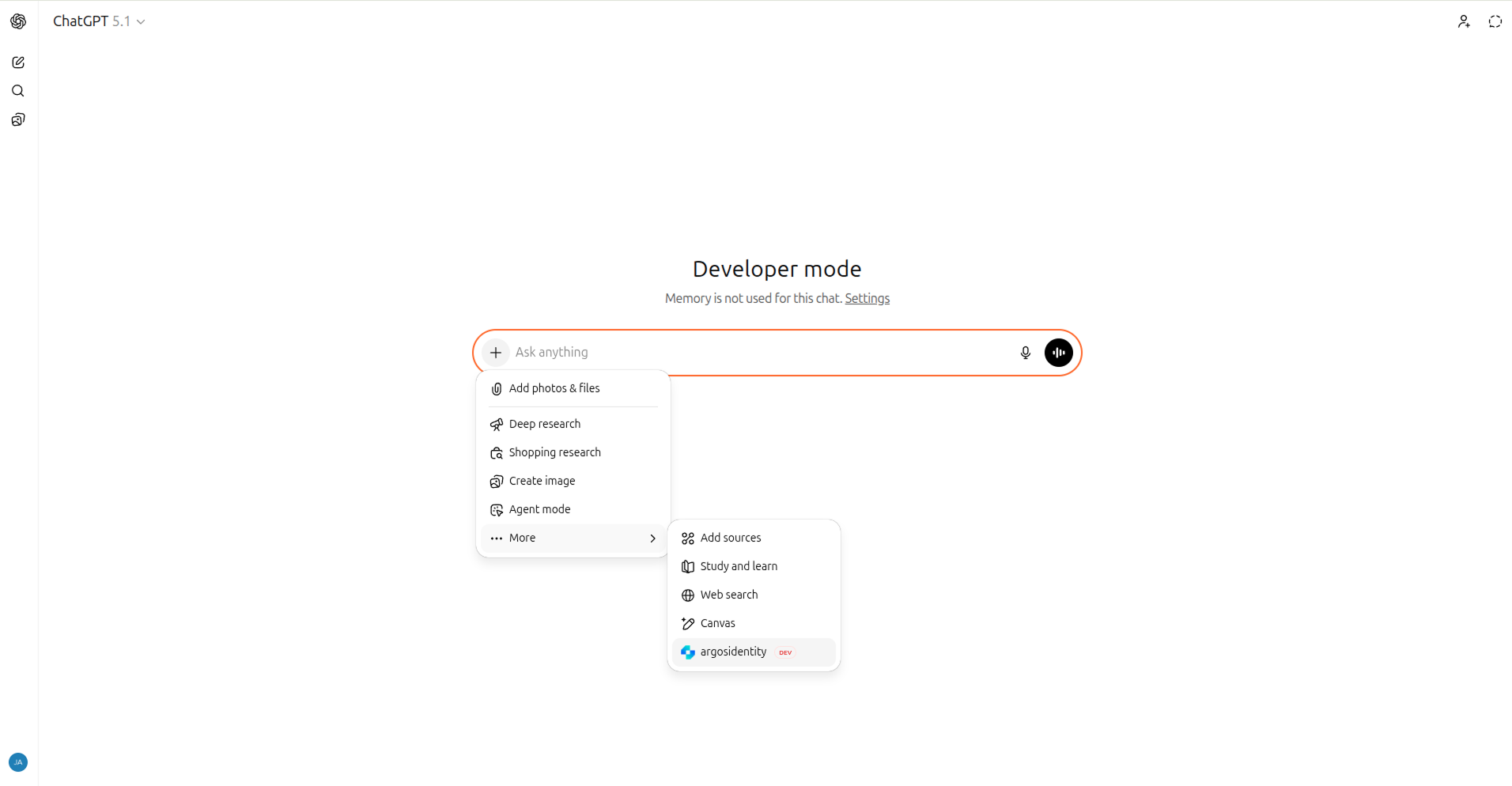
- Confirm argosidentity appears in the Connectors list
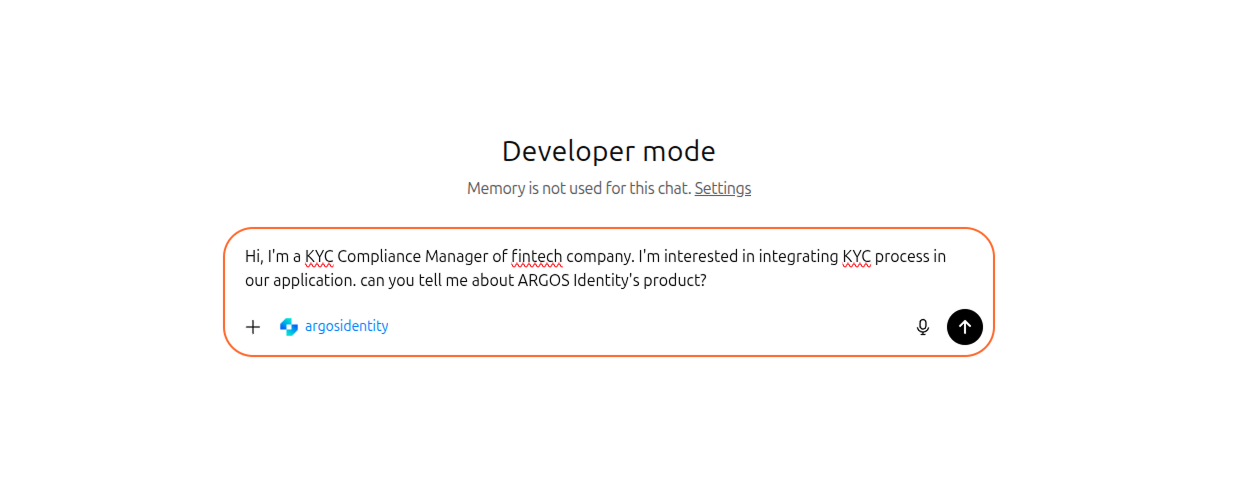
- Ask a question through the MCP connector
3. Use the connector (prompt examples)
- Always prefix detailed questions with
@argosidentity MCPto ensure the correct source is used. - Remember that deleting the connector on one platform removes it everywhere because the settings sync per account.
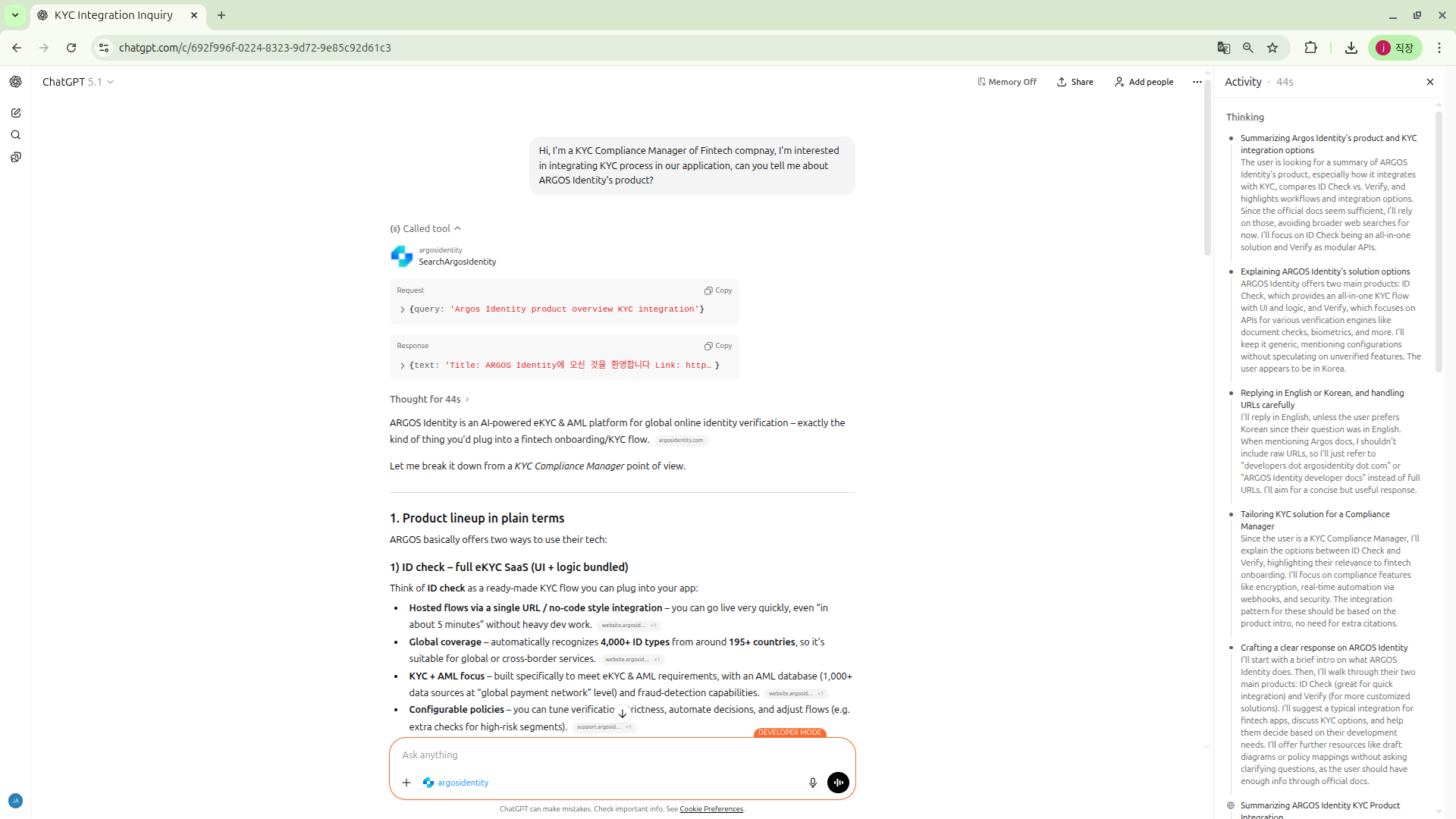
Example response from ARGOS Identity MCP
4. Troubleshooting
Connector is added but responses fail
Connector is added but responses fail
- Remove any trailing slash (
/) from the URL and save again. - Ensure
developers.argosidentity.comis not blocked by your firewall. - If you still get no response after 5 minutes, click Reconnect in the connector list to refresh the session.
Using web and desktop simultaneously
Using web and desktop simultaneously
- Connector settings sync at the account level, so deleting it on one platform removes it everywhere.
Next steps
- Explore additional prompt strategies in the
Developer-Guide-MCPsection. - Combine ChatGPT Custom Instructions with MCP to keep answers aligned with your internal style.
- While developing, attach MCP to tools like Cursor so you can pull documentation without leaving the IDE.