

Fix verification failures caused by inaccurate device time
If identity verification keeps failing, your phone clock might be out of sync with the actual standard time. Follow the instructions below to enable automatic time sync and retry the verification flow within minutes.When the device time drifts more than five minutes, security tokens become invalid and KYC requests fail immediately.
Before you start
- Keep the phone connected to Wi-Fi or mobile data so the network time can sync properly.
Turn on automatic date and time
- Android
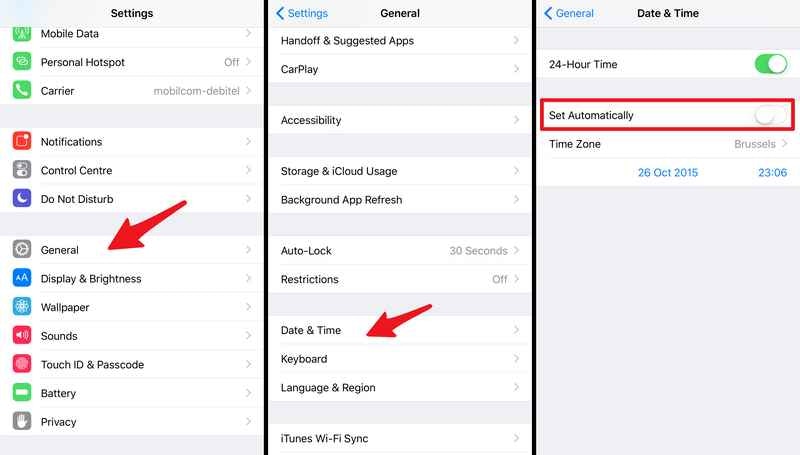
- iOS
1
Find the Date & Time menu in Settings
Open the Settings app and go to System → Date & Time. Depending on your manufacturer, the path can appear as General management → Date & Time or Additional settings → Date & Time.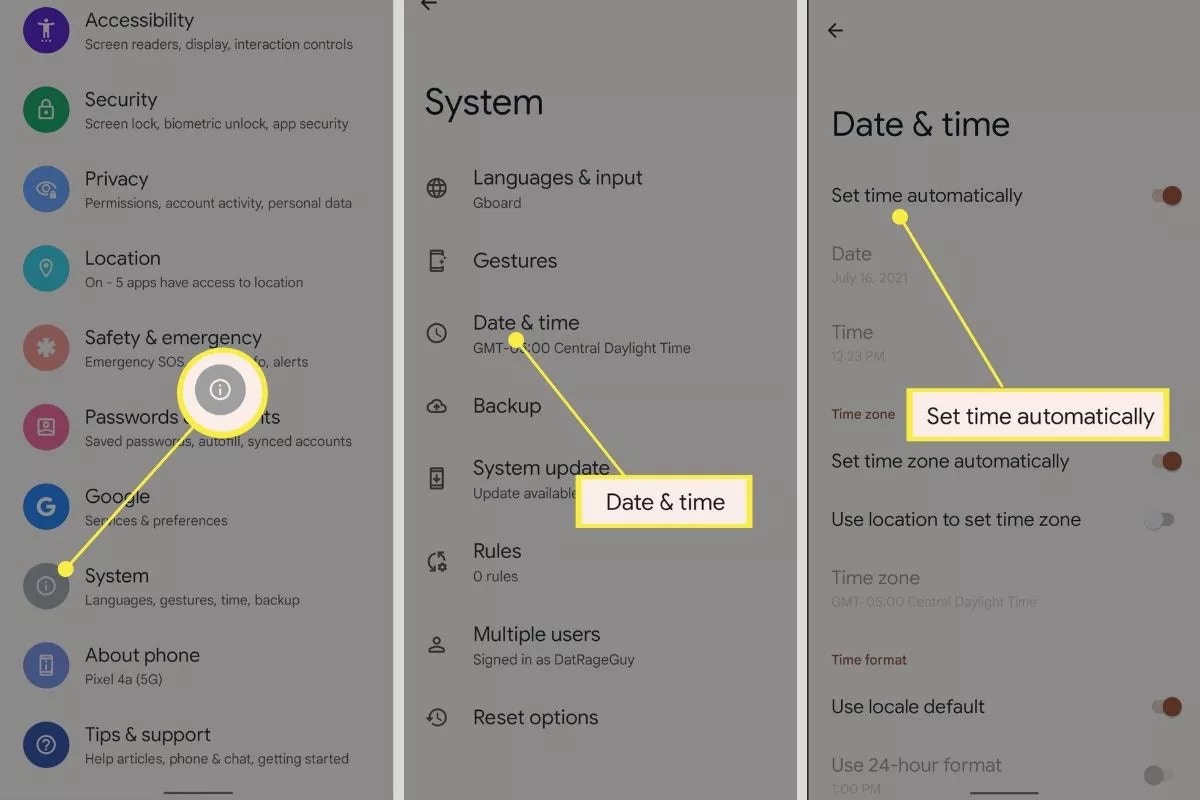
2
Enable automatic time updates
Turn on
Use network-provided time or Set time automatically. Your carrier’s time information applies immediately to the phone clock.3
Enable automatic time zone
Toggle
Use network-provided time zone so the correct offset applies even when you travel.If the Clock app now shows the same time as an online standard clock, you are all set.
4
Retry identity verification
Close Settings, reopen the verification flow, and continue the process. Most requests pass right away after the sync.
Verify the fix
- Open the Clock app and confirm the time matches a reliable online time source.
- Toggle airplane mode on and off once to trigger another quick sync.
- Force-quit the verification app and relaunch it to clear cached time data.
Frequently asked questions
Automatic time is on, but verification still fails
Automatic time is on, but verification still fails
- Reboot the phone and walk through the same steps again.
- If the failure persists, capture a screenshot of the error, note the time it occurred, and send both details to support for deeper investigation.
The time looks correct, yet I get a different error
The time looks correct, yet I get a different error
- The issue may be related to ID photo capture, network latency, or other app-specific checks.
- Share the screenshot and timestamp with support so they can correlate the failure with backend logs.