

Tab Structure
Verification data settings consist of two tabs:- General
- Duplicate and Submission Management
Data conversion and storage related options
- Automatic English translation of submission names
- Partial data deletion
- Custom DI (Duplicate Information)
- ID Document PII Masking - Korea
General
Set data conversion and storage related options.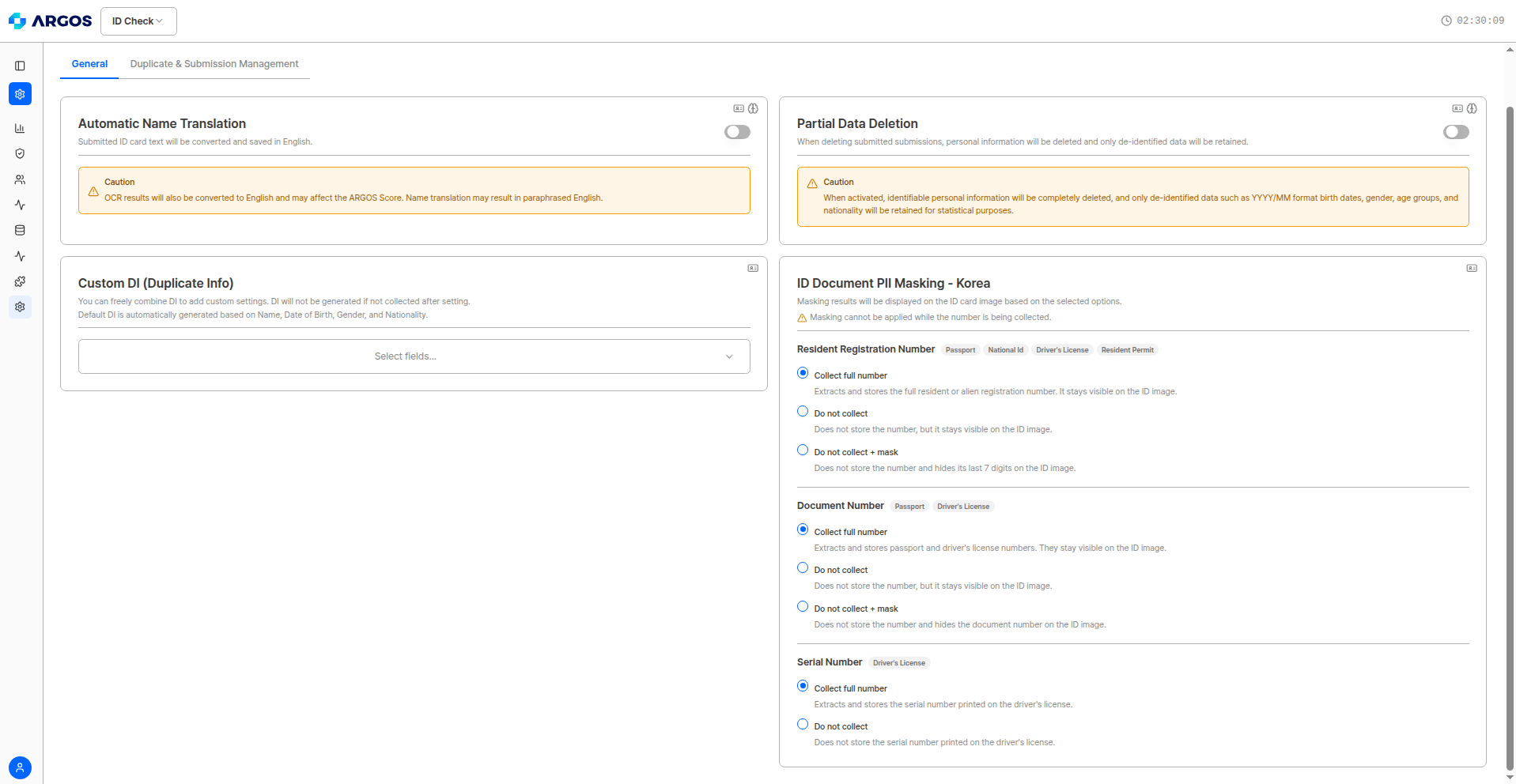
General Settings Tab
Automatic English Translation of Submission Names
Text from submitted IDs is changed to English for display and storage.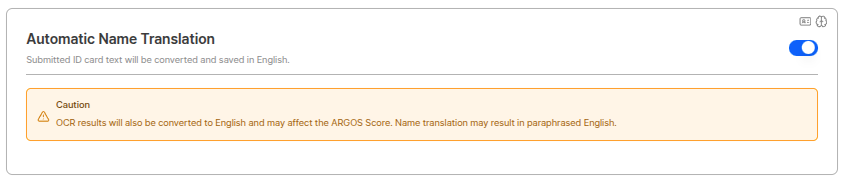
Automatic English Translation of Submission Names Settings
Usage ScenariosWhen providing global services, IDs in various languages can be unified to English to facilitate data management and search.
Partial Data Deletion
When a submitted Submission is deleted, personal information is deleted and only de-identified data is maintained.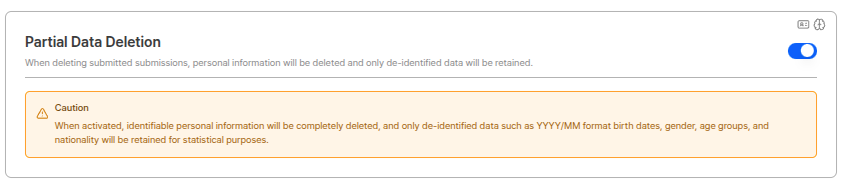
Partial Data Deletion Settings
Partial Data Deletion UsageUsed when you want to delete Submissions for privacy protection law compliance but maintain de-identified data for statistical and analysis purposes. Deleted data cannot be recovered, so set carefully.
Custom DI (Duplicate Information)
You can freely combine DI (Duplicate Information) for additional settings. If not collected after setting, DI is not generated.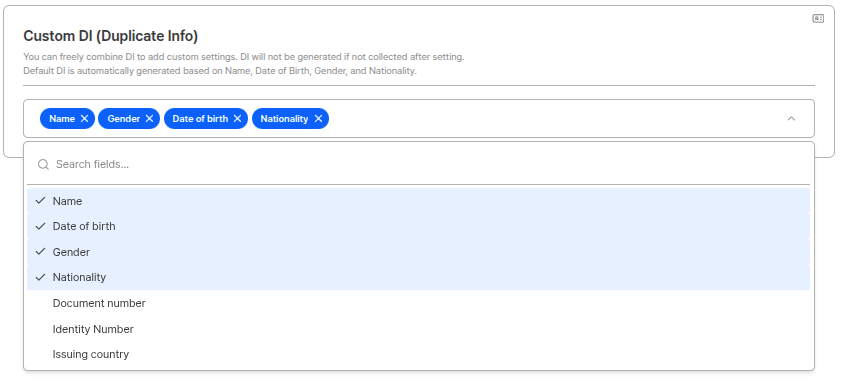
Custom DI Settings
Default DIDefault DI is automatically generated based on name/date of birth/gender/nationality/portrait (face on ID). Custom DI allows more detailed duplicate detection by combining fields in addition to default DI.
DI Generation ConditionsDI value is generated only when name, date of birth, gender, nationality, and portrait, etc. are all provided. If a submitter’s identity has been verified through ARGOS Identity service, the existing DI value is maintained even when authenticated in a different project.
ID Document PII Masking - Korea
New in August 2026 — This masking option was previously configurable only from the internal ARGOS console. You can now control it directly from the dashboard.
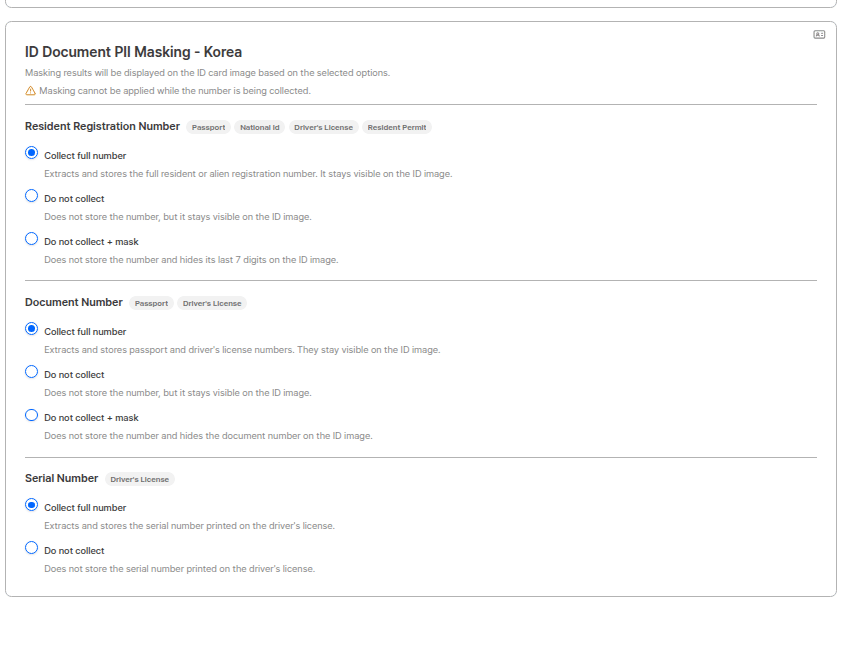
ID Document PII Masking - Korea
Settings per number type
Each number type applies to a different set of documents and offers a different set of options.Serial Number has no masking option. For the serial number printed on a driver’s license you can only choose whether to collect it; it cannot be hidden on the ID document image.
What each option does
Do not collect and Do not collect + mask both skip storing the number. The difference is whether the number remains visible on the ID document image.
The masked area differs per number type:
- Resident Registration Number: hides the last 7 digits. (The first 6 digits, the date of birth portion, stay visible.)
- Document Number: hides the whole passport number / driver’s license number area.
Usage scenarioIf your service has no legal basis for storing resident registration numbers, choose Do not collect + mask to block both storage and image exposure at once.Note that some industries are legally required to collect the full number. Financial institutions, for example, must collect the full resident registration number under Korean credit information and tax law. Check the collection obligations for your industry in the fintech industry guide before changing this setting.
Duplicate and Submission Management
Set duplicate check pipeline and submission restriction related options.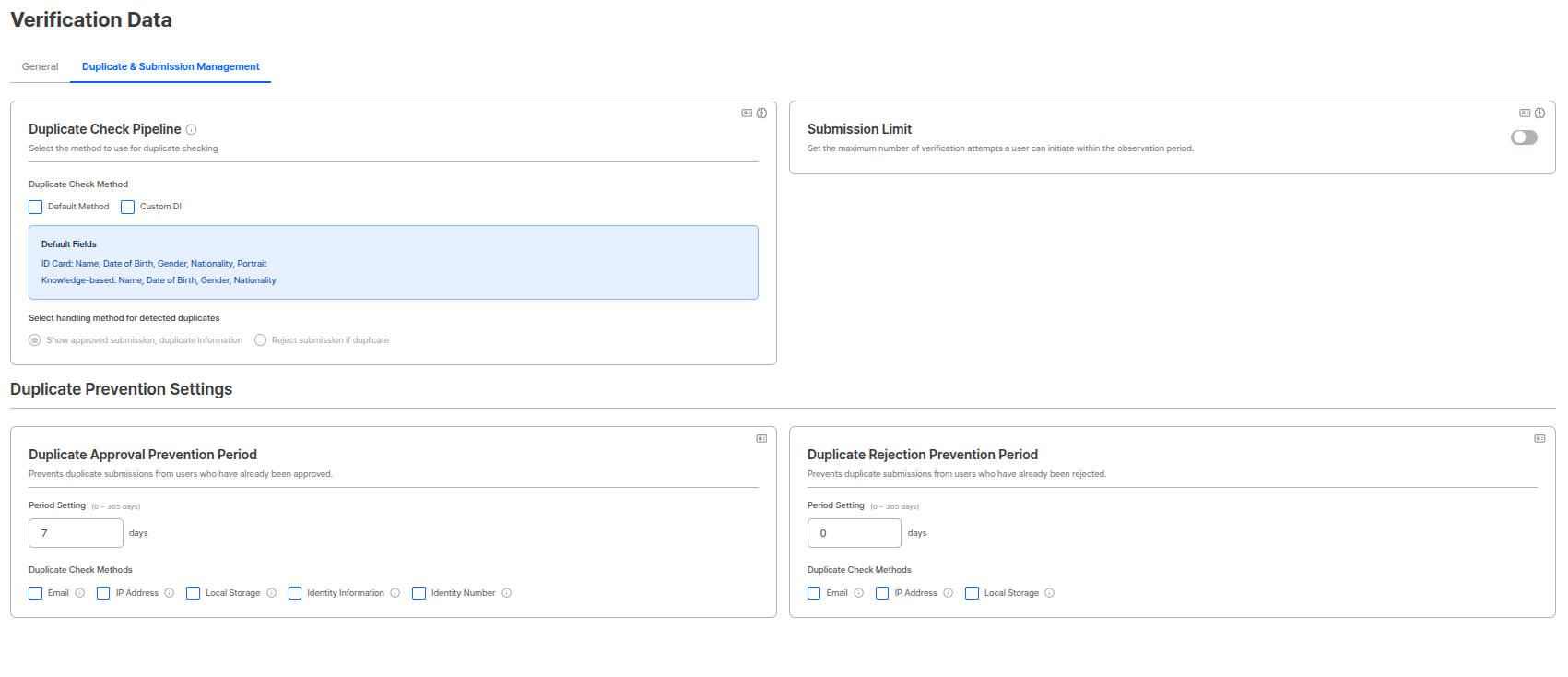
Duplicate and Submission Management Settings Tab
Duplicate Check Pipeline
Select the pipeline to use for duplicate checks. Both default method and custom DI pipelines can be selected, and the duplicate value from the first detected pipeline during detection is used.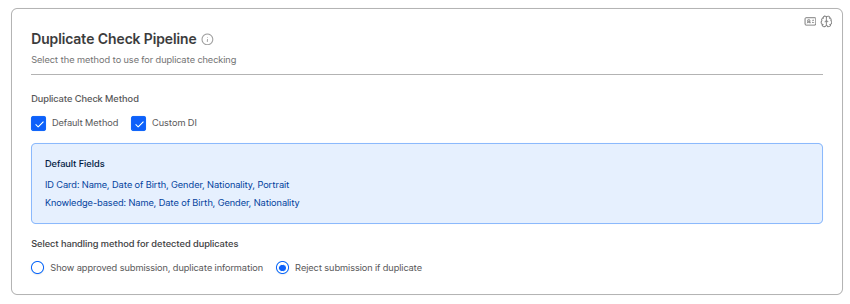
Duplicate Check Pipeline Settings
Pipeline Selection
Select the pipeline to perform duplicate checks. Both pipelines can be selected, and can be checked/unchecked with checkboxes.Pipeline Operation MethodWhen both default method and custom DI pipelines are selected, both pipelines run simultaneously. The duplicate value from the pipeline where duplicate is first found during detection is used.
Default Method Pipeline Operation
The default method pipeline proceeds as a type of filter function when detecting duplicate users using DI, and checks for duplicates in the following order when searching the database: DB Search Order:- Exact Matching (Exact match)
- Fuzzy Matching (Similar match)
- Compare Face (Face comparison)
Duplicate Judgment Process:
When passing each filter stage sequentially, it proceeds to the next stage. Users who pass all filters are judged as duplicate users.
Filter Pass ConditionsWhen a user matching conditions is found at each filter stage, it proceeds to the next stage. Only when all stages are passed is it judged as a duplicate user, so cases where only some information matches are not detected as duplicates.
Default Fields
Default fields used for duplicate checks by pipeline are as follows:Processing When Duplicate Detected
Select the processing method for submissions detected as duplicates. (Radio button)Duplicate Check Pipeline UsageWhen operating a one-person-one-account policy, you can activate the duplicate check pipeline to prevent creating multiple accounts with the same identity information. Selecting both default method and custom DI pipelines enables more accurate duplicate detection.
Submission Rate Limiting
Sets the maximum number of verification attempts a user can make within the same period. Operates in Window Sliding method to effectively block excessive submission attempts by malicious users.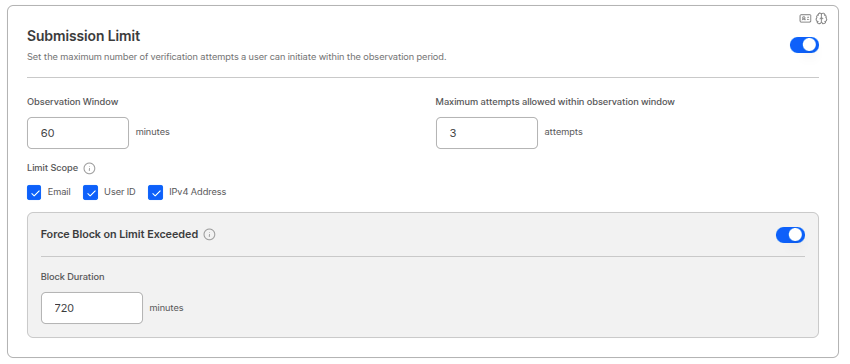
Submission Rate Limiting Settings
Operation Method (Window Sliding)
Submission rate limiting operates in Window Sliding method. Based on when the last submission came in, it goes back by the set time window (Window) and checks the number of submissions within that period. Operation Principle:- User attempts submission.
- System goes back by the set time window (e.g., 1 hour) from the last submission point.
- Checks the number of submissions within that time window.
- If allowed count is exceeded, blocks authentication for the remaining time of the time window.
Restriction Scope Settings
You can select criteria for detecting submission rate limiting. The following items can be combined:Restriction Scope CombinationMultiple criteria can be selected simultaneously. For example, if both email and IPv4 address are selected, blocking occurs if either criterion exceeds the allowed count.
Force Block Function
You can effectively block abusers through the force block function when limits are exceeded. Block Period Settings: You can set an additional block period for users who exceed the limit count. During this period, the user cannot attempt authentication. Usage Scenarios:- Abuser Blocking: Block users who continuously attempt submissions for malicious purposes
- Prevent Bad Attempts: Block repeated submission attempts for forgery or fraud purposes
- System Protection: Prevent system load from excessive submissions
Duplicate Approval Prevention Period
Prevents duplicate submissions from already approved users.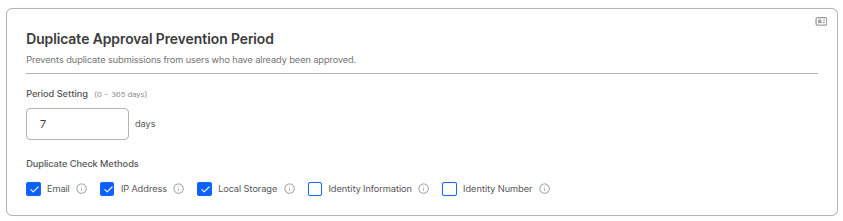
Duplicate Approval Prevention Period Settings
Period Settings
Period can be set within 0~365 days range. (Example: 7 days)Duplicate Check Method
Checks for duplicates based on the following items. (Checkboxes)- IP address
- Local storage
- Identity information: name, date of birth, gender, nationality
- Resident registration number
Duplicate Approval Prevention Period UsageIf operating a one-person-one ‘approved’ account policy, be sure to set this function. If there is an approved submission with the same information within the set period, new submissions are rejected.
Duplicate Check Field PrecautionsWhen Identity info and Identity number are set, users submitting identical information are rejected.
Duplicate Rejection Prevention Period
Prevents duplicate submissions from already rejected users.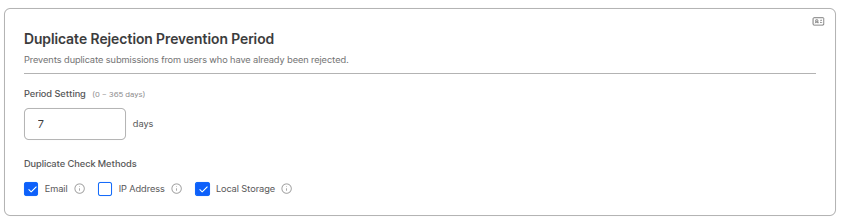
Duplicate Rejection Prevention Period Settings
Period Settings
Period can be set within 0~365 days range. (Example: 0 days)Duplicate Check Method
Checks for duplicates based on the following items. (Checkboxes)- IP address
- Local storage
Duplicate Rejection Prevention Period UsageUsed to prevent malicious users from continuously resubmitting with rejected information. Setting the period to 0 days disables this function.