In step 4, “Select AI model”, of Creating a Workflow, you choose the AI model that runs the analysis of this Workflow. The screen says “Select the AI model to use for this workflow”.

What you see on screen

The models appear as a list of cards, and you can choose only one. Each card shows the following. Models with the ARGOS badge come first in the list, and the rest follow.
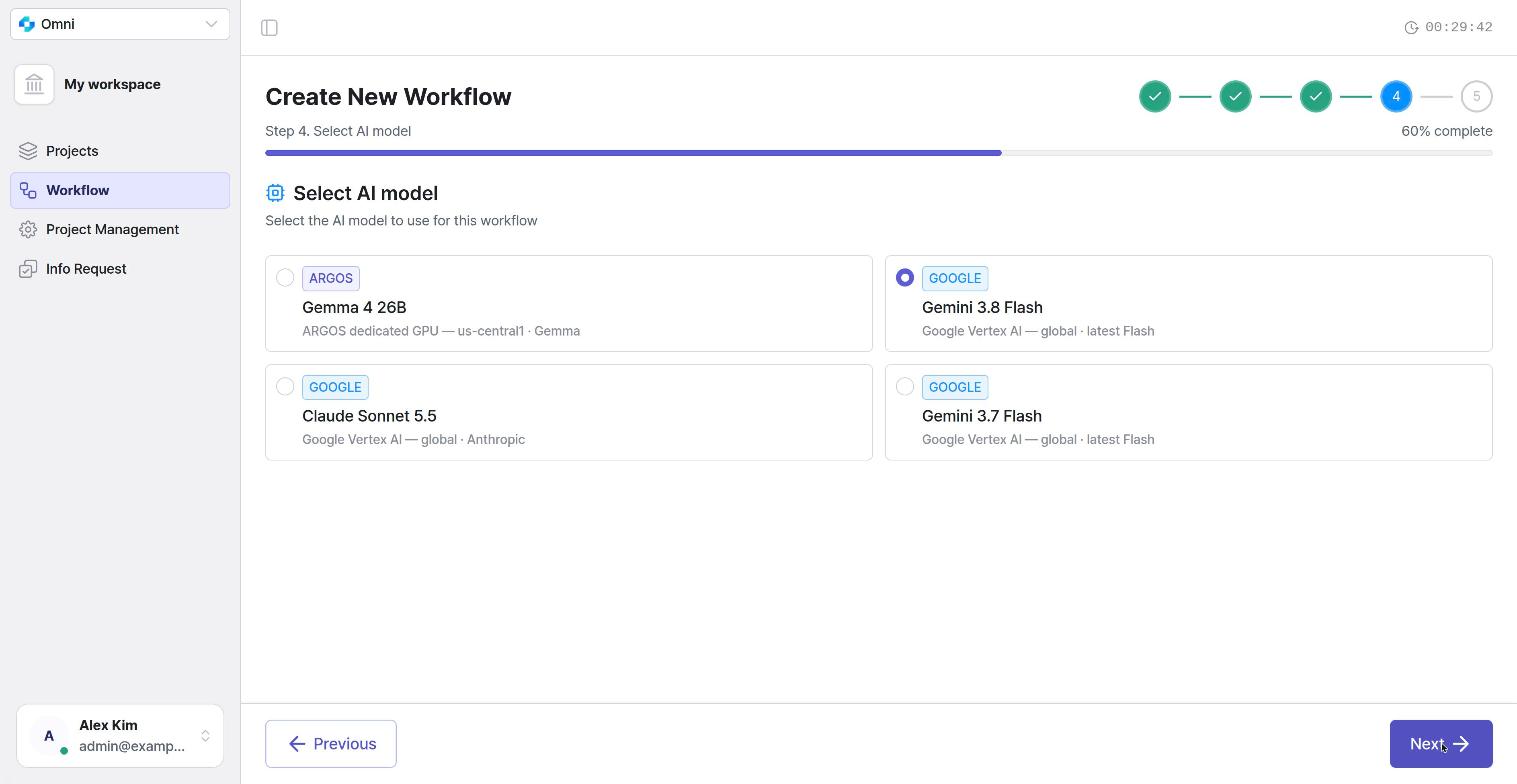
Step 4. Select AI model with the model cards

Models you can choose

The models and descriptions you actually see are those in the list on screen. The model list can change with operating settings, so if this table and the screen differ, follow the screen.

Default

If you move on without choosing anything, the default model in the list is selected. The model selected by default is Gemini 3.8 Flash. If the list cannot be loaded, you see “Failed to load the AI model list.” and a Retry button. What you entered in the other steps stays as it is. If you see “No AI models are available.”, there is no model to choose.

Credits depend on the model

The credits one analysis uses depend on the model you chose. When there are more than 5 Steps, each Step after that uses additional credits. For the exact values and how they are calculated, see Credit Pricing.

Changing it after creation

After you create a Workflow, you cannot change the AI model on the edit screen. The AI Model area of the edit screen only shows the chosen model as a card, and for a Workflow with no model selected it shows “No AI model is selected, so the default model is used.” If you want to analyze with a different model, choose that model and create a new Workflow. To use the same Policy and Output Schema, enter the same content in step 2 and step 5.