New ID_Check v2.6.11 — a new ID recognition engine improves OCR for Korean documents, PII masking is now set from the dashboard, and submissions can be searched by custom fields (cf1–cf3). See what's new →
New ID_Check v2.6.11 — a new ID recognition engine improves OCR for Korean documents, PII masking is now set from the dashboard, and submissions can be searched by custom fields (cf1–cf3). See what's new →
Build a vendor onboarding document verification workflow for real, from writing the policy to the finished playbook.
A workflow is where you tell your Review Ops Agent how the work is done. Write what to check and which criteria to decide by as a policy, and a playbook the agent runs exactly as written is built from it.You will build, from scratch, a workflow that verifies the three documents a vendor submits — a certificate of good standing, a bank verification letter, and a beneficial ownership certification. The policy text and output schema used here can be copied as they are.Workflows are created and edited only in the dashboard; the API can read them. A project holds up to 10 workflows.
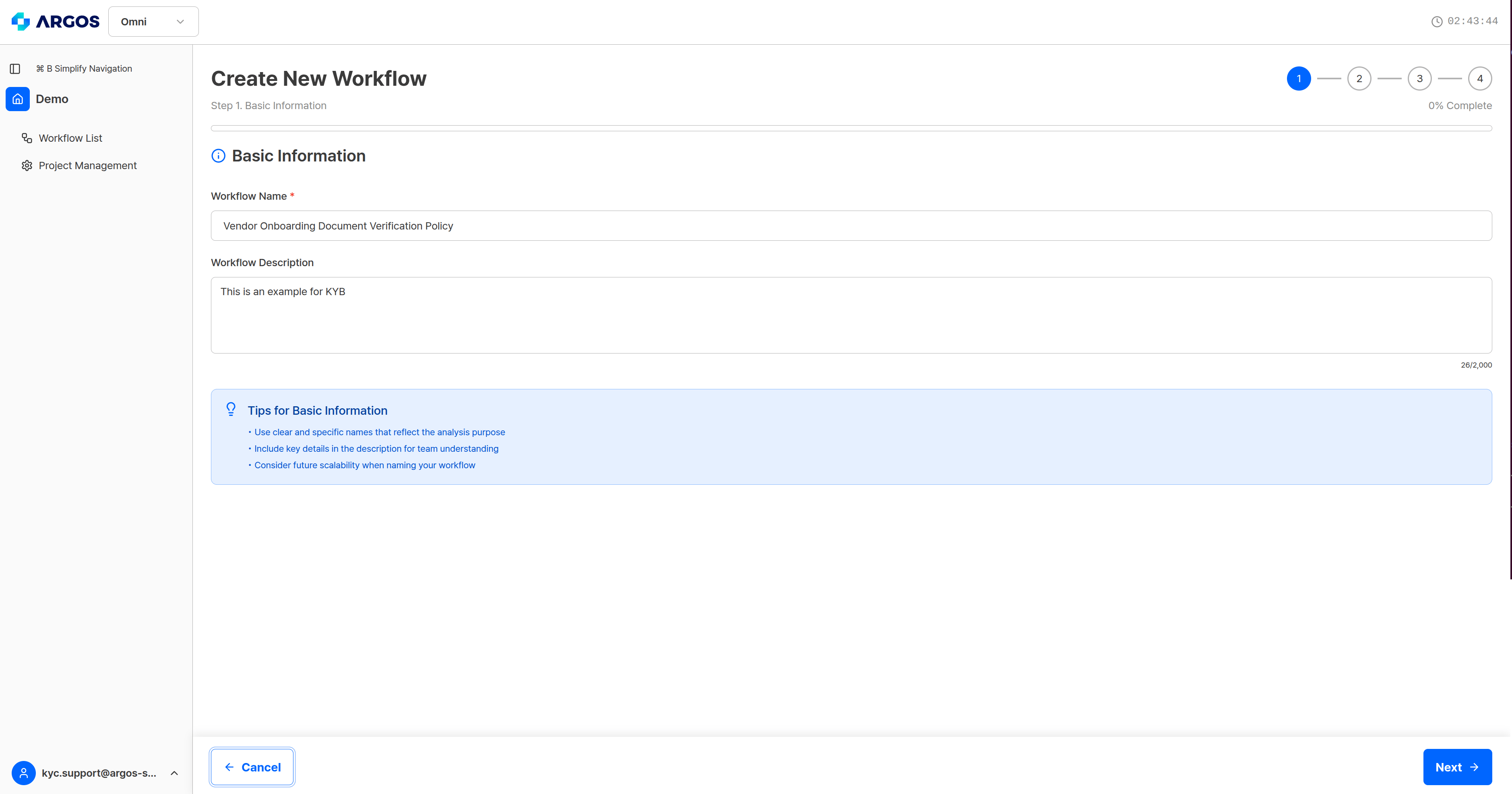
Enter the name and description. The name is how this workflow is identified in the dashboard list and in API responses. The description is for your team and has no effect on how the analysis runs.
Write, in plain language, what you verify and against which criteria. The execution plan (the playbook) is built from this text, so most of a workflow’s quality is decided here.
Vendor Onboarding Document Verification Policy1. Required documents- A certificate of good standing, a bank verification letter, and a beneficial ownership certification must all be submitted.- If any one of them is missing, mark the case for review.2. Company details- Extract the legal name, the state file number, and the registered agent from the certificate of good standing.- The account holder on the bank verification letter must match the legal name on the certificate.- The company name and state file number on the beneficial ownership certification must match the certificate.3. Registered address- Validate that the registered address on the certificate is a real, deliverable postal address.- If it cannot be validated, mark the case for review.4. Beneficial owners- Record the name and ownership percentage of every beneficial owner holding 25% or more.- If the ownership percentages total more than 100%, mark the case for review.5. AML screening- Screen the managing member's name against AML and sanctions lists.- Screen the legal entity name against AML and sanctions lists.- If either returns a match, reject the case.6. Final verdict- Mark the case verified when every condition is met, review when there is any mismatch or gap, and rejected when there is an AML match.
If there is a source regulation or an internal standard the policy has to refer to, attach it as a policy document.
Item
Limit
Format
TXT
File size
10MB
Count
5
Step 2 — entering the policy text. Attaching a document is optional.
A vague policy produces vague results. Do not write “check the documents” — write which entry you pull from which document, what you compare it against, and what verdict a mismatch produces. The techniques are in the policy writing guide.
3
Step 3 — AI model
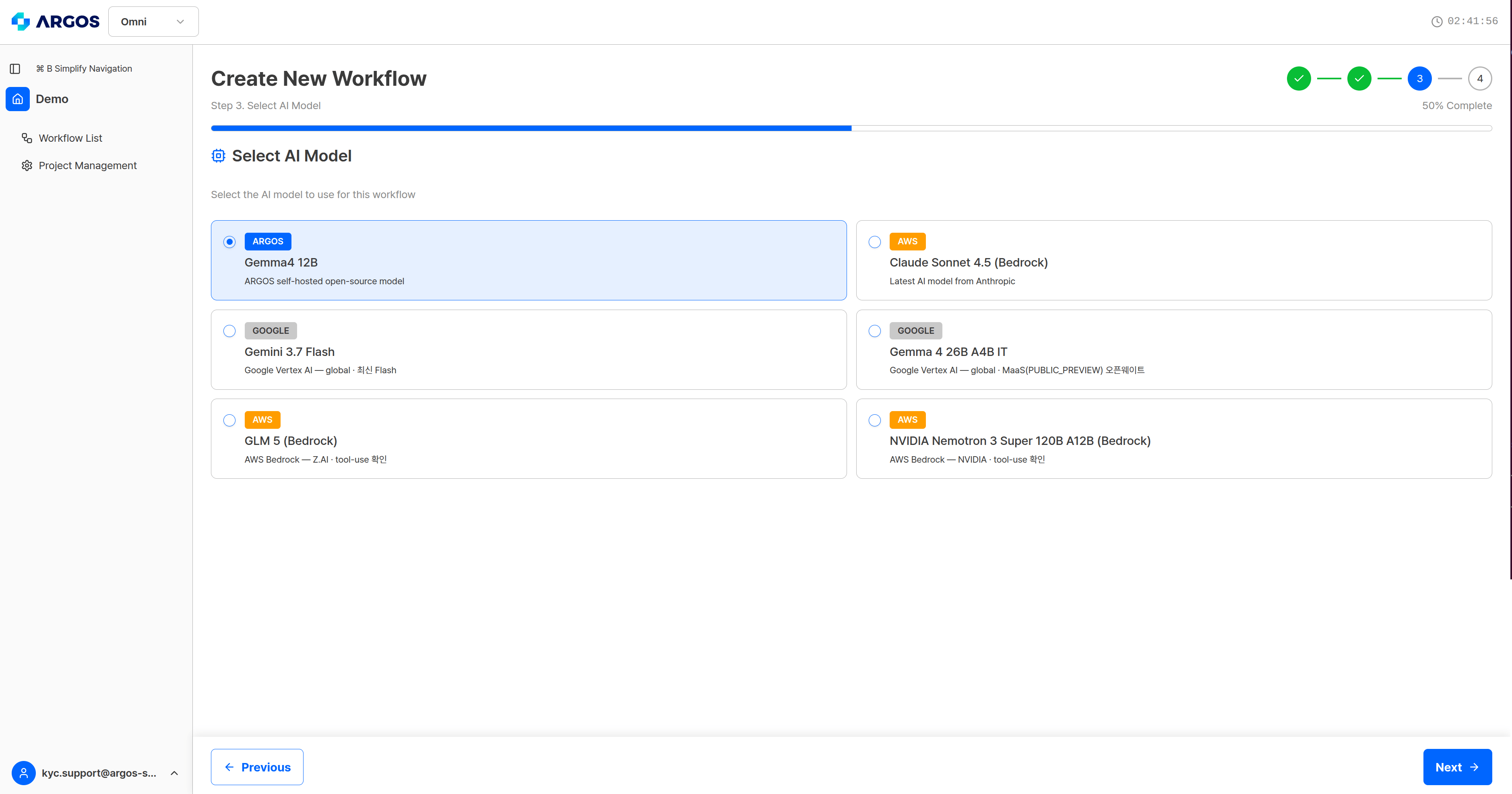
Choose the AI model that will perform the analysis. Without a choice, the default model runs, and it is enough for most document verification.
Step 3 — AI model selection. Without a choice, the default model is used.
You do not choose the engines at this step. They are assigned automatically from the content of your policy. To see which ones were attached, check the playbook action list on the completion screen, or workflowActions[].engines from GET /workflows/:workflowId. What each engine does is in AI model and engines.
4
Step 4 — Output schema
Define the JSON structure you want back from an analysis. Add rows one at a time in the Field Builder, or paste a whole schema into the JSON Schema Input tab — the two convert to each other.
Step 4 — the Field Builder. Add Field builds the schema one row at a time.
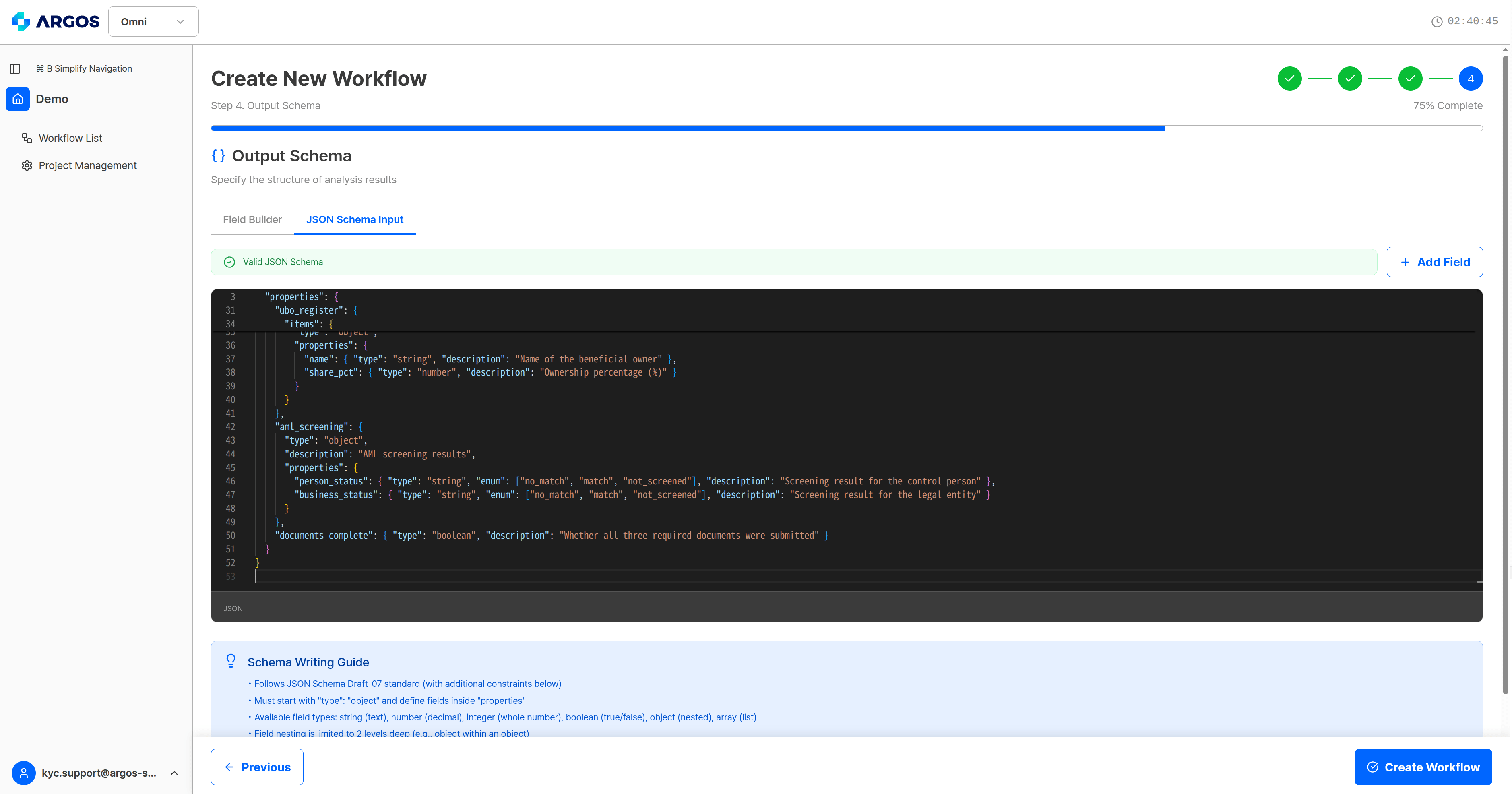
Here is the full schema for this example. Paste it straight into the JSON Schema Input tab.
{ "type": "object", "properties": { "company": { "type": "object", "description": "Company details extracted from the certificate of good standing", "properties": { "legal_name": { "type": "string", "description": "Registered legal name" }, "state_file_number": { "type": "string", "description": "State file number" }, "registered_agent": { "type": "string", "description": "Name of the registered agent" } } }, "registered_address": { "type": "object", "description": "The registered address on the certificate, and its validation result", "properties": { "formatted_address": { "type": "string", "description": "The normalized postal address" }, "is_valid": { "type": "boolean", "description": "Whether the address was validated as real" } } }, "bank_account": { "type": "object", "description": "Account details extracted from the bank verification letter", "properties": { "bank_name": { "type": "string", "description": "Bank name" }, "account_holder": { "type": "string", "description": "Account holder" }, "matches_company": { "type": "boolean", "description": "Whether the account holder matches the legal name on the certificate" } } }, "ubo_register": { "type": "array", "description": "Beneficial owners holding 25% or more", "items": { "type": "object", "properties": { "name": { "type": "string", "description": "Beneficial owner name" }, "share_pct": { "type": "number", "description": "Ownership percentage" } } } }, "aml_screening": { "type": "object", "description": "AML screening results for the managing member and the legal entity", "properties": { "person_status": { "type": "string", "enum": ["no_match", "match", "not_screened"], "description": "Screening result for the managing member" }, "business_status": { "type": "string", "enum": ["no_match", "match", "not_screened"], "description": "Screening result for the legal entity" } } }, "documents_complete": { "type": "boolean", "description": "Whether all three required documents were submitted" } }}
The JSON Schema Input tab. A valid schema is confirmed at the top.
The types, constraints, and validation messages are collected in output schema.
Saving generates the playbook from the policy text. It takes 2–3 minutes, and when it finishes the execution plan is laid out action by action.
The completion screen — the playbook ID and the action list
This policy produced 8 actions. The policy clauses are decomposed into actions, and the engines they need are attached automatically.
Step
Action
What it does
Assigned engine
1
verify_document_presence
Checks that all three required documents were submitted
Text Verifier
2
extract_certificate_data
Extracts the legal name, state file number, and registered agent from the certificate
None
3
verify_bank_holder
Checks the account holder on the bank letter against the legal name
Text Verifier
4
verify_ownership_cert_consistency
Checks the company name and state file number on the ownership certification against the certificate
Text Verifier
5
validate_registered_address
Validates and normalizes the registered address
Address Validation
6
record_and_validate_owners
Records the beneficial owners and checks that the percentages do not exceed 100%
None
7
screen_managing_member_aml
Screens the managing member’s name against AML and sanctions lists
AML Search - Person
8
screen_legal_entity_aml
Screens the legal entity name against AML and sanctions lists
AML - Business
Action names and the way the policy is decomposed differ every time. Feeding the same policy in again does not produce the same names. The table above is what this example actually produced; when your integration code refers to a step, use workId instead of the name.
Clauses that need no external lookup — steps 2 and 6 here — get no engine. Engines are assigned only to clauses that need one.Each action also gets reference notes generated with it: the sentences from the original policy the action is grounded in. When a verdict does not match your intent, check the reference notes before rewriting the policy — editing a workflow.
Using the same names in all three places makes a large difference to accuracy.
Where
In this example
The document name in the policy text
”certificate of good standing”
The name you give the item
”certificate of good standing”
The field description in the output schema
”Company details extracted from the certificate of good standing”
If your policy says “certificate of good standing” but you upload the item as doc1.pdf, the agent may not connect that file to that document. Use the same name in the schema’s description too, so it is clear which document a field’s value came from.