

Emails the Applicant receives
Every email sent to the Applicant puts the Workflow’s Sender name at the start of the subject. The email language is the one chosen when the request was sent, or the Workflow’s default language if none was chosen.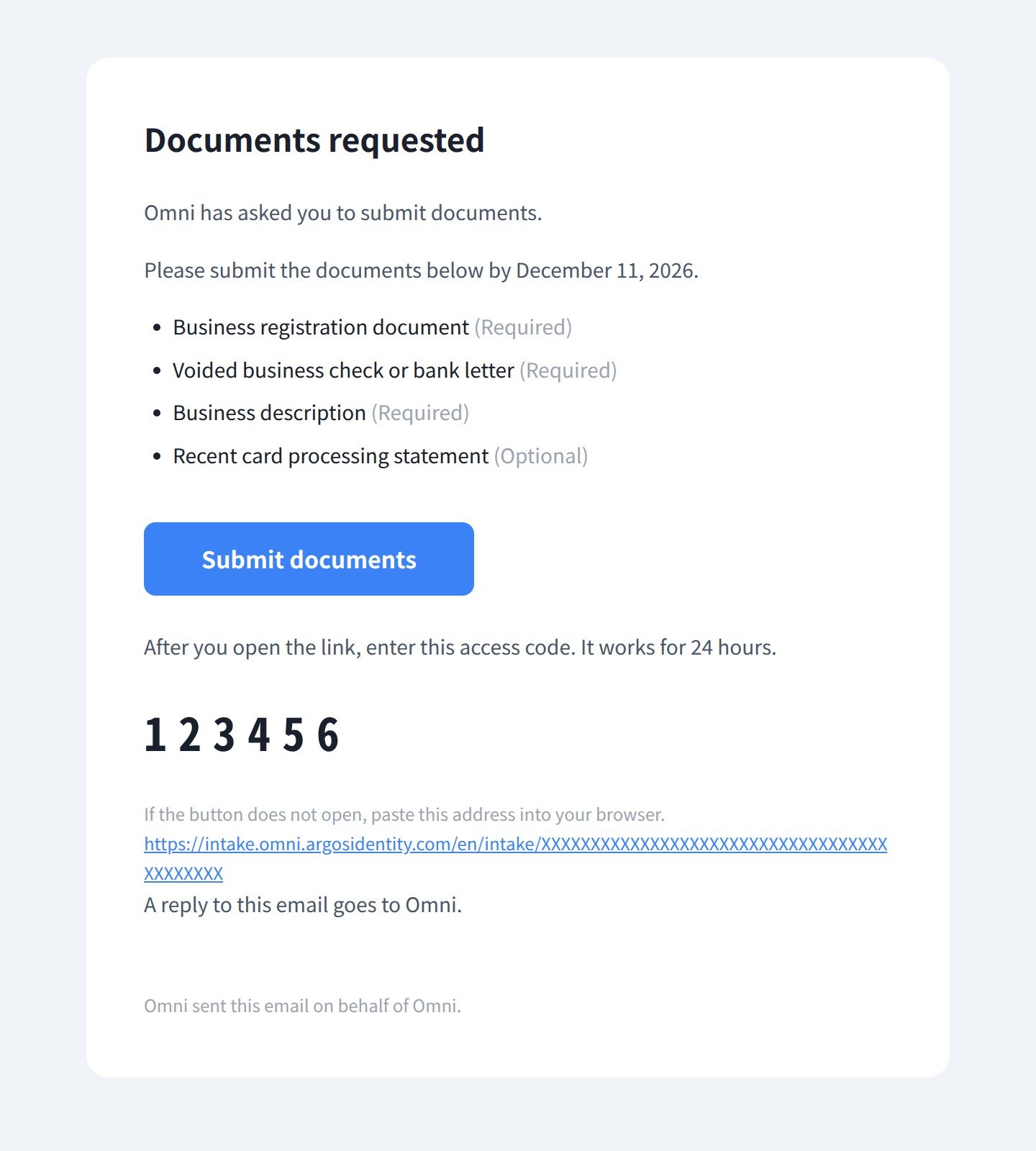
The Request Email, the reminder email, the email with the answer, and the submission confirmation email include the notice “A reply to this email goes to” followed by the sender name. The reply goes to the Workflow’s Reply-to address. Omni does not read replies, so this address must be one the customer actually checks.
Entering the submission screen
The address of the submission screen starts withhttps://intake.omni.argosidentity.com, and the Applicant enters through the Submit documents button or the link in the email. The link is different for each Applicant.
1
Open the link
The Enter your access code screen appears. Enter the latest 6-digit access code that was sent to the email address that received the document request.
2
Select Continue
If the code is right, the submission screen opens.
When the Applicant enters for the first time, the status of the request changes from Awaiting submission to Submitting.
Layout of the submission screen
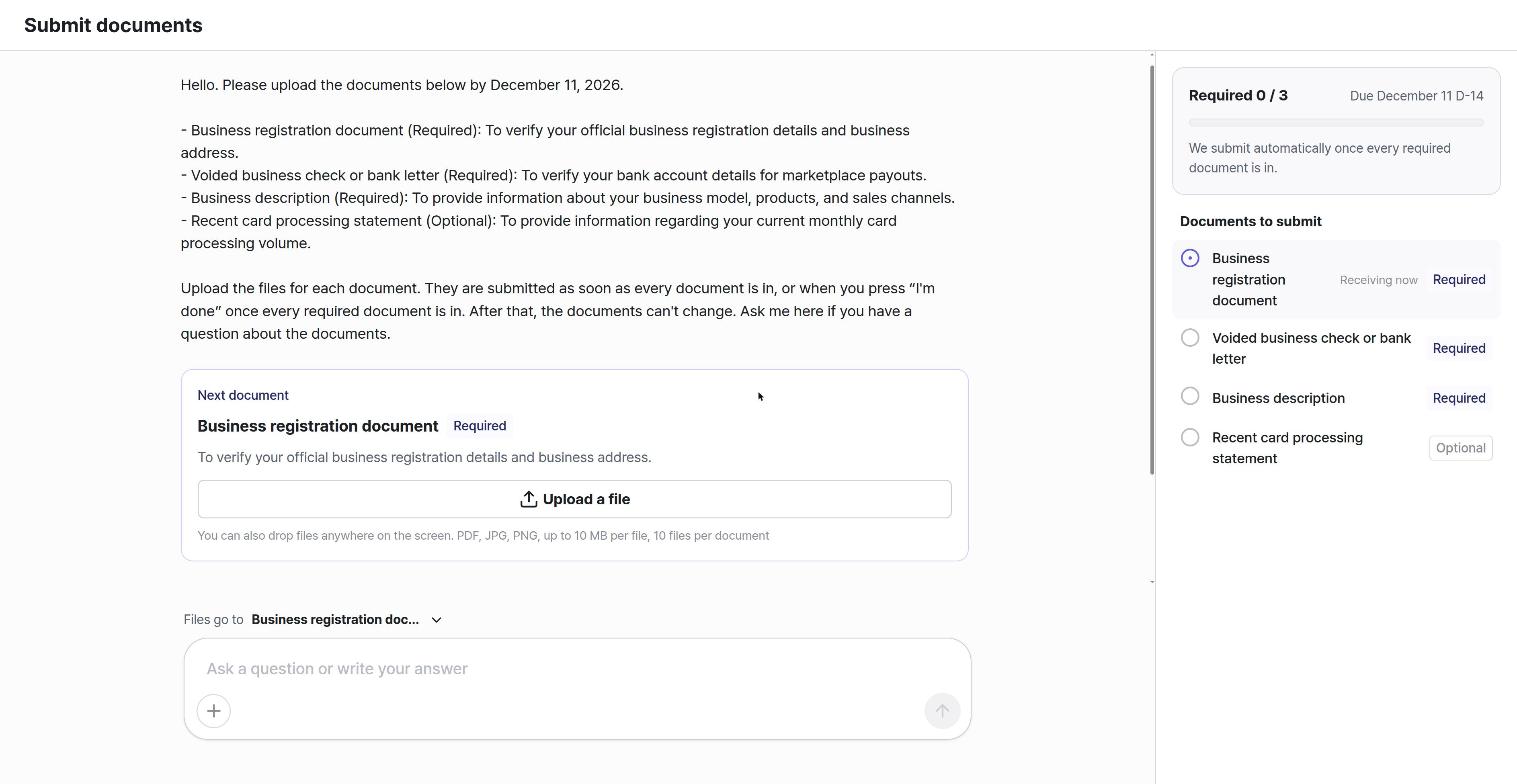
The screen shows the document guide conversation and the Documents to submit list together.- Documents to submit: Each document shows its name, a Required or Optional mark, and a status such as Could not read, Reading, Receiving now, or n files. Selecting a document in the list makes it the document shown in Next document.
- Next document: Shows the one document to submit now in large form, with the reason it is needed and a button for uploading files. If the document has criteria, they are shown as “Requirements: …”.
- Progress: It shows Required n / m, the due date, and the days left (D-3, D-day), along with the notice “We submit automatically once every required document is in.”
Uploading documents
For a document whose format is File, the Applicant uploads with Upload a file or Attach a file. They can also drop files anywhere on the screen, and when they drop, “Drop here to add to” the document is shown. Above the conversation box, Files go to shows the document the files will go to, and the Applicant can change it there.
While uploading, Waiting, Uploading, and Checking are shown. If it fails, select Try again. Before submission, an uploaded file can be changed with Replace or Remove.
In these cases, a message appears.
A file that Omni could not read is shown as Could not read, and while an unreadable file remains, the submission does not finish. The Applicant must replace or remove the file.
Answering in text
For a document whose format is Text, the Applicant does not upload a file. They type the answer in the conversation box and send it. The screen shows “Answer in the message box”. A message can be up to 2,000 characters.Asking questions
The Applicant can ask questions in the conversation.- A question the Information Checklist can answer: The Communication Agent answers right away, based on the reason and the criteria of the document.
- A question it cannot answer: It is forwarded to the Admin. When the Admin answers in the request details, the answer appears in the conversation. If the Applicant is not on the submission screen, they are told by the “Your question has been answered” email.
Optional materials and submission
When all required documents are uploaded and nothing is wrong after reading them, the submission completes automatically. If optional documents remain, one of the following is needed.- The Applicant submits all the optional documents too.
- The Applicant says they have nothing more to submit. When all required documents are uploaded, an I’m done button appears in the conversation box. When they select it, the submission goes ahead even if optional documents remain.
Screen after submission
When the submission is done, Submitted · Under review is shown, with the time of submission and the list of submitted documents. A notice says “Documents can no longer be changed”, and the documents cannot be edited. The conversation can go on. If the Applicant was not looking at the submission screen at that moment, the submission confirmation email is sent once. When the submission is done, Omni starts the analysis automatically. The analysis result does not appear on the submission screen.When the deadline has passed
After the Case Deadline date ends, the Applicant cannot enter the submission screen or submit. When they open the link, “The submission deadline has passed” appears, and they are told to contact whoever requested the documents. Reminders stop too. If the Admin changes the deadline in the request details, the Applicant can enter again. If the link is not valid, “This link does not open” appears. The Applicant is told to ask whoever requested the documents for a new link. The Admin sends the email again with Send the link again in the request details.What is good to tell the Applicant in advance
- Tell them which sender name the emails will come from and about when. They can send questions by replying to that email.
- Tell them that opening the link needs the 6-digit access code written in the email, and that the code works for only 24 hours.
- Tell them that if they prepare the documents as PDF, JPG, or PNG, with each file at 10 MB or less, they can upload right away.