

Opening the list
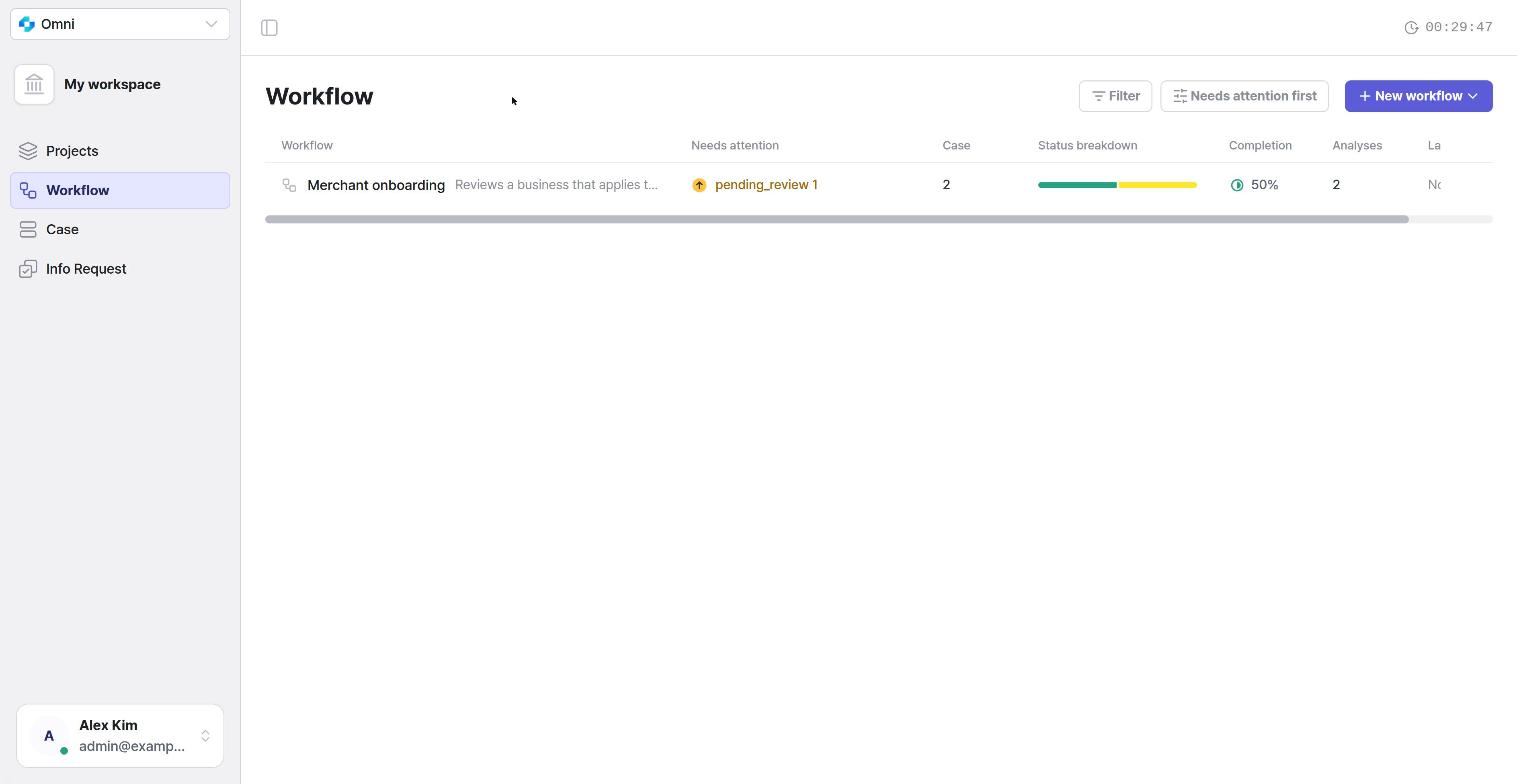
Outside a Project, click Workflow in the sidebar to open this table, which shows the Workflows of all Projects. Inside a Project, Workflow in the sidebar is an expandable item, not a link. Click it to list that Project’s Workflow names and Create New Workflow. To see the Workflows of one Project only, use the Project filter in the table. When the list is empty, the message depends on the situation.
To create a new Workflow, click New workflow at the top right. In the list outside a Project, this first opens a “Which project is it for?” picker where you choose the Project. Inside a Project, click Create New Workflow under Workflow in the sidebar. For the steps, see Creating a Workflow. A Project can hold up to 10 Workflows.
What the columns mean
Column names are shown in English in every screen language. Each value is calculated once per Case, based on that Case’s last Analysis.null in the Verdict column means a Case that has no Verdict yet. A Case that has not been analyzed, is being analyzed, or whose analysis did not finish is counted here. The rules that decide a Verdict are in the Step Writing Guide. The Verdict is a reference result, and the Admin decides on approval.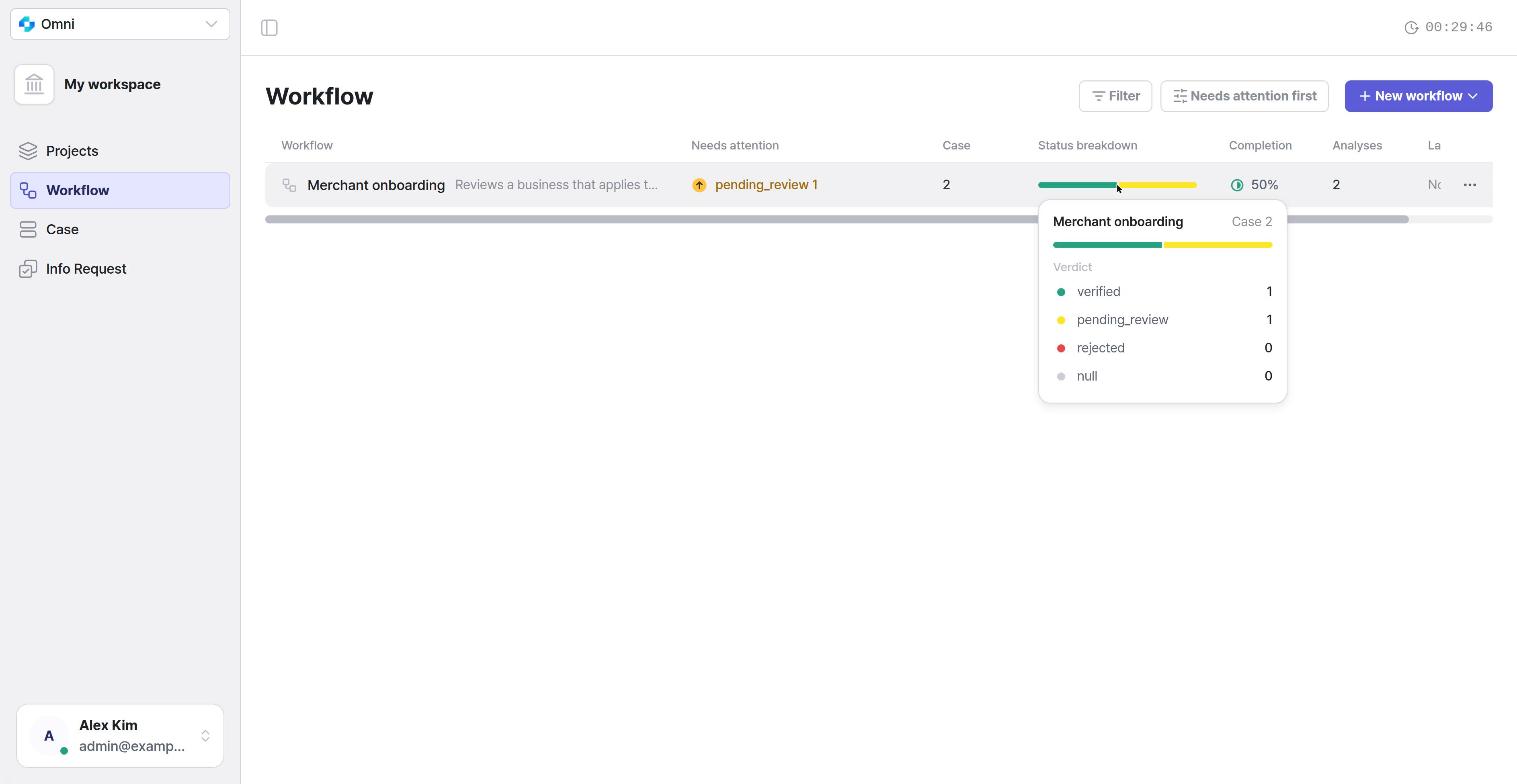
Filter
Use the Filter button to narrow the list. When you choose a filter, the button showsFilter N, and the chosen conditions appear as chips above the list. Remove a chip to drop only that condition. While a condition is on, Workflows: N shows how many are left.
Within the same group, a Workflow is shown if it matches any one choice. Across different groups, it must match all of them. For example, if you choose two Projects and Needs attention, only Workflows that need attention within those two Projects are shown.
View: sort and columns
The sort button (View: ○○) sets the sort order and which columns are shown.
Workflows with the same order are sorted by name. Under Columns, you can turn Needs attention, Case, Status breakdown, Completion, Analyses, and Last updated on or off. The sort and columns you choose are saved in your browser and used the next time you open the list.
Row menu
Hover over a Workflow row, and a⋯ button appears on the right. The menu has three items. These actions require permission to edit the Project’s Workflows, and they cannot be done in a closed Project.
Edit name and description
A window opens where you change only the name and description. The name can be up to 255 characters and the description up to 2000 characters. If you click Save without changing anything, the window simply closes. To edit Steps and the Output Schema, go to the Editing a Workflow screen.Copy
In the Duplicate workflow window, you set the name of the copy. If you leave it empty, the copy is named[복사] original name. The copy is created in the same Project and takes over the following.
The copy’s Playbook gets a new Playbook ID. The copy’s Analyses count also starts at 0. If the Project already has 10 Workflows, you cannot duplicate, and the message A project can hold up to 10 workflows. Delete one you no longer use, then duplicate again. appears.
If the result of the duplication cannot be confirmed, the message is Could not confirm whether the workflow was duplicated. Before you duplicate it again, check the list for the copy. Check the list before you click again.
Delete
The Delete this workflow? window says Deleting the ○○ workflow also deletes its cases and their uploaded files. This cannot be undone. Deleting removes all of the following.- The Workflow, its Playbook, and its document collection settings
- The Workflow’s Cases, Items, and Analyses
- Uploaded files
Next steps
Workflow Detail
Open a Workflow, create Cases, and upload files.
Editing a Workflow
Edit Steps, the Output Schema, and reference notes.