> ## Documentation Index
> Fetch the complete documentation index at: https://developers.argosidentity.com/llms.txt
> Use this file to discover all available pages before exploring further.
# Creating a Workflow
> Step-by-step guide to creating your first Omni workflow from scratch.
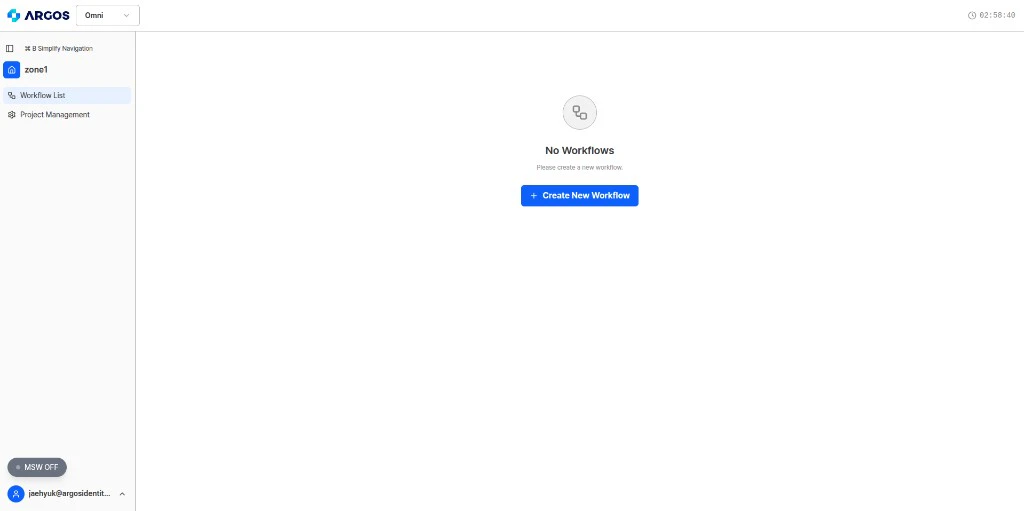
This guide walks you through creating a workflow in the Omni dashboard. A workflow defines your verification logic — the policy, engines, and output format — that Omni applies every time you run an analysis.
## Prerequisites
Before you begin, make sure you have:
* An ARGOS Omni account with dashboard access
* A project created in the dashboard ([see Project Management](/en/omni/dashboard/project-management))
* An API key for running analyses after setup ([see Authentication](/en/omni/getting-started/authentication))
Each project supports up to **10 workflows**. If you need more, create an additional project.
 ## Workflow Creation Steps
Creating a workflow involves four steps in the dashboard. Each step builds on the previous one.
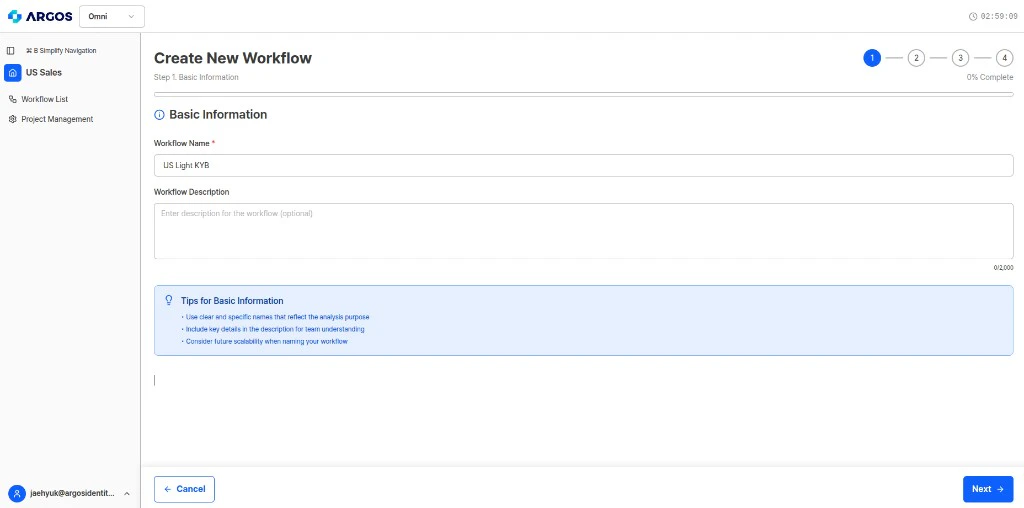
Start by giving your workflow a **name** and an optional **description**.
* **Name** — A short, descriptive label for the workflow (e.g., "Invoice Review", "Vendor KYB Check"). This is how you will identify the workflow in the dashboard and API responses.
* **Description** — A brief summary of what this workflow does. This is for your team's reference only and does not affect how Omni processes documents.
## Workflow Creation Steps
Creating a workflow involves four steps in the dashboard. Each step builds on the previous one.
Start by giving your workflow a **name** and an optional **description**.
* **Name** — A short, descriptive label for the workflow (e.g., "Invoice Review", "Vendor KYB Check"). This is how you will identify the workflow in the dashboard and API responses.
* **Description** — A brief summary of what this workflow does. This is for your team's reference only and does not affect how Omni processes documents.
 Use naming conventions that reflect the document type and verification purpose. For example: "Invoice - Amount Validation" or "KYB - Business Registration". This makes it easier to manage multiple workflows in a project.
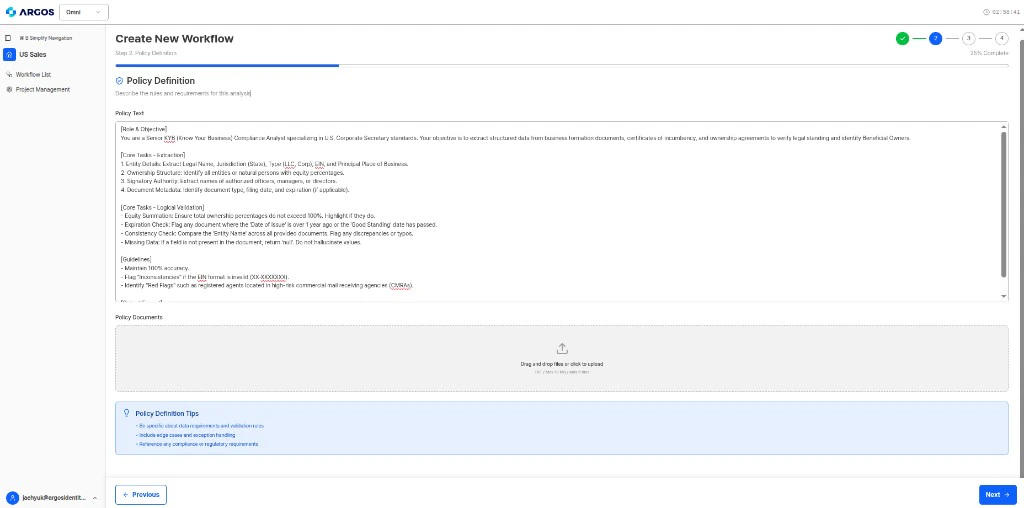
Write a **natural language policy** that describes what Omni should verify. This is the core of your workflow — it tells the AI agent what to check, what to extract, and how to make decisions.
Your policy should include:
* The type of documents you expect
* Specific verification steps (what to check)
* Pass/fail criteria (what constitutes approval vs. rejection)
**Example policy:**
```text theme={null}
Verify the submitted invoice by:
1. Extracting the vendor name, invoice number, date, and total amount
2. Checking that all required fields are present and non-empty
3. Validating that the invoice date is not in the future
4. Cross-checking that line item totals match the stated total amount
5. Approve if all checks pass; reject if any critical field is missing or amounts do not match
```
Use naming conventions that reflect the document type and verification purpose. For example: "Invoice - Amount Validation" or "KYB - Business Registration". This makes it easier to manage multiple workflows in a project.
Write a **natural language policy** that describes what Omni should verify. This is the core of your workflow — it tells the AI agent what to check, what to extract, and how to make decisions.
Your policy should include:
* The type of documents you expect
* Specific verification steps (what to check)
* Pass/fail criteria (what constitutes approval vs. rejection)
**Example policy:**
```text theme={null}
Verify the submitted invoice by:
1. Extracting the vendor name, invoice number, date, and total amount
2. Checking that all required fields are present and non-empty
3. Validating that the invoice date is not in the future
4. Cross-checking that line item totals match the stated total amount
5. Approve if all checks pass; reject if any critical field is missing or amounts do not match
```
 Vague policies produce vague results. Be specific about what documents to expect, what fields to check, and what your approval criteria are. See the [Policy Writing Guide](/en/omni/guides/policy-writing-guide) for detailed best practices.
Based on your policy, Omni automatically suggests which AI engines to activate. Review the suggestions and toggle engines on or off as needed.
**Currently available engines:**
| Engine | What It Does |
| ------------------------- | --------------------------------------------------------------------------------------------------- |
| **AML Search - Person** | Screens individuals against global AML/sanctions watchlists (external database lookup) |
| **Text Verifier - Glove** | Extracts text, validates fields, cross-checks data across documents (RAG-based, no external lookup) |
Vague policies produce vague results. Be specific about what documents to expect, what fields to check, and what your approval criteria are. See the [Policy Writing Guide](/en/omni/guides/policy-writing-guide) for detailed best practices.
Based on your policy, Omni automatically suggests which AI engines to activate. Review the suggestions and toggle engines on or off as needed.
**Currently available engines:**
| Engine | What It Does |
| ------------------------- | --------------------------------------------------------------------------------------------------- |
| **AML Search - Person** | Screens individuals against global AML/sanctions watchlists (external database lookup) |
| **Text Verifier - Glove** | Extracts text, validates fields, cross-checks data across documents (RAG-based, no external lookup) |
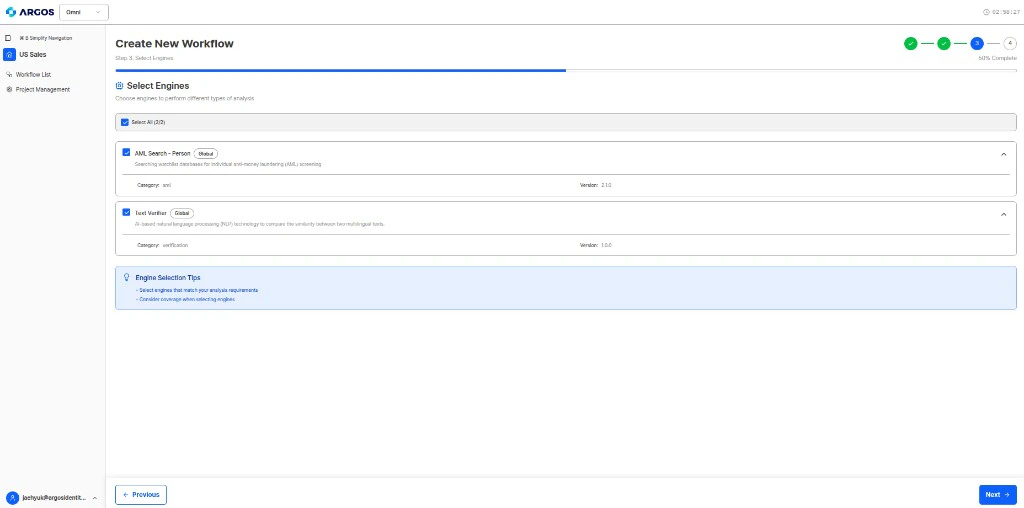 In most cases, the automatic suggestion is correct. If your policy mentions screening names against watchlists, AML Search will be suggested. If your policy focuses on document extraction and validation, Text Verifier will be suggested. You can always adjust this manually.
Define the **JSON structure** for the results you want back. This tells Omni exactly what format to return after analysis — field names, data types, and structure.
**Example output schema:**
```json theme={null}
{
"invoice": {
"vendorName": "string",
"invoiceNumber": "string",
"date": "string",
"totalAmount": "number",
"lineItems": ["string"]
},
"validation": {
"allFieldsPresent": "boolean",
"amountsMatch": "boolean",
"dateValid": "boolean"
},
"decision": {
"result": "APPROVE | REJECT | MANUAL_REVIEW",
"verificationStatus": "pending_review | approved | rejected",
"reasons": ["string"]
}
}
```
Use the **Field Builder** tab to add fields visually, or **JSON Schema Input** to edit the schema as JSON. The Schema Writing Guide at the bottom of the step summarizes Draft-07 rules and Omni constraints (see [Output Schema](/en/omni/dashboard/workflow-setup/output-schema)).
In most cases, the automatic suggestion is correct. If your policy mentions screening names against watchlists, AML Search will be suggested. If your policy focuses on document extraction and validation, Text Verifier will be suggested. You can always adjust this manually.
Define the **JSON structure** for the results you want back. This tells Omni exactly what format to return after analysis — field names, data types, and structure.
**Example output schema:**
```json theme={null}
{
"invoice": {
"vendorName": "string",
"invoiceNumber": "string",
"date": "string",
"totalAmount": "number",
"lineItems": ["string"]
},
"validation": {
"allFieldsPresent": "boolean",
"amountsMatch": "boolean",
"dateValid": "boolean"
},
"decision": {
"result": "APPROVE | REJECT | MANUAL_REVIEW",
"verificationStatus": "pending_review | approved | rejected",
"reasons": ["string"]
}
}
```
Use the **Field Builder** tab to add fields visually, or **JSON Schema Input** to edit the schema as JSON. The Schema Writing Guide at the bottom of the step summarizes Draft-07 rules and Omni constraints (see [Output Schema](/en/omni/dashboard/workflow-setup/output-schema)).
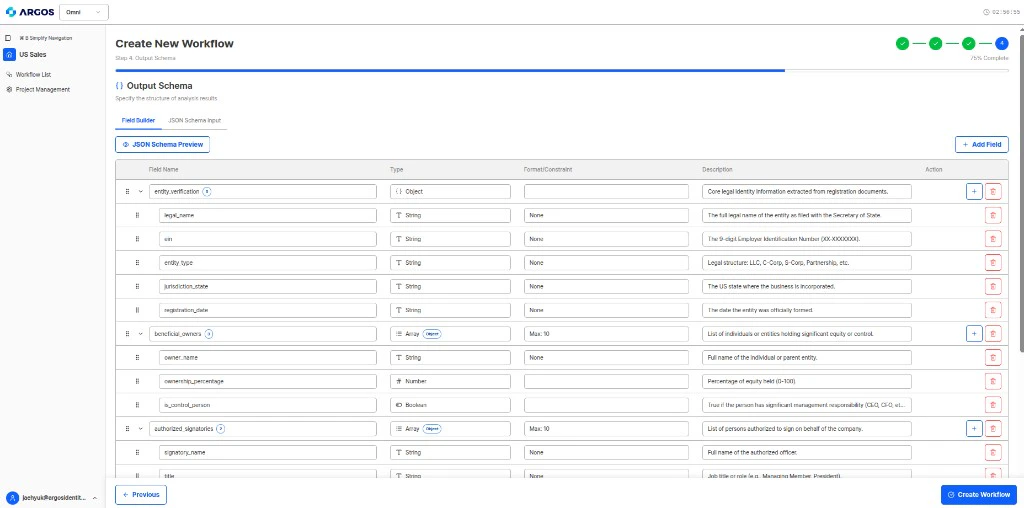
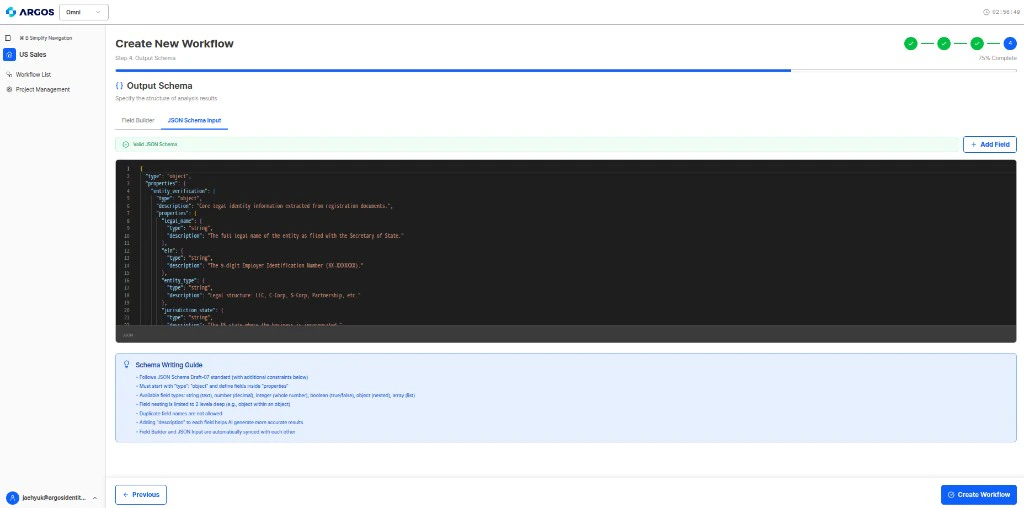 Always include a **decision block** with a result field, `verificationStatus`, and reasons array. This enables automated routing in your downstream systems. See the [Output Schema documentation](/en/omni/dashboard/workflow-setup/output-schema) for more details.
 ## Align terminology across policy, Item names, and JSON output schema
Whenever you rely on specific **technical terms** or **verification targets** (such as document types), use the **same wording** in all three places below.
| Layer | What to keep consistent |
| ---------------------- | ----------------------------------------------------------------------------------------------------------------------------------- |
| **Policy** | Document names and target labels in your natural-language policy |
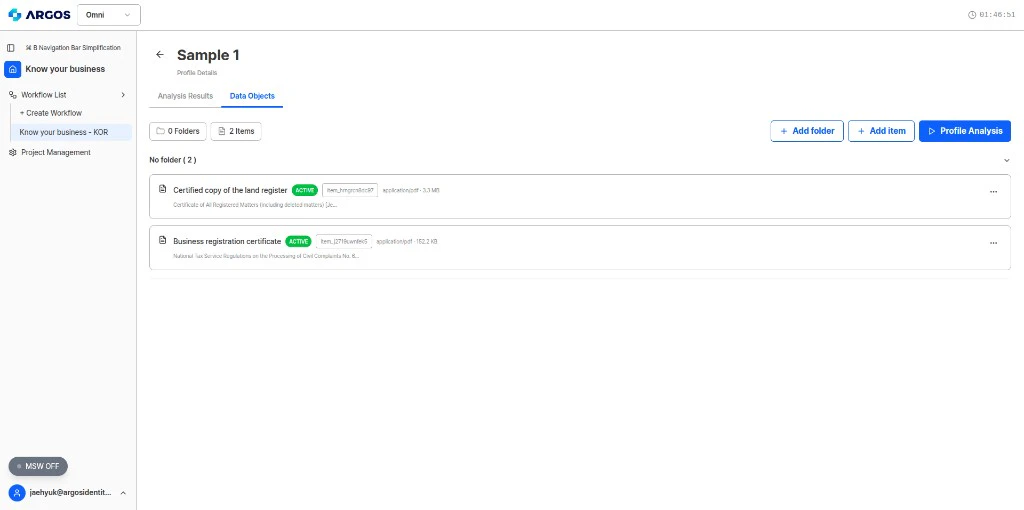
| **Item name** | The name you give each document when you add it to a profile (e.g. the `name` field when creating or uploading an Item via the API) |
| **JSON output schema** | Field names, descriptions, and any contextual text that refers to those documents or checks |
For example, if the policy says you will review a **business registration certificate**, register the Item under the **same label** (e.g. the equivalent term your team uses consistently in Korean or English), and use that same term in the output schema where you describe validation for that document. That alignment helps the agent connect policy, uploaded files, and structured results reliably.
In a customer-defined **JSON output schema**, keep **descriptions and context** for specific values aligned as well. For instance, if a field such as `document_validation` is `true`, the surrounding description should refer to the same document type (e.g. business registration) and clarify what “sufficient information” means (company name, address, representative, and other fields expected on that document).
At **runtime**, whenever you add an Item, set **`item.name`** (or the Item **name** field in the API) to match the **policy wording** and the **terminology used in your JSON output schema**. If these diverge, the agent may map documents and fields incorrectly.
## Align terminology across policy, Item names, and JSON output schema
Whenever you rely on specific **technical terms** or **verification targets** (such as document types), use the **same wording** in all three places below.
| Layer | What to keep consistent |
| ---------------------- | ----------------------------------------------------------------------------------------------------------------------------------- |
| **Policy** | Document names and target labels in your natural-language policy |
| **Item name** | The name you give each document when you add it to a profile (e.g. the `name` field when creating or uploading an Item via the API) |
| **JSON output schema** | Field names, descriptions, and any contextual text that refers to those documents or checks |
For example, if the policy says you will review a **business registration certificate**, register the Item under the **same label** (e.g. the equivalent term your team uses consistently in Korean or English), and use that same term in the output schema where you describe validation for that document. That alignment helps the agent connect policy, uploaded files, and structured results reliably.
In a customer-defined **JSON output schema**, keep **descriptions and context** for specific values aligned as well. For instance, if a field such as `document_validation` is `true`, the surrounding description should refer to the same document type (e.g. business registration) and clarify what “sufficient information” means (company name, address, representative, and other fields expected on that document).
At **runtime**, whenever you add an Item, set **`item.name`** (or the Item **name** field in the API) to match the **policy wording** and the **terminology used in your JSON output schema**. If these diverge, the agent may map documents and fields incorrectly.
 ## After Creation
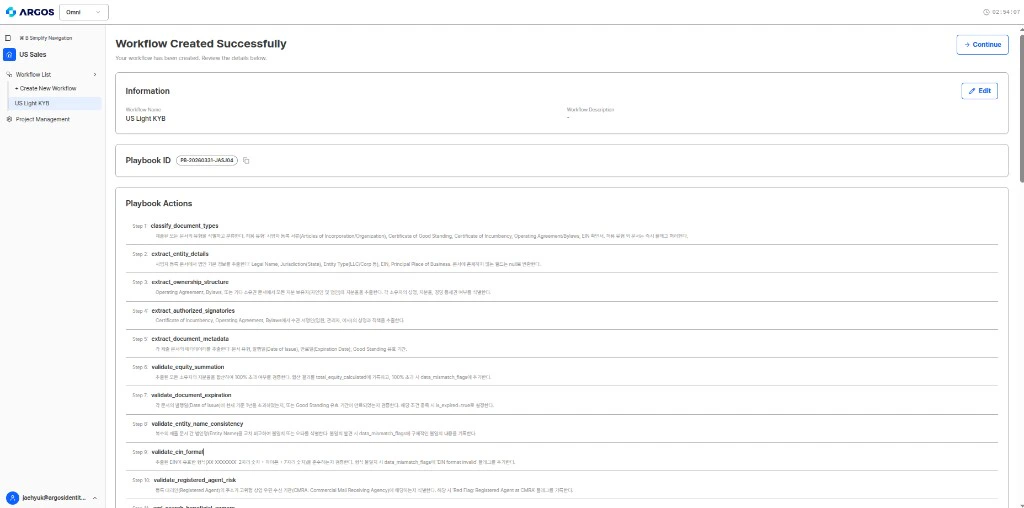
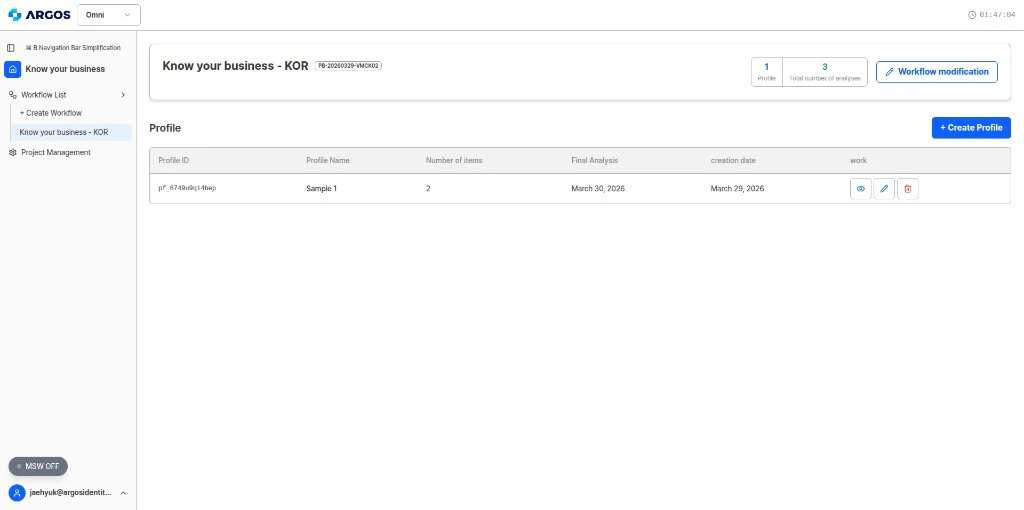
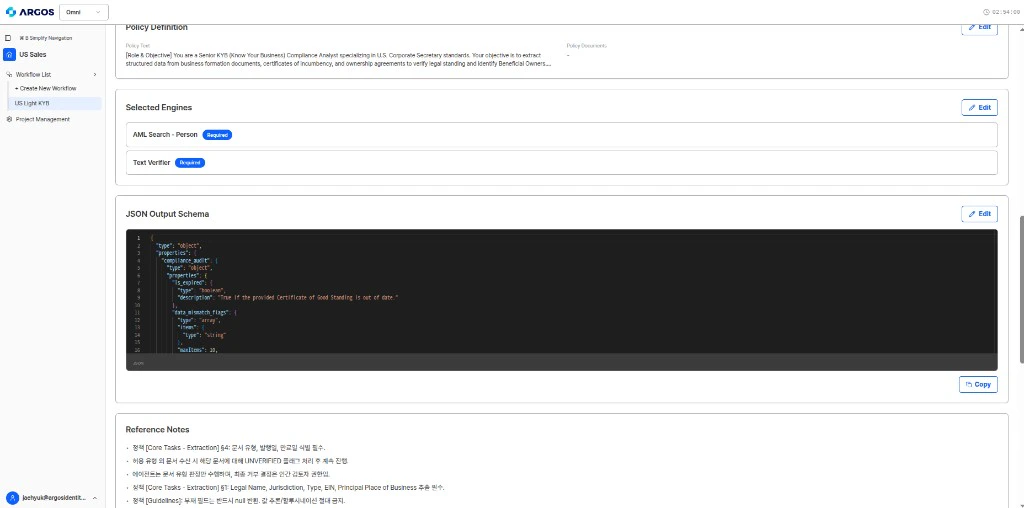
Once you complete all four steps, your workflow is ready to use. You can open it from the workflow list to manage **profiles and analyses**, or review **policy, engines, and output schema** from the workflow configuration view.
## After Creation
Once you complete all four steps, your workflow is ready to use. You can open it from the workflow list to manage **profiles and analyses**, or review **policy, engines, and output schema** from the workflow configuration view.
 ### Using Your Workflow via the API
With your workflow created, follow this flow to run verifications:
Each verification case (e.g., one invoice, one vendor) gets its own profile under the workflow.
```bash theme={null}
curl -X POST "http://client-omni-api.argosidentity.com/v1/workflows/{workflowId}/profiles" \
-H "x-api-key: your-api-key-here" \
-H "Content-Type: application/json" \
-d '{"name": "Invoice #1234 - Acme Corp"}'
```
Upload the documents to be verified into the profile's folder.
```bash theme={null}
curl -X POST "http://client-omni-api.argosidentity.com/v1/folders/{folderId}/items/upload" \
-H "x-api-key: your-api-key-here" \
-F "file=@/path/to/invoice.pdf" \
-F "type=file"
```
Poll the item status until all uploaded documents reach `ACTIVE` status. This means OCR and text extraction are complete.
```bash theme={null}
curl -X GET "http://client-omni-api.argosidentity.com/v1/profiles/{profileId}/items/status" \
-H "x-api-key: your-api-key-here"
```
Poll at **1-second intervals** with a **60-second timeout**. Do not trigger analysis until all items are `ACTIVE`.
Run the analysis. Omni applies your policy, engines, and output schema automatically.
```bash theme={null}
curl -X POST "http://client-omni-api.argosidentity.com/v1/profiles/{profileId}/analyze" \
-H "x-api-key: your-api-key-here"
```
Fetch the structured results that match your output schema.
```bash theme={null}
curl -X GET "http://client-omni-api.argosidentity.com/v1/profiles/{profileId}" \
-H "x-api-key: your-api-key-here"
```
For the complete API flow with detailed request/response examples, see the [Quickstart guide](/en/omni/getting-started/quickstart).
## Tips for Success
If your use case matches one of the [workflow templates](/en/omni/guides/workflow-templates) (KYB, Invoice, AML, Compliance), start there and customize. It is faster than building from scratch.
After creating a workflow, run a few test profiles with actual documents to validate that your policy and schema produce the results you expect. Adjust as needed.
Your first policy draft may not be perfect. Review the analysis results, identify where the AI misunderstood your intent, and refine the policy language. Small wording changes can significantly improve accuracy.
Design your output schema to match what your backend or compliance system expects. This eliminates the need for post-processing transformations.
## What's Next?
Learn best practices for writing effective verification policies.
Transform your manual review processes into automated workflows.
### Using Your Workflow via the API
With your workflow created, follow this flow to run verifications:
Each verification case (e.g., one invoice, one vendor) gets its own profile under the workflow.
```bash theme={null}
curl -X POST "http://client-omni-api.argosidentity.com/v1/workflows/{workflowId}/profiles" \
-H "x-api-key: your-api-key-here" \
-H "Content-Type: application/json" \
-d '{"name": "Invoice #1234 - Acme Corp"}'
```
Upload the documents to be verified into the profile's folder.
```bash theme={null}
curl -X POST "http://client-omni-api.argosidentity.com/v1/folders/{folderId}/items/upload" \
-H "x-api-key: your-api-key-here" \
-F "file=@/path/to/invoice.pdf" \
-F "type=file"
```
Poll the item status until all uploaded documents reach `ACTIVE` status. This means OCR and text extraction are complete.
```bash theme={null}
curl -X GET "http://client-omni-api.argosidentity.com/v1/profiles/{profileId}/items/status" \
-H "x-api-key: your-api-key-here"
```
Poll at **1-second intervals** with a **60-second timeout**. Do not trigger analysis until all items are `ACTIVE`.
Run the analysis. Omni applies your policy, engines, and output schema automatically.
```bash theme={null}
curl -X POST "http://client-omni-api.argosidentity.com/v1/profiles/{profileId}/analyze" \
-H "x-api-key: your-api-key-here"
```
Fetch the structured results that match your output schema.
```bash theme={null}
curl -X GET "http://client-omni-api.argosidentity.com/v1/profiles/{profileId}" \
-H "x-api-key: your-api-key-here"
```
For the complete API flow with detailed request/response examples, see the [Quickstart guide](/en/omni/getting-started/quickstart).
## Tips for Success
If your use case matches one of the [workflow templates](/en/omni/guides/workflow-templates) (KYB, Invoice, AML, Compliance), start there and customize. It is faster than building from scratch.
After creating a workflow, run a few test profiles with actual documents to validate that your policy and schema produce the results you expect. Adjust as needed.
Your first policy draft may not be perfect. Review the analysis results, identify where the AI misunderstood your intent, and refine the policy language. Small wording changes can significantly improve accuracy.
Design your output schema to match what your backend or compliance system expects. This eliminates the need for post-processing transformations.
## What's Next?
Learn best practices for writing effective verification policies.
Transform your manual review processes into automated workflows.