> ## Documentation Index
> Fetch the complete documentation index at: https://developers.argosidentity.com/llms.txt
> Use this file to discover all available pages before exploring further.
# Project Management
> Create and manage Omni projects, view workflows, and monitor project status.
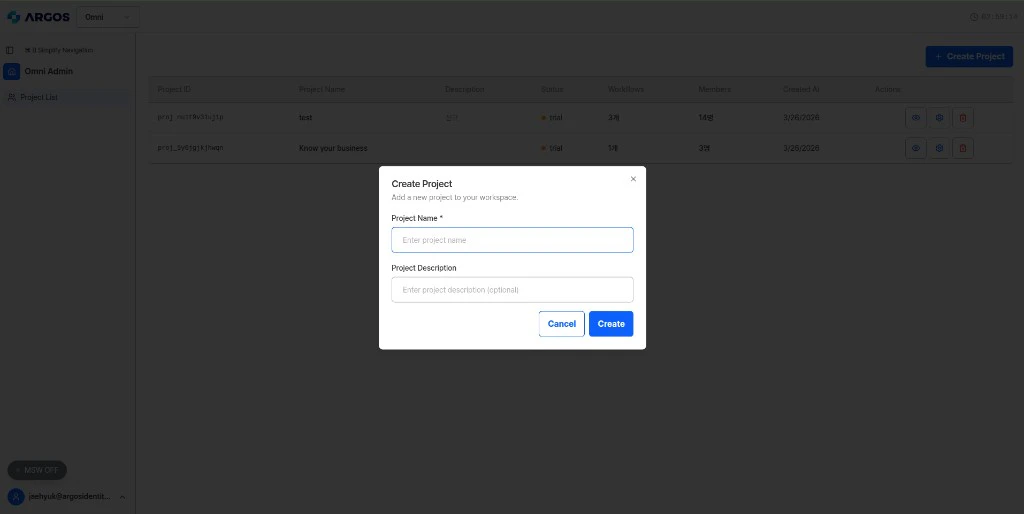
## Projects
A project is the top-level container in Omni. Each project is tied to an API key and can contain up to **10 workflows**.
 ### Project Limits
| Resource | Limit |
| --------------------- | --------- |
| Projects per user | 5 |
| Workflows per project | 10 |
| Profiles per workflow | Unlimited |
### Project Status
Projects transition through the following statuses:
New projects start in **Trial** status with full read/write access. Trial projects auto-convert to Closed after **1 month**.
Active projects with full access. All CRUD operations and analysis execution are available.
Read-only mode. Only `GET` requests are allowed. No new profiles, items, or analyses can be created.
### Managing Projects in the Dashboard
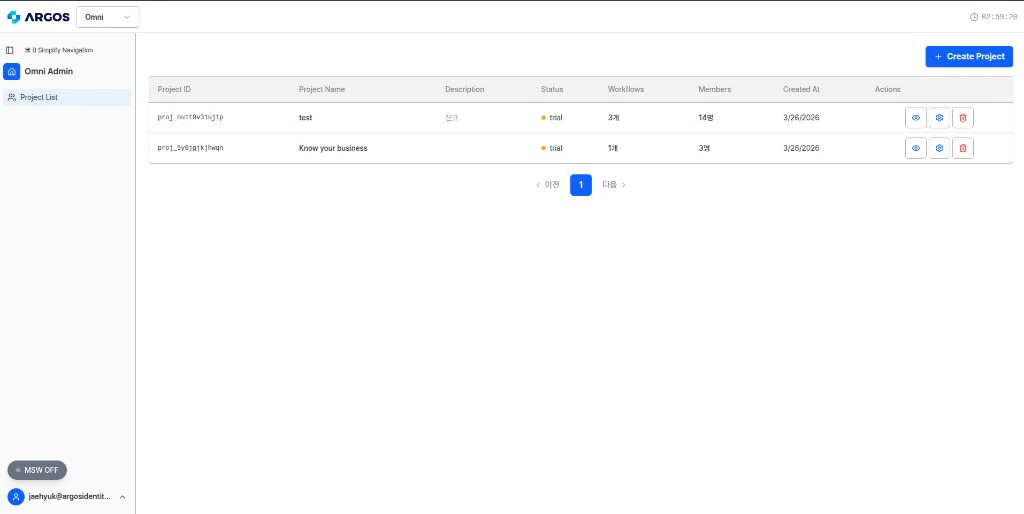
From the dashboard, you can:
* View all projects and their statuses
* Access project settings and API keys
* Navigate to workflows within each project
* Monitor usage statistics
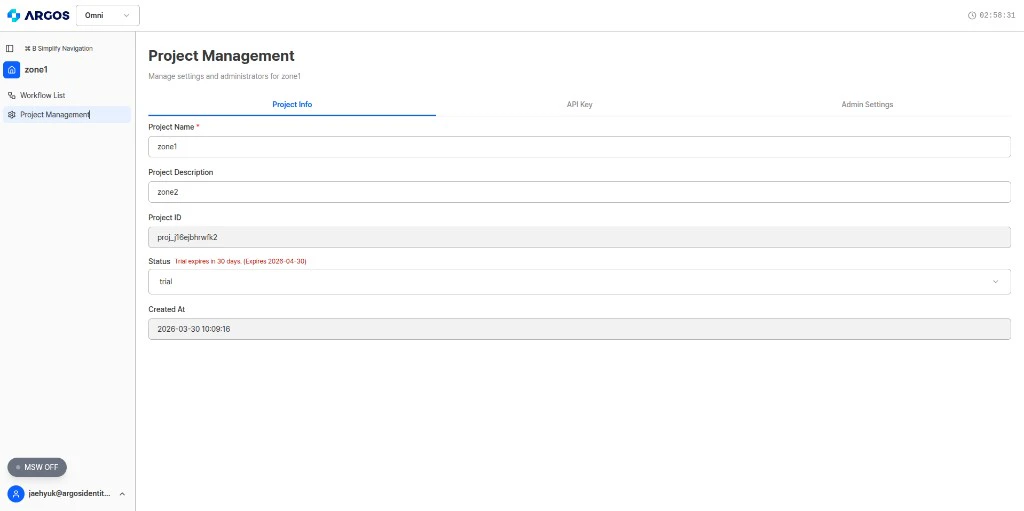
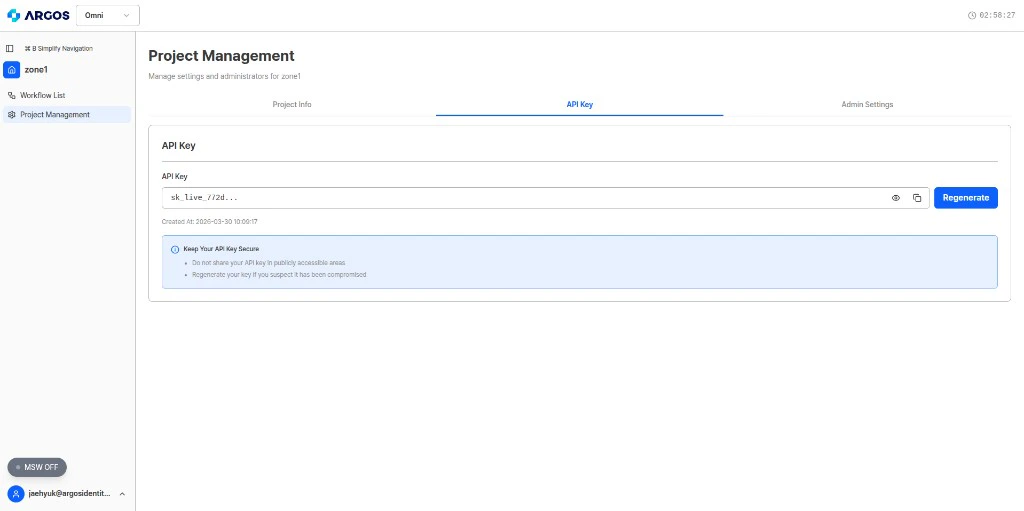
Inside a project, **Project Management** has three tabs: **Project Info**, **API Key**, and **Admin Settings**.
View and edit project name, description, ID, status, and creation time.
### Project Limits
| Resource | Limit |
| --------------------- | --------- |
| Projects per user | 5 |
| Workflows per project | 10 |
| Profiles per workflow | Unlimited |
### Project Status
Projects transition through the following statuses:
New projects start in **Trial** status with full read/write access. Trial projects auto-convert to Closed after **1 month**.
Active projects with full access. All CRUD operations and analysis execution are available.
Read-only mode. Only `GET` requests are allowed. No new profiles, items, or analyses can be created.
### Managing Projects in the Dashboard
From the dashboard, you can:
* View all projects and their statuses
* Access project settings and API keys
* Navigate to workflows within each project
* Monitor usage statistics
Inside a project, **Project Management** has three tabs: **Project Info**, **API Key**, and **Admin Settings**.
View and edit project name, description, ID, status, and creation time.
 View and regenerate the API key linked to the project.
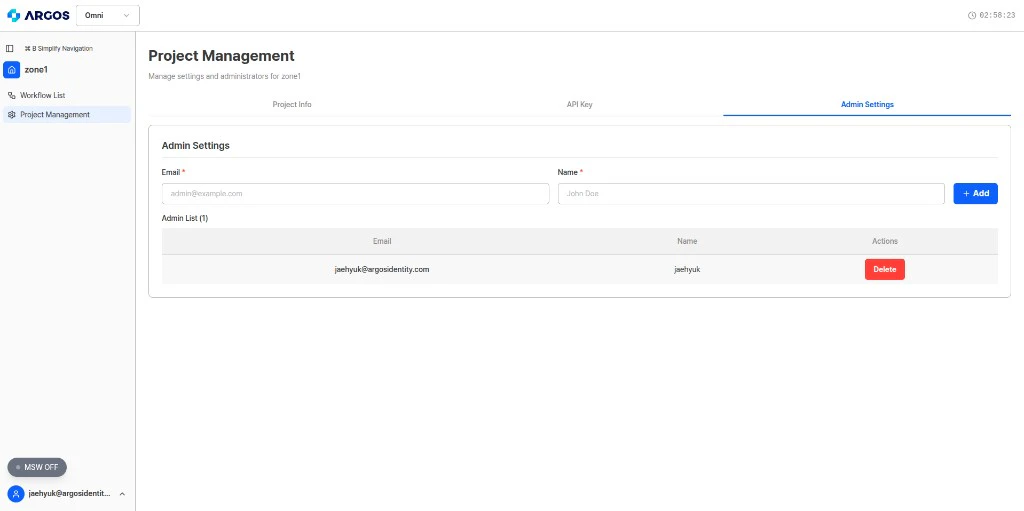
 Add or remove project administrators.