> ## Documentation Index
> Fetch the complete documentation index at: https://developers.argosidentity.com/llms.txt
> Use this file to discover all available pages before exploring further.
# Analysis & Results
> Review verification results, verification status, and audit logs in the Omni dashboard.
## Workflow detail
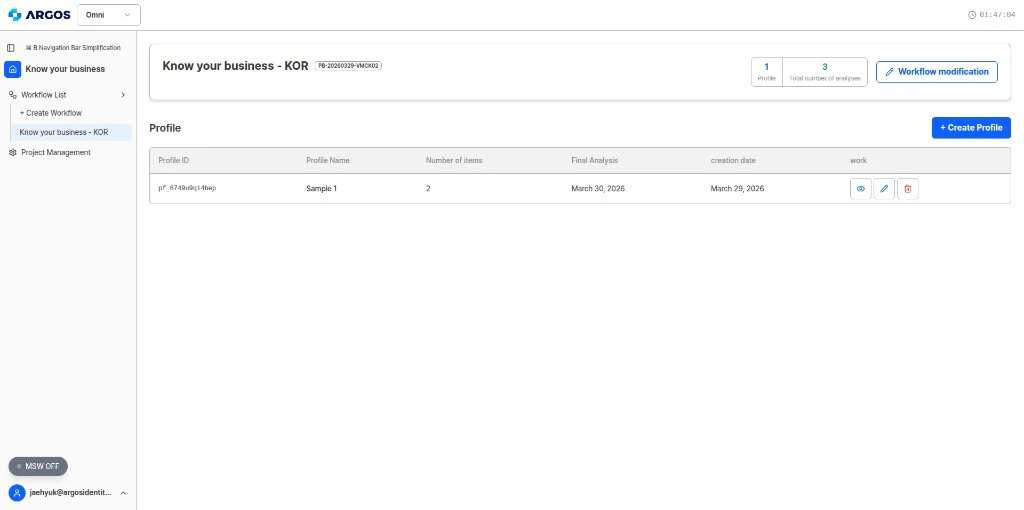
Select a workflow to see its profiles and workflow summary. You can create profiles or open **Workflow modification** from here.
 ## Profiles and Data Objects
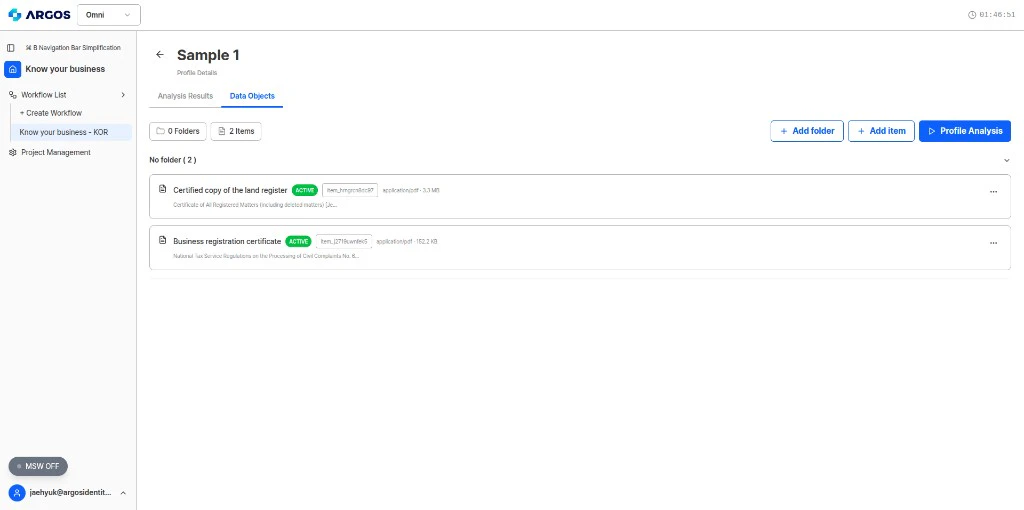
A **profile** holds the data for one verification case. Create a profile, upload **Items** (documents) on the **Data Objects** tab, then run analysis.
## Profiles and Data Objects
A **profile** holds the data for one verification case. Create a profile, upload **Items** (documents) on the **Data Objects** tab, then run analysis.
 ## Running an Analysis
Once a profile has all items uploaded and processed (`ACTIVE` status), you can trigger an analysis. The workflow's policy, engines, and output schema are applied automatically.
## Results Overview
Analysis results are structured according to your workflow's [output schema](/en/omni/dashboard/workflow-setup/output-schema) and include:
* **Extracted data** from documents, matched against your schema fields
* **`verificationStatus`** in the decision block — `pending_review`, `approved`, or `rejected`
* **Decision outcome** (Approve / Reject / Flag)
* **Engine-level details** showing which engine produced each result
## Reviewing Results in the Dashboard
The dashboard provides a visual interface to review each profile's analysis:
From your workflow, select the profile you want to review.
See the overall decision (Approve/Reject/Flag) and `verificationStatus` at a glance.
Drill into individual fields to see extracted values and the source engine.
View the original documents alongside extracted data for manual verification when needed.
### Analysis Results tabs
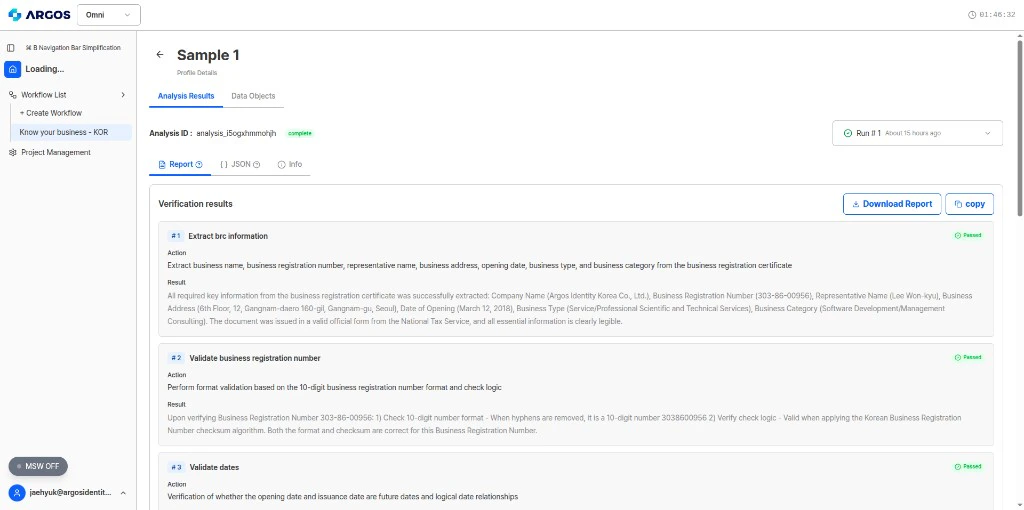
After analysis completes, open the **Analysis Results** tab on the profile. Use **Report**, **JSON**, and **Info** to review the run.
Step-by-step verification summary with actions and results.
## Running an Analysis
Once a profile has all items uploaded and processed (`ACTIVE` status), you can trigger an analysis. The workflow's policy, engines, and output schema are applied automatically.
## Results Overview
Analysis results are structured according to your workflow's [output schema](/en/omni/dashboard/workflow-setup/output-schema) and include:
* **Extracted data** from documents, matched against your schema fields
* **`verificationStatus`** in the decision block — `pending_review`, `approved`, or `rejected`
* **Decision outcome** (Approve / Reject / Flag)
* **Engine-level details** showing which engine produced each result
## Reviewing Results in the Dashboard
The dashboard provides a visual interface to review each profile's analysis:
From your workflow, select the profile you want to review.
See the overall decision (Approve/Reject/Flag) and `verificationStatus` at a glance.
Drill into individual fields to see extracted values and the source engine.
View the original documents alongside extracted data for manual verification when needed.
### Analysis Results tabs
After analysis completes, open the **Analysis Results** tab on the profile. Use **Report**, **JSON**, and **Info** to review the run.
Step-by-step verification summary with actions and results.
 Full structured output as JSON, following your workflow output schema.
Analysis metadata such as analysis ID, run time, and items used.
## Audit Trail
Every action in Omni is logged for compliance purposes:
* Profile creation and updates
* Item uploads and processing events
* Analysis execution and results
* User actions and timestamps
The audit trail provides complete traceability for regulatory compliance. All logs include timestamps, user IDs, and action details.
## Routing with `verificationStatus`
| verificationStatus | Action |
| ------------------ | -------------------------------------------------------------- |
| `approved` | Auto-accept per your policy — typically no extra human review |
| `pending_review` | Routed for human review with highlighted areas of concern |
| `rejected` | Denied or closed per your policy; escalate or notify as needed |
Full structured output as JSON, following your workflow output schema.
Analysis metadata such as analysis ID, run time, and items used.
## Audit Trail
Every action in Omni is logged for compliance purposes:
* Profile creation and updates
* Item uploads and processing events
* Analysis execution and results
* User actions and timestamps
The audit trail provides complete traceability for regulatory compliance. All logs include timestamps, user IDs, and action details.
## Routing with `verificationStatus`
| verificationStatus | Action |
| ------------------ | -------------------------------------------------------------- |
| `approved` | Auto-accept per your policy — typically no extra human review |
| `pending_review` | Routed for human review with highlighted areas of concern |
| `rejected` | Denied or closed per your policy; escalate or notify as needed |