> ## Documentation Index
> Fetch the complete documentation index at: https://developers.argosidentity.com/llms.txt
> Use this file to discover all available pages before exploring further.
# Set your phone time automatically
> Resolve KYC verification errors by enabling automatic date and time on Android and iOS devices
## Fix verification failures caused by inaccurate device time
If identity verification keeps failing, your phone clock might be out of sync with the actual standard time. Follow the instructions below to enable automatic time sync and retry the verification flow within minutes.
When the device time drifts more than five minutes, security tokens become invalid and KYC requests fail immediately.
## Before you start
* Keep the phone connected to Wi-Fi or mobile data so the network time can sync properly.
## Turn on automatic date and time
Open the Settings app and go to **System → Date & Time**. Depending on your manufacturer, the path can appear as **General management → Date & Time** or **Additional settings → Date & Time**.
If your device provides a search bar, type `date` or `time` to jump directly to the menu.
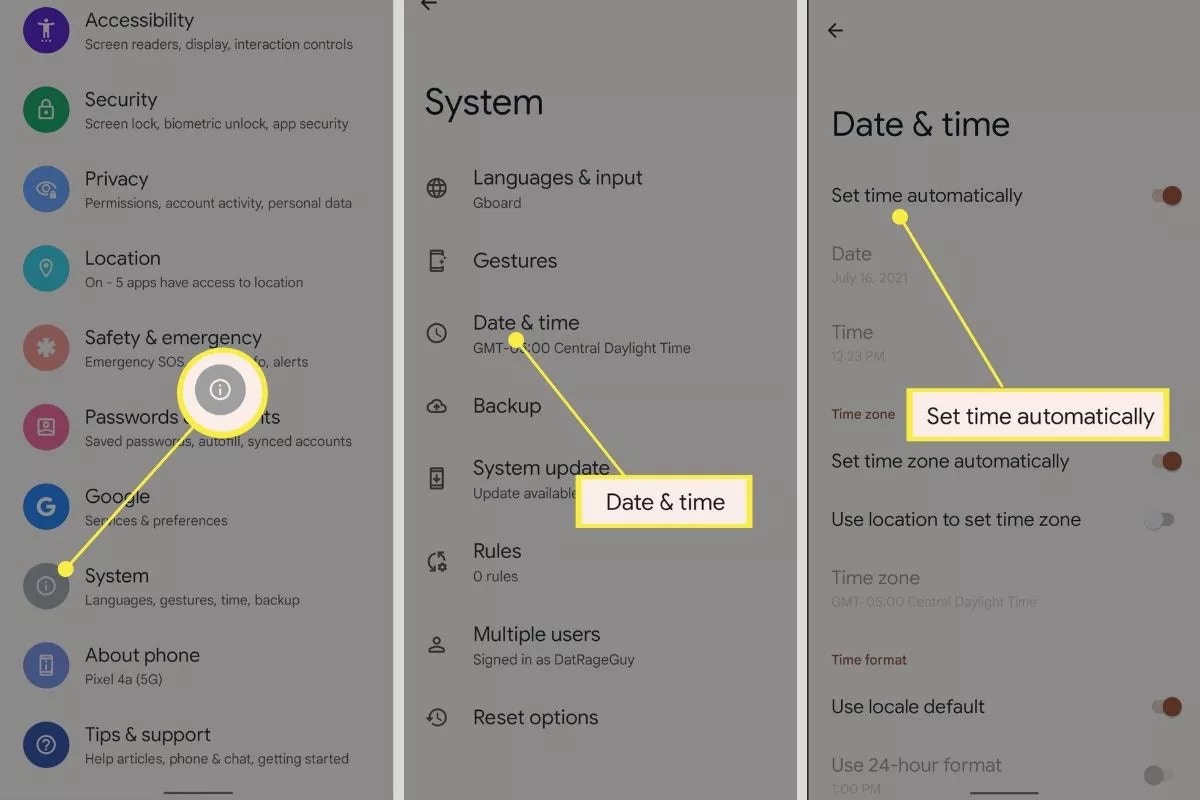 Turn on `Use network-provided time` or `Set time automatically`. Your carrier's time information applies immediately to the phone clock.
Toggle `Use network-provided time zone` so the correct offset applies even when you travel.
If the Clock app now shows the same time as an online standard clock, you are all set.
Close Settings, reopen the verification flow, and continue the process. Most requests pass right away after the sync.
Open **Settings**, tap **General**, and then select **Date & Time**. This path is consistent on iOS 17 and later.
Turn on `Use network-provided time` or `Set time automatically`. Your carrier's time information applies immediately to the phone clock.
Toggle `Use network-provided time zone` so the correct offset applies even when you travel.
If the Clock app now shows the same time as an online standard clock, you are all set.
Close Settings, reopen the verification flow, and continue the process. Most requests pass right away after the sync.
Open **Settings**, tap **General**, and then select **Date & Time**. This path is consistent on iOS 17 and later.
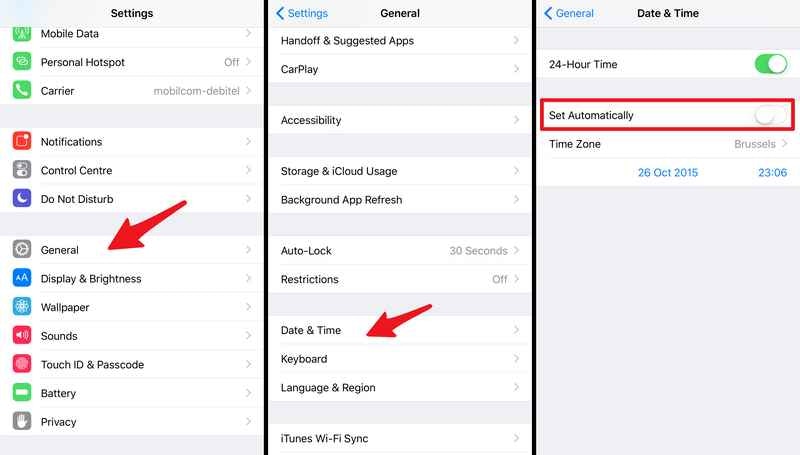 Switch `Set Automatically` to the on position. Allow Location Services if prompted so iOS can determine the correct time zone.
Return to the identity verification app and repeat the flow.
If the flow advances to the next screen without errors, the time sync worked.
## Verify the fix
1. Open the Clock app and confirm the time matches a reliable online time source.
2. Toggle airplane mode on and off once to trigger another quick sync.
3. Force-quit the verification app and relaunch it to clear cached time data.
## Frequently asked questions
* Reboot the phone and walk through the same steps again.
* If the failure persists, capture a screenshot of the error, note the time it occurred, and send both details to support for deeper investigation.
* The issue may be related to ID photo capture, network latency, or other app-specific checks.
* Share the screenshot and timestamp with support so they can correlate the failure with backend logs.
Switch `Set Automatically` to the on position. Allow Location Services if prompted so iOS can determine the correct time zone.
Return to the identity verification app and repeat the flow.
If the flow advances to the next screen without errors, the time sync worked.
## Verify the fix
1. Open the Clock app and confirm the time matches a reliable online time source.
2. Toggle airplane mode on and off once to trigger another quick sync.
3. Force-quit the verification app and relaunch it to clear cached time data.
## Frequently asked questions
* Reboot the phone and walk through the same steps again.
* If the failure persists, capture a screenshot of the error, note the time it occurred, and send both details to support for deeper investigation.
* The issue may be related to ID photo capture, network latency, or other app-specific checks.
* Share the screenshot and timestamp with support so they can correlate the failure with backend logs.