> ## Documentation Index
> Fetch the complete documentation index at: https://developers.argosidentity.com/llms.txt
> Use this file to discover all available pages before exploring further.
# Resolving WebAssembly Errors on iOS
> Guide to resolving 'WebAssembly not found' errors on iOS devices
If you encounter a "WebAssembly not found" error when using ID Check on iOS devices, follow these troubleshooting steps in order.
## Understanding the Problem
This error occurs when WebAssembly functionality is blocked by iOS security settings or browser environment. In particular, when **Lockdown Mode** is enabled, WebAssembly execution is forcibly blocked in Safari, causing a `ReferenceError: Can't find variable: WebAssembly` error. Check each method below one by one.
## Solutions
### 1. Check and Disable Lockdown Mode
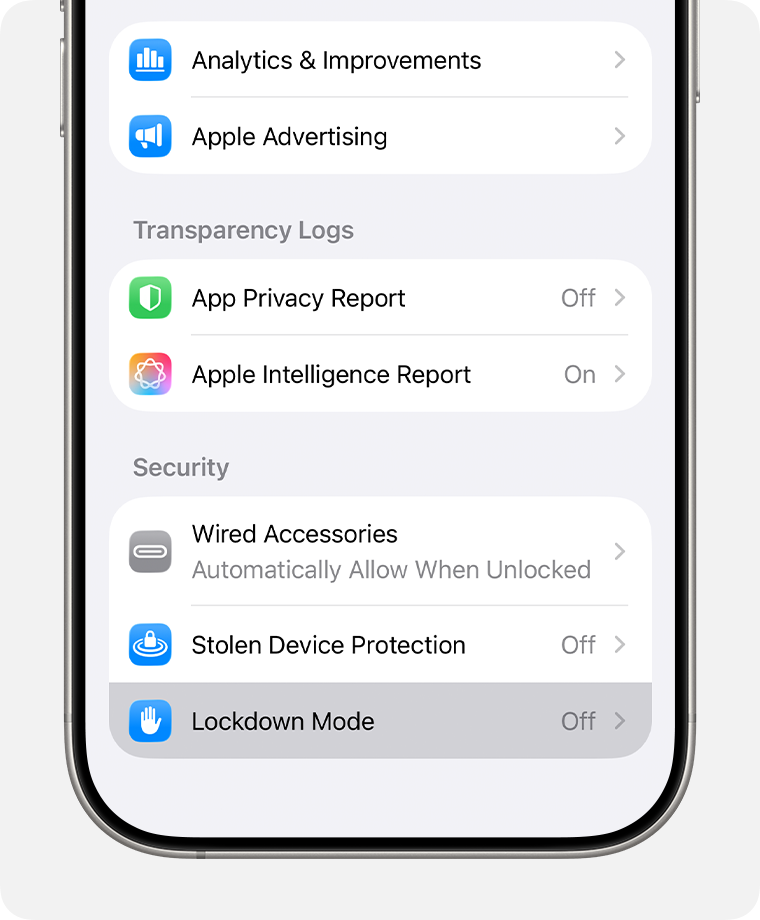
If Lockdown Mode is enabled on iOS 16 or later, WebAssembly will be blocked. Lockdown Mode is hidden at the bottom of the menu due to its high security level.
Open the **Settings** app on your iPhone.
Select the **Privacy & Security** menu.
Scroll to the **very bottom (all the way down)** of the screen.
Find the **Lockdown Mode** option at the bottom of the **Security** section and check its current status.
If Lockdown Mode is set to **On**, tap the toggle to change it to **Off**.
**If the Lockdown Mode menu is not visible:**
* **Check iOS version**: Lockdown Mode is only supported on iOS 16 or later. If you're using iOS 15 or earlier, this menu will not appear. (You can check your version in Settings > General > About)
* **Device restrictions**: In rare cases, if your device is managed by a company or school with an MDM (Mobile Device Management) profile installed, certain security settings may be restricted and the menu may not be visible.
If you need to keep Lockdown Mode enabled for security reasons, you can exclude the ID Check site from Lockdown Mode in Safari's website settings. Open the site in Safari, tap the **aA** icon next to the address bar, then select **Website Settings** and choose to exclude it from Lockdown Mode.
Lockdown Mode is a security-enhancing feature. Be aware of security risks after disabling it.
 ### 2. Open in Safari Browser Directly
Issues may occur when using in-app browsers or apps added to the home screen.
Launch the **Safari** app directly on your iPhone.
Enter the full address of the ID Check page in Safari's address bar.
Refresh the page or start over from the beginning.
WebAssembly may not work in browsers opened from within apps like KakaoTalk, Facebook, or Instagram. Try opening the page directly in the Safari app.
### 3. Check Safari Experimental Features
WebAssembly may be disabled in Safari's experimental features settings.
Open the **Settings** app on your iPhone.
Select the **Safari** menu.
Select the **Advanced** menu at the bottom of the screen.
Select the **Experimental Features** menu.
Find the **WebAssembly** item in the list and verify it is set to **On**.
WebAssembly is enabled by default in most recent iOS versions. However, if it was manually changed previously, you may need to verify this setting.
### 4. Check iOS Version
WebAssembly is only supported on iOS 11 or later.
Open the **Settings** app on your iPhone.
Select the **General** menu.
Select the **About** menu.
Check your current iOS version in the **Software Version** item.
If you're using iOS 10 or earlier, you need to update iOS. Go to **Settings > General > Software Update** to proceed with the update.
### 5. Clear Cache and Data
The issue may be caused by browser cache or stored data.
Go to **Settings > Safari**.
Select **Clear History and Website Data**.
Select **Clear** in the confirmation message.
Open Safari again and reload the ID Check page.
## If the Problem Persists
If you've tried all the methods above and the problem still persists:
1. **Restart device**: Turn off your iPhone completely and turn it back on.
2. **Restart Safari app**: Completely close the Safari app and launch it again.
3. **Check network**: Verify you're using a stable Wi-Fi or cellular connection.
In most cases, disabling Lockdown Mode or opening the page directly in Safari browser resolves the issue. If the problem persists, please contact customer support.
### 2. Open in Safari Browser Directly
Issues may occur when using in-app browsers or apps added to the home screen.
Launch the **Safari** app directly on your iPhone.
Enter the full address of the ID Check page in Safari's address bar.
Refresh the page or start over from the beginning.
WebAssembly may not work in browsers opened from within apps like KakaoTalk, Facebook, or Instagram. Try opening the page directly in the Safari app.
### 3. Check Safari Experimental Features
WebAssembly may be disabled in Safari's experimental features settings.
Open the **Settings** app on your iPhone.
Select the **Safari** menu.
Select the **Advanced** menu at the bottom of the screen.
Select the **Experimental Features** menu.
Find the **WebAssembly** item in the list and verify it is set to **On**.
WebAssembly is enabled by default in most recent iOS versions. However, if it was manually changed previously, you may need to verify this setting.
### 4. Check iOS Version
WebAssembly is only supported on iOS 11 or later.
Open the **Settings** app on your iPhone.
Select the **General** menu.
Select the **About** menu.
Check your current iOS version in the **Software Version** item.
If you're using iOS 10 or earlier, you need to update iOS. Go to **Settings > General > Software Update** to proceed with the update.
### 5. Clear Cache and Data
The issue may be caused by browser cache or stored data.
Go to **Settings > Safari**.
Select **Clear History and Website Data**.
Select **Clear** in the confirmation message.
Open Safari again and reload the ID Check page.
## If the Problem Persists
If you've tried all the methods above and the problem still persists:
1. **Restart device**: Turn off your iPhone completely and turn it back on.
2. **Restart Safari app**: Completely close the Safari app and launch it again.
3. **Check network**: Verify you're using a stable Wi-Fi or cellular connection.
In most cases, disabling Lockdown Mode or opening the page directly in Safari browser resolves the issue. If the problem persists, please contact customer support.