> ## Documentation Index
> Fetch the complete documentation index at: https://developers.argosidentity.com/llms.txt
> Use this file to discover all available pages before exploring further.
# How to enable Camera Permission
> Guide on how to re-enable camera permission after denying it in the browser
To take photos, both **device (OS permission)** and **browser (site permission)** must be allowed. If you select "Don't Allow (Deny)" once, the browser cannot show the permission request popup again. Please follow the instructions below to re-enable permissions, then **refresh the page**.
**Important Notice**
* If shooting doesn't work in the app/browser, please check both **iPhone(iOS) / Android** instructions below.
* After changing settings, you may need to **fully close the app → restart** or **refresh the browser**.
## How to Re-enable Camera Permission on iPhone
### 1) Allow Website Camera Permission in Safari
Open the current page (service page) in Safari.
Tap the **「AA」 icon** on the left side of the address bar.
Select **「Website Settings」**.
Change the **「Camera」** option to **「Allow」**.
Refresh the page and try shooting again.
### 2) Check Safari Camera Permission in iOS Settings
Open the **「Settings」 app** on iPhone.
Scroll down and select **「Safari」**.
Find the **「Camera」** option and change it to **「Allow」 or 「Ask」**.
Close Safari completely, restart it, and revisit the page.
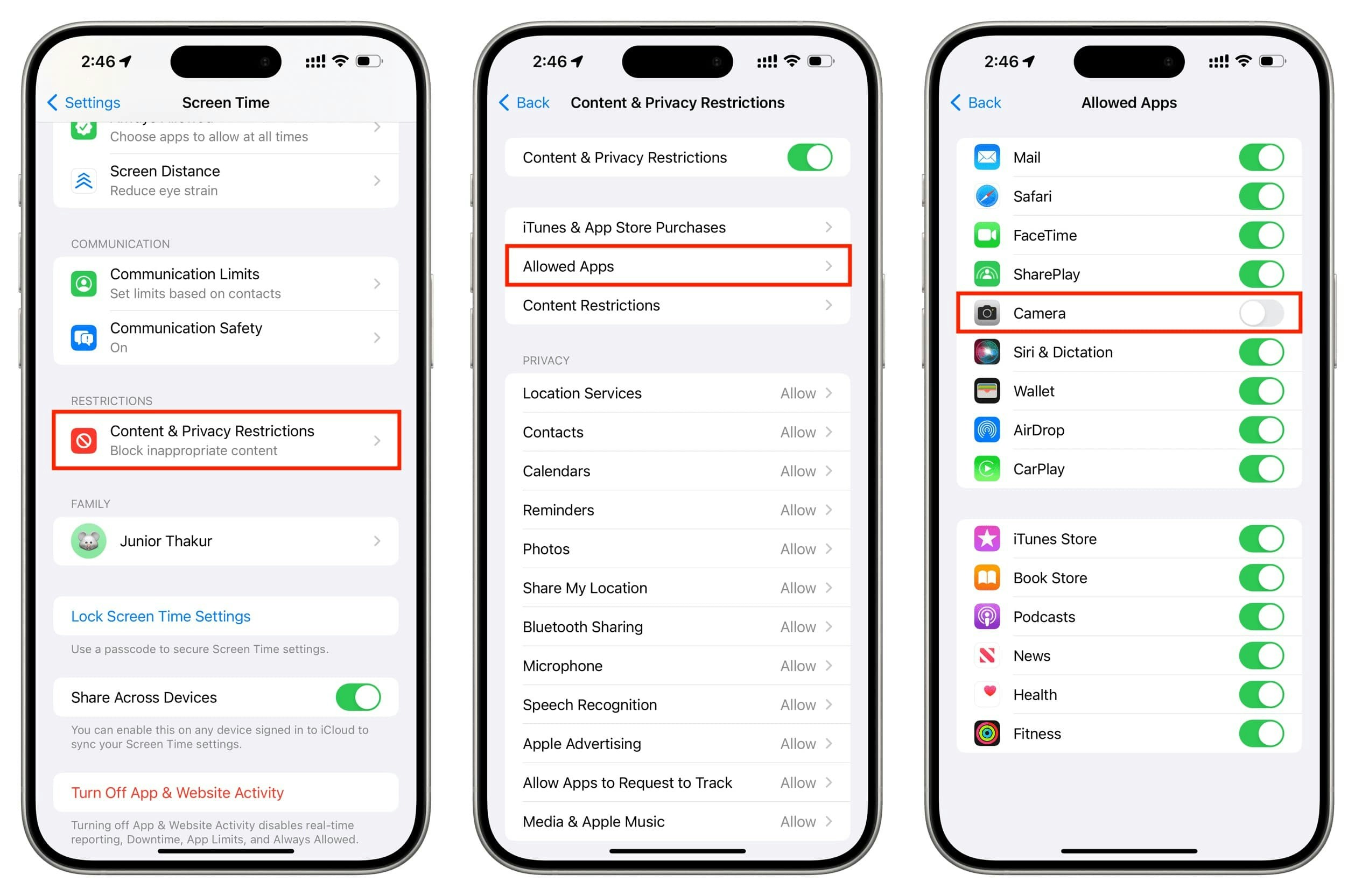
### 3) (For App Use) Allow iOS App Camera Permission
Go to **「Settings」 → 「Privacy & Security」**.
Select **「Camera」**.
Find your **app name** in the app list and turn the toggle **ON**.
Fully close the app, then restart it and try shooting.
Even when using an in-app browser (WebView), shooting is not possible if **iOS app camera permission** is turned off.
 ## How to Re-enable Camera Permission on Android
### 1) Allow Site Camera Permission in Chrome
Launch the **Chrome** app on Android.
Tap the **「⋮」 menu** in the top right and select **「Settings」**.
Go to **「Site settings」 → 「Camera」**.
Turn the top switch **ON** if it's off.
Select the site from the **「Blocked」** list below and change it to **「Allow」**.
Return to the service page, refresh, and try shooting again.
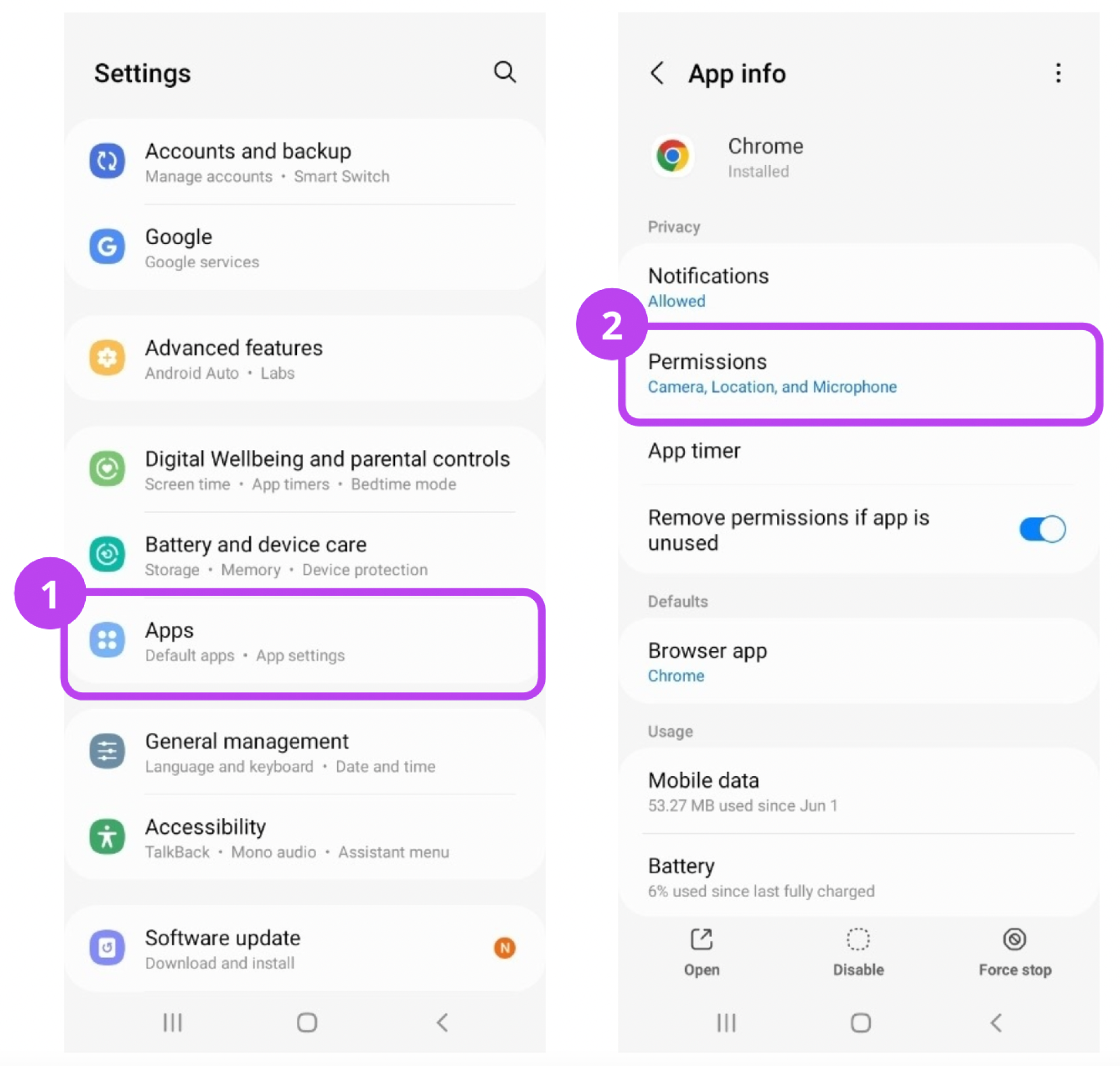
### 2) Allow Android OS App Camera Permission
Open the **「Settings」 app** on Android.
Go to **「Apps」 or 「Applications」** menu.
Select your browser or **service app**.
Tap **「Permissions」**.
Change **「Camera」** to **「Allow only while using the app」 or 「Allow all the time」**.
Fully close the app, then restart it and try shooting.
Menu names may vary depending on manufacturer/Android version, such as **「Security & Privacy」, 「Permission Manager」**, etc.
## How to Re-enable Camera Permission on Android
### 1) Allow Site Camera Permission in Chrome
Launch the **Chrome** app on Android.
Tap the **「⋮」 menu** in the top right and select **「Settings」**.
Go to **「Site settings」 → 「Camera」**.
Turn the top switch **ON** if it's off.
Select the site from the **「Blocked」** list below and change it to **「Allow」**.
Return to the service page, refresh, and try shooting again.
### 2) Allow Android OS App Camera Permission
Open the **「Settings」 app** on Android.
Go to **「Apps」 or 「Applications」** menu.
Select your browser or **service app**.
Tap **「Permissions」**.
Change **「Camera」** to **「Allow only while using the app」 or 「Allow all the time」**.
Fully close the app, then restart it and try shooting.
Menu names may vary depending on manufacturer/Android version, such as **「Security & Privacy」, 「Permission Manager」**, etc.
 ## Please Check After Changing Settings
After allowing all permissions using the methods above, please **refresh the page (F5 or pull to refresh)**.
If you're using an app, please **fully close it from the recent apps list and restart**.
If problems persist, try again in **another browser (other than Chrome / Safari)** or contact **customer support**. If the camera fails to open on Android or in an in-app browser (WebView), also see [Android & WebView Camera Troubleshooting](/en/idcheck/getting-started/webview-camera-troubleshooting).
This guide page is designed to supplement the technical limitation where browsers cannot re-request camera permission after it has been denied once. Please follow the steps above in order to use the service.
## Please Check After Changing Settings
After allowing all permissions using the methods above, please **refresh the page (F5 or pull to refresh)**.
If you're using an app, please **fully close it from the recent apps list and restart**.
If problems persist, try again in **another browser (other than Chrome / Safari)** or contact **customer support**. If the camera fails to open on Android or in an in-app browser (WebView), also see [Android & WebView Camera Troubleshooting](/en/idcheck/getting-started/webview-camera-troubleshooting).
This guide page is designed to supplement the technical limitation where browsers cannot re-request camera permission after it has been denied once. Please follow the steps above in order to use the service.