> ## Documentation Index
> Fetch the complete documentation index at: https://developers.argosidentity.com/llms.txt
> Use this file to discover all available pages before exploring further.
# Connect MCP to Cursor
> How to connect ARGOS Identity Dev Guide MCP to Cursor.
## 1. Preparation
* **Cursor IDE**: Latest version (version 0.47.8 or higher recommended)
Node.js installation is not required when using the web URL method.
## 2. MCP Server Connection Method
ARGOS Identity MCP server uses the **web URL method**. This method can be used immediately without any installation and always provides the latest version of the documentation.
The web URL method is the simplest and most stable approach. You can use it immediately without any installation or setup.
## 3. Connect to MCP Server
### 3.1. Verify MCP Server URL
Check the MCP server URL provided in the MCP section of the Mintlify dashboard:
```
https://developers.argosidentity.com/mcp
```
### 3.2. Add MCP in Cursor Settings
There are two ways to add an MCP server in Cursor IDE:
#### Method 1: UI Configuration (Recommended)
1. Launch Cursor IDE.
2. Go to **Settings**:
* Windows/Linux: `Ctrl + ,` or **File** → **Preferences** → **Settings** from the menu
* macOS: `Cmd + ,` or **Cursor** → **Settings** from the menu
3. Type `MCP` or `Model Context Protocol` in the search box.
4. Find the **Features** → **Model Context Protocol** section.
5. Click **Add MCP Server** or the **+** button.
6. Enter the following information:
* **Name**: `argosidentity`
* **URL**: `https://developers.argosidentity.com/mcp`
7. Click **Save** or **Add**.
#### Method 2: Direct Configuration File Editing
1. Open the Cursor IDE configuration file:
* Windows: `%APPDATA%\Cursor\User\settings.json`
* macOS: `~/Library/Application Support/Cursor/User/settings.json`
* Linux: `~/.config/Cursor/User/settings.json`
2. Add the following configuration:
```json theme={null}
{
"mcp.servers": {
"argosidentity": {
"url": "https://developers.argosidentity.com/mcp"
}
}
}
```
When editing the configuration file directly, ensure the JSON format is correct. Format errors may cause Cursor to malfunction.
MCP settings in Cursor can be managed at Settings → Features → Model Context Protocol. If you edited the configuration file directly, you need to restart Cursor for the changes to take effect.
### 3.3. Restart Cursor
If you edited the configuration file directly, completely quit and restart Cursor IDE.
### 3.4. Verify Connection
After configuration, verify that ARGOS Identity MCP is enabled in Cursor IDE:
1. Go to **Settings** → **Features** → **Model Context Protocol** in Cursor IDE.
2. Check if the `argosidentity` server appears in the list.
3. Verify that the server status shows "Connected" or "Active".
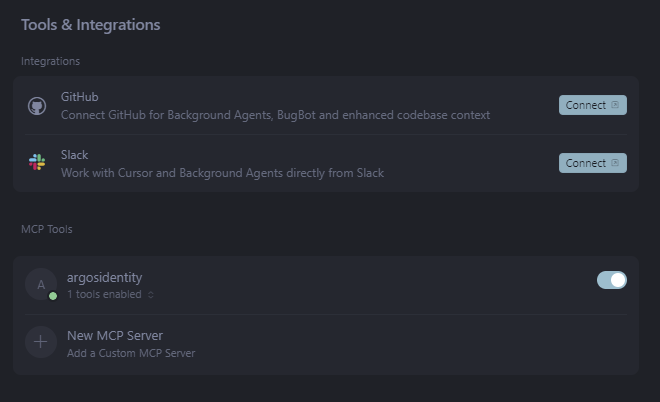 When the MCP server is properly connected, the `SearchArgosIdentity` tool will appear in the "Available tools" section.
### 3.5. Troubleshooting
If the MCP server is not connecting, check the following:
* **URL Verification**: Verify that `https://developers.argosidentity.com/mcp` is correct.
* **Network Connection**: Check if your internet connection is working properly.
* **Cursor Version**: Verify that Cursor IDE is the latest version (0.47.8 or higher).
* **Configuration File Format**: If you edited the configuration file directly, verify that the JSON format is correct.
* **Restart**: Completely quit and restart Cursor IDE.
If the MCP server URL is not working, check the latest MCP server URL in the Mintlify dashboard.
## 4. Start Using ARGOS Dev Guide MCP
You can directly ask ARGOS development documentation questions in Cursor's **New Chat** window.\
Below is an example of an actual question and response:
When the MCP server is properly connected, the `SearchArgosIdentity` tool will appear in the "Available tools" section.
### 3.5. Troubleshooting
If the MCP server is not connecting, check the following:
* **URL Verification**: Verify that `https://developers.argosidentity.com/mcp` is correct.
* **Network Connection**: Check if your internet connection is working properly.
* **Cursor Version**: Verify that Cursor IDE is the latest version (0.47.8 or higher).
* **Configuration File Format**: If you edited the configuration file directly, verify that the JSON format is correct.
* **Restart**: Completely quit and restart Cursor IDE.
If the MCP server URL is not working, check the latest MCP server URL in the Mintlify dashboard.
## 4. Start Using ARGOS Dev Guide MCP
You can directly ask ARGOS development documentation questions in Cursor's **New Chat** window.\
Below is an example of an actual question and response:
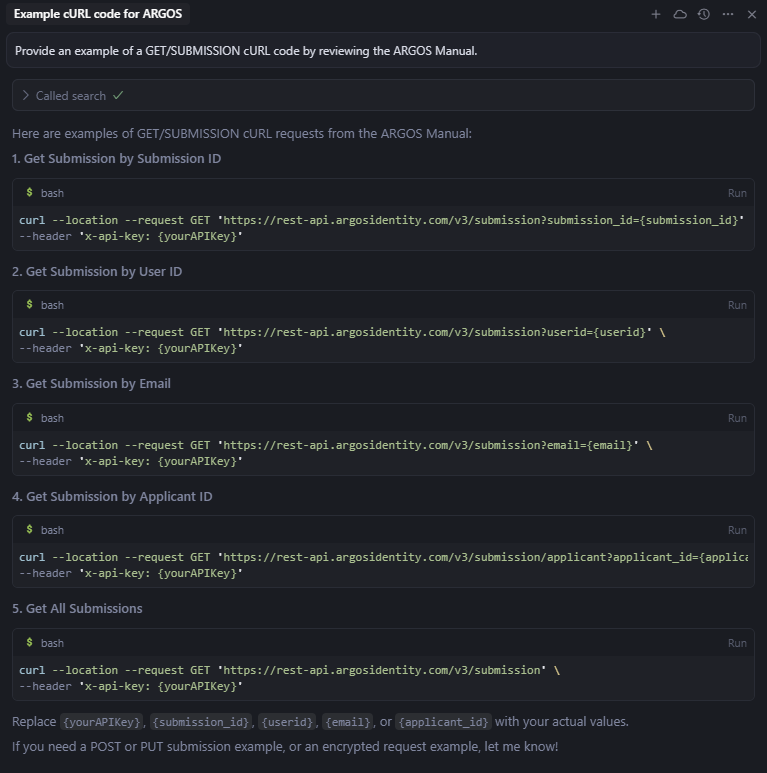 Once the MCP server is properly connected, Cursor can search ARGOS Identity documentation and answer questions.