> ## Documentation Index
> Fetch the complete documentation index at: https://developers.argosidentity.com/llms.txt
> Use this file to discover all available pages before exploring further.
# Session Journey Dashboard Guide
> Learn how the session journey list and detail views are structured and used, and how to trace error causes through the event timeline.
This document explains how to view and use the **list view** and **detail view** of the session journey dashboard. For concepts and interpretation principles, see the [Session Journey Overview](/dashboard/en/session-journey/overview); for the meaning of individual events, see the [Event Reference](/dashboard/en/session-journey/event-reference).
## List view
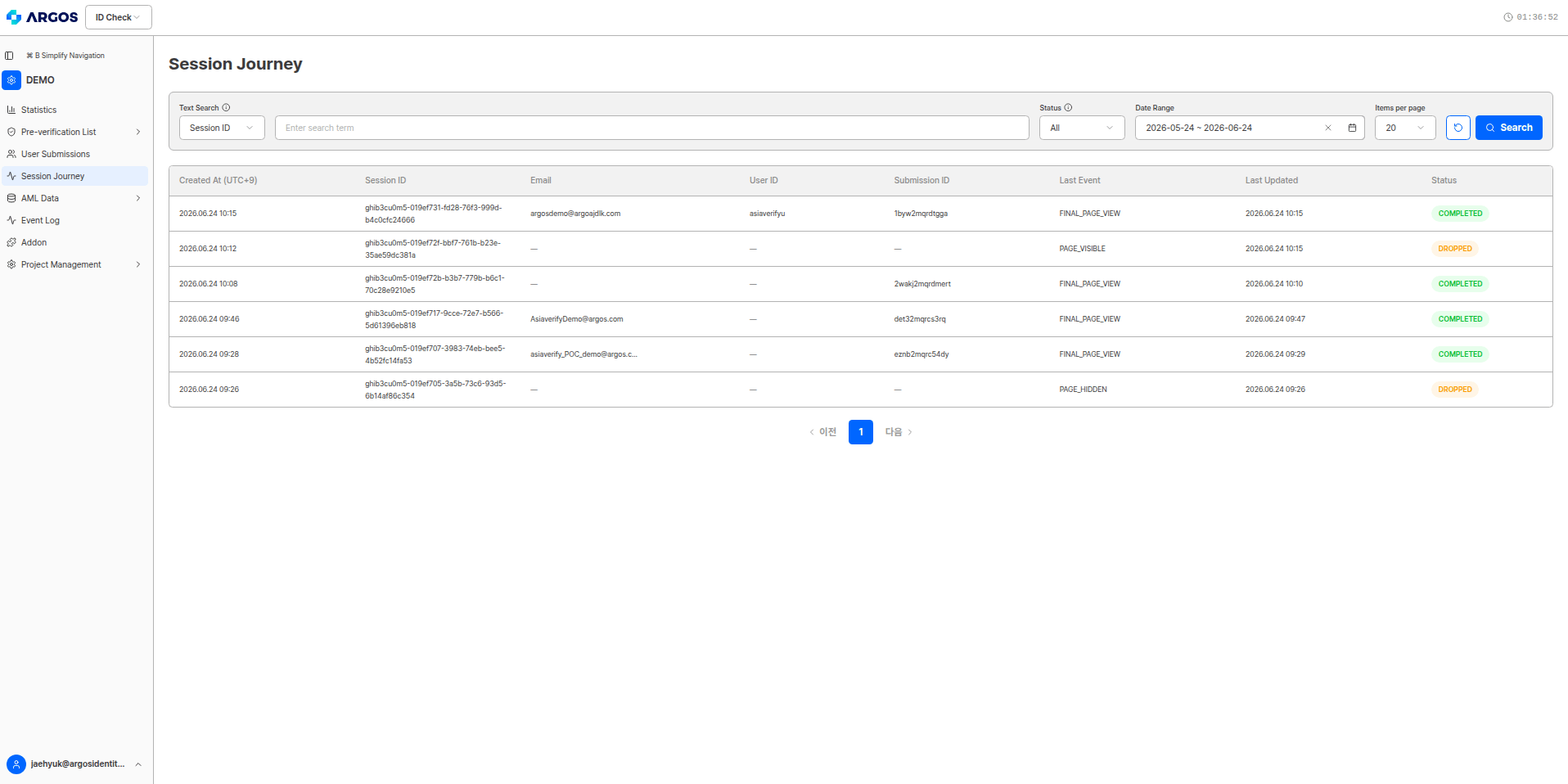
Select **Session Journey** from the left menu of the dashboard to open the list of submissions (sessions). Each row is one session (the verification progress record for a single submission), and clicking a row navigates to that session's detail view.
### Columns
| Column | Description |
| --------------- | ---------------------------------------------------------------------------------------------- |
| Created (UTC+9) | The time the session was first created (Korea Standard Time) |
| Session ID | Unique session identifier |
| Email | The email entered by the user |
| User ID | The user identifier assigned by the project |
| Submission ID | The identifier of the created submission (shown as `—` before Step1 is passed) |
| Last event | The name of the most recently recorded event |
| Last update | The time the last event was recorded |
| Status | The overall progress status of the session (`COMPLETED` · `IN_PROGRESS` · `DROPPED` · `ERROR`) |
A session whose `Submission ID` is `—` is a session that stopped at the stage before a submission was created (Step1 not yet passed). For when the submission is created, see the `SUBMISSION_CREATED` event in the event reference.
### Status values
The **Status** column in the list shows the overall progress of the session as a colored chip.
| Status | Color | Meaning |
| ------------- | ------ | ------------------------------------------------------------------------------------------------ |
| `COMPLETED` | Green | Completed — the user finished the journey to the end (approval, rejection, or hold all possible) |
| `IN_PROGRESS` | Blue | In progress — the final result has not yet been reached |
| `DROPPED` | Orange | Drop-off — the user left without completing the journey (the final result page was not reached) |
| `ERROR` | Red | Error — left the normal flow, e.g. via an error page |
The status value **differs from the final KYC decision (approval, rejection, hold).** `COMPLETED` means "the journey was carried through to the end," not "it was approved." Confirm the final result with the `APPROVED`, `REJECTED`, or `PENDING` events in the detail view.
A `DROPPED` session is a case where the user left without finishing verification, so the email, User ID, and Submission ID are often empty (`—`) and the last event often ends with a pre-drop signal such as `PAGE_HIDDEN` or `PAGE_VISIBLE`. Use this for analyzing drop-off points.
 ### Search & filter
At the top of the list, you can find sessions using the following conditions.
* **Text search** — Select the target field (e.g., `Session ID`) and enter a search term.
* **Status** — Filter by `COMPLETED`, `IN_PROGRESS`, `DROPPED`, `ERROR`, or all.
* **Date range** — Specify the lookup period based on the creation date.
* **Items per page** — Set the number of rows to display on one page (e.g., 20).
## Detail view
Clicking a session in the list opens that session's detail view. At the top, a **data expiration banner** is shown alongside the session status chip.
### Search & filter
At the top of the list, you can find sessions using the following conditions.
* **Text search** — Select the target field (e.g., `Session ID`) and enter a search term.
* **Status** — Filter by `COMPLETED`, `IN_PROGRESS`, `DROPPED`, `ERROR`, or all.
* **Date range** — Specify the lookup period based on the creation date.
* **Items per page** — Set the number of rows to display on one page (e.g., 20).
## Detail view
Clicking a session in the list opens that session's detail view. At the top, a **data expiration banner** is shown alongside the session status chip.
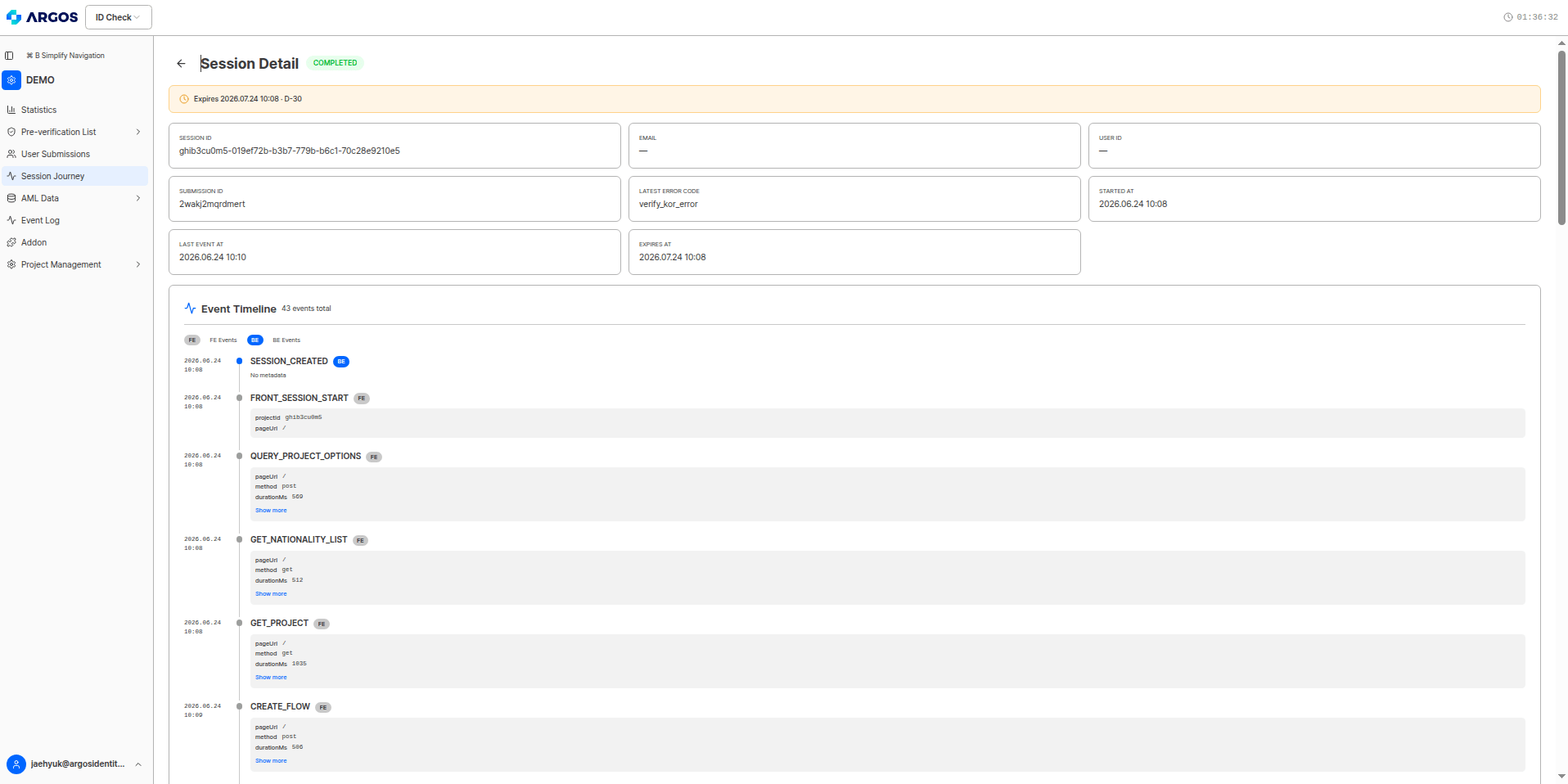 The expiration banner (e.g., `2026.07.24 10:12 Expires At · D-30`) indicates the **expiration date and remaining days (D-day)** for which this session's detail records are retained. After expiration, detail event records can no longer be viewed, so if long-term preservation is needed, check before expiration.
The retention period is determined by the **Session Journey Data Retention Period** (default 30 days) under Project Settings > [System Operations](/dashboard/en/project-management/project-settings/system-operation).
### Summary card
The summary card at the top of the detail view gathers and displays the session's key information.
| Field | Description |
| ----------------- | --------------------------------------------------- |
| SESSION ID | Unique session identifier |
| Email | The email entered by the user |
| USER ID | The user identifier assigned by the project |
| SUBMISSION ID | The identifier of the created submission |
| Latest error code | The most recently occurred error code (`—` if none) |
| Start time | The session start time |
| Last event time | The time the last event was recorded |
| Expiration date | The expiration date for detail record retention |
The **latest error code** is the starting point for quickly grasping the cause of an error. To find which event this code originated from, look in the **event timeline** below for the event with the same code.
### Event timeline
Below the summary card is the **event timeline**, which lists all events that occurred in this session in chronological order. The total number of events (e.g., `총 44개 이벤트`) is shown next to the section title.
* **FE / BE filter chips** — You can filter by source with the `FE 이벤트` and `BE 이벤트` chips.
* **Each event's composition** — Made up of the recorded time, event name, `FE`/`BE` badge, metadata (key-value), and a `더 보기` toggle.
* **metadata** — Additional information per event. For example: `projectId`, `pageUrl`, `method`, `durationMs`, `allPass`, `errorCode`, `statusCode`, `kycStatus`, `reason`. Events without metadata are shown as `에러데이터 없음`.
The timeline is listed in chronological order, but because **multiple verifications run almost simultaneously**, the display order is not necessarily a causal relationship. Judge the cause not by order but by each event's result value (metadata) and user impact. For detailed interpretation principles, see ["Key cautions when interpreting" in the overview](/dashboard/en/session-journey/overview).
## Error cause tracing example
This is a typical flow for tracing the cause in a session whose status is `ERROR`. (e.g., latest error code = `processed_submission-approved`)
When you open a session whose status is `ERROR`, the summary card's **latest error code** shows `processed_submission-approved`. From the code's form, you can guess the primary cause — it is an error related to an "already processed (approved) submission."
In the timeline, find the result-received event `STEP2_RESULT`. Its metadata records `errorCode: processed_submission` and `statusCode: 400`, indicating that the server did not process this submission normally and responded with 400.
Next, the `ERROR_PAGE_VIEWED` event is recorded with the path `/error-page/processed_submission-approved`. This means the user deviated from the normal flow and was forced out to the error page.
Taken together, this is a case where an **already approved submission was attempted again**, so the server blocked duplicate processing and sent the user to the error page. This applies when the user attempted re-verification or reused the link.
For the mapping between error codes, error pages, and the messages shown to users, see the [Error codes and pages](/en/idcheck/reference_tables/Error-codes-and-pages) document, and for the meaning of each event, see the [Event Reference](/dashboard/en/session-journey/event-reference).
The expiration banner (e.g., `2026.07.24 10:12 Expires At · D-30`) indicates the **expiration date and remaining days (D-day)** for which this session's detail records are retained. After expiration, detail event records can no longer be viewed, so if long-term preservation is needed, check before expiration.
The retention period is determined by the **Session Journey Data Retention Period** (default 30 days) under Project Settings > [System Operations](/dashboard/en/project-management/project-settings/system-operation).
### Summary card
The summary card at the top of the detail view gathers and displays the session's key information.
| Field | Description |
| ----------------- | --------------------------------------------------- |
| SESSION ID | Unique session identifier |
| Email | The email entered by the user |
| USER ID | The user identifier assigned by the project |
| SUBMISSION ID | The identifier of the created submission |
| Latest error code | The most recently occurred error code (`—` if none) |
| Start time | The session start time |
| Last event time | The time the last event was recorded |
| Expiration date | The expiration date for detail record retention |
The **latest error code** is the starting point for quickly grasping the cause of an error. To find which event this code originated from, look in the **event timeline** below for the event with the same code.
### Event timeline
Below the summary card is the **event timeline**, which lists all events that occurred in this session in chronological order. The total number of events (e.g., `총 44개 이벤트`) is shown next to the section title.
* **FE / BE filter chips** — You can filter by source with the `FE 이벤트` and `BE 이벤트` chips.
* **Each event's composition** — Made up of the recorded time, event name, `FE`/`BE` badge, metadata (key-value), and a `더 보기` toggle.
* **metadata** — Additional information per event. For example: `projectId`, `pageUrl`, `method`, `durationMs`, `allPass`, `errorCode`, `statusCode`, `kycStatus`, `reason`. Events without metadata are shown as `에러데이터 없음`.
The timeline is listed in chronological order, but because **multiple verifications run almost simultaneously**, the display order is not necessarily a causal relationship. Judge the cause not by order but by each event's result value (metadata) and user impact. For detailed interpretation principles, see ["Key cautions when interpreting" in the overview](/dashboard/en/session-journey/overview).
## Error cause tracing example
This is a typical flow for tracing the cause in a session whose status is `ERROR`. (e.g., latest error code = `processed_submission-approved`)
When you open a session whose status is `ERROR`, the summary card's **latest error code** shows `processed_submission-approved`. From the code's form, you can guess the primary cause — it is an error related to an "already processed (approved) submission."
In the timeline, find the result-received event `STEP2_RESULT`. Its metadata records `errorCode: processed_submission` and `statusCode: 400`, indicating that the server did not process this submission normally and responded with 400.
Next, the `ERROR_PAGE_VIEWED` event is recorded with the path `/error-page/processed_submission-approved`. This means the user deviated from the normal flow and was forced out to the error page.
Taken together, this is a case where an **already approved submission was attempted again**, so the server blocked duplicate processing and sent the user to the error page. This applies when the user attempted re-verification or reused the link.
For the mapping between error codes, error pages, and the messages shown to users, see the [Error codes and pages](/en/idcheck/reference_tables/Error-codes-and-pages) document, and for the meaning of each event, see the [Event Reference](/dashboard/en/session-journey/event-reference).