> ## Documentation Index
> Fetch the complete documentation index at: https://developers.argosidentity.com/llms.txt
> Use this file to discover all available pages before exploring further.
# Regions
> Explains how to check a project's US or KR region, the endpoints for each region, and where data is processed.
ID Check lets you place a project in either the US (United States) or the KR (South Korea) region. Dashboard features, policies, and options are the same in both regions. What differs is the access address (endpoint) for the API and Liveform, and the webhook sender IP. The dashboard address is `https://idcheck.argosidentity.com` regardless of region.
***
## Endpoints by Region
Use the addresses that match the region your project belongs to.
| Item | US region | KR region |
| - | - | - |
| REST API host | `https://rest-api.argosidentity.com` | `https://kr.rest-api.argosidentity.com` |
| Liveform URL (ID document) | `https://form.argosidentity.com?pid={project_id}` | `https://form-kr.argosidentity.com?pid={project_id}` |
| Liveform URL (Knowledge-based) | `https://form.argosidentity.com/knowledge?pid={project_id}` | `https://form-kr.argosidentity.com/knowledge?pid={project_id}` |
| Webhook sender IP | `52.78.194.237` | `43.202.228.115` |
The firewall of the server that receives webhooks must allow the sender IP of the region your project belongs to. If you use projects in both regions, allow both IPs. See [Integration Info](/dashboard/en/project-management/project-settings/integration-info) for details.
Most request examples in the API reference can be switched between the `US` and `KR` tabs. For examples without tabs, replace only the host with the one for your project's region.
***
## Checking a Project's Region
After you log in, the **Project List** shows `US (United States)` and `KR (South Korea)` tabs at the top, and each tab lists the projects in that region. The tab in which a project appears is the project's region.
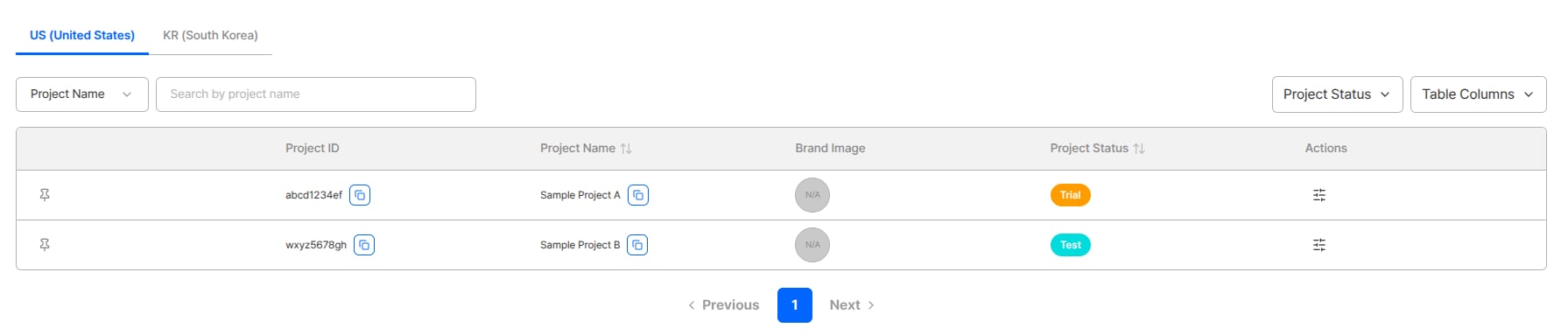 An account with projects in both regions sees each project in its own tab. A member invited to a project enters the region that the project belongs to.
***
## Where Data Is Processed
KYC processing and data storage take place in the region the project belongs to. Some third-party integrations, such as IP lookup, use the US region; apart from these, users' personal information (PII) is always processed in the project's region.
***
## Existing Projects and Moving to the KR Region
All existing projects are in the US region. Automatic migration of a project to the KR region is not provided. To use the KR region, you need to create a new project in the KR region and migrate your data, so please contact the sales team or customer support.
***
## Creating a Project in Another Region
Please ask the sales team to create projects in a specific region. A FACE AUTH Add-On project is created under the project it is connected to, so it belongs to the same region as that project.
Check the Liveform URL for each project
API key and webhook settings
An account with projects in both regions sees each project in its own tab. A member invited to a project enters the region that the project belongs to.
***
## Where Data Is Processed
KYC processing and data storage take place in the region the project belongs to. Some third-party integrations, such as IP lookup, use the US region; apart from these, users' personal information (PII) is always processed in the project's region.
***
## Existing Projects and Moving to the KR Region
All existing projects are in the US region. Automatic migration of a project to the KR region is not provided. To use the KR region, you need to create a new project in the KR region and migrate your data, so please contact the sales team or customer support.
***
## Creating a Project in Another Region
Please ask the sales team to create projects in a specific region. A FACE AUTH Add-On project is created under the project it is connected to, so it belongs to the same region as that project.
Check the Liveform URL for each project
API key and webhook settings