> ## Documentation Index
> Fetch the complete documentation index at: https://developers.argosidentity.com/llms.txt
> Use this file to discover all available pages before exploring further.
# Data Protection
> Learn how to strengthen data security through liveform encryption settings and secure transmission settings.
Data protection functions provide encryption and secure transmission options to strengthen project security levels.
Safe data transmission and storage are supported through liveform encryption settings and secure transmission settings.
## Liveform Encryption Settings
You can maintain higher security levels for user submissions through liveform encryption settings.
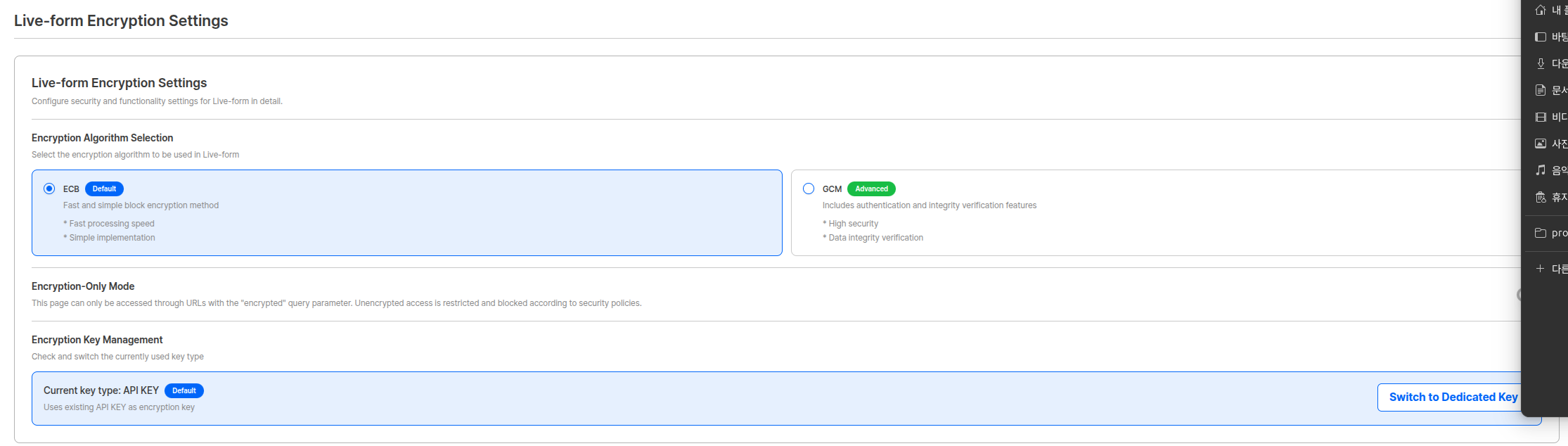 ### Encryption Algorithm Selection
When encryption is needed in liveform URL's Query String, data must be encrypted using the selected encryption algorithm and encryption key.
| Algorithm | Description |
| ----------------------------- | --------------------------------------------------------------------------- |
| **ECB (Electronic Codebook)** | Fast and simple block encryption method |
| **GCM (Galois/Counter Mode)** | Enhanced encryption method including authentication and integrity functions |
**How to Use After Algorithm Selection**
After selecting encryption algorithm, parameters requiring encryption in liveform URL's Query String must be encrypted using the selected algorithm and encryption key, then used in the form `encrypted={encrypted_data}`.
### Encryption-only Mode
Activate encryption-only mode when you want to encrypt and use all Query String parameters.
### Encryption Algorithm Selection
When encryption is needed in liveform URL's Query String, data must be encrypted using the selected encryption algorithm and encryption key.
| Algorithm | Description |
| ----------------------------- | --------------------------------------------------------------------------- |
| **ECB (Electronic Codebook)** | Fast and simple block encryption method |
| **GCM (Galois/Counter Mode)** | Enhanced encryption method including authentication and integrity functions |
**How to Use After Algorithm Selection**
After selecting encryption algorithm, parameters requiring encryption in liveform URL's Query String must be encrypted using the selected algorithm and encryption key, then used in the form `encrypted={encrypted_data}`.
### Encryption-only Mode
Activate encryption-only mode when you want to encrypt and use all Query String parameters.
 When encryption-only mode is activated, only `pid`, `encrypted`, `lang` parameters are allowed in liveform URL, and all other parameters must be encrypted and included in the `encrypted` parameter.
**Allowed URL Format:**
```
https://form.argosidentity.com?pid={project_Id}&encrypted={encrypted_data}&lang=ko
```
**Not Allowed URL Format:**
```
https://form.argosidentity.com?pid={project_Id}&encrypted={encrypted_data}&email=user@example.com
```
**Encryption-only Mode Precautions**
When encryption-only mode is activated, all unencrypted Query String parameters are ignored. All data must be encrypted and included in the `encrypted` parameter.
### Encryption Key Management
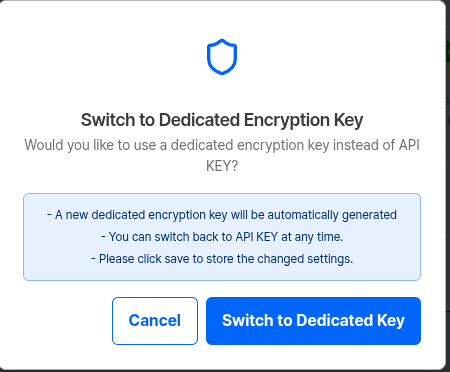
Manages keys to be used for encryption. You can use API KEY or issue and use a dedicated key (secretKey).
When encryption-only mode is activated, only `pid`, `encrypted`, `lang` parameters are allowed in liveform URL, and all other parameters must be encrypted and included in the `encrypted` parameter.
**Allowed URL Format:**
```
https://form.argosidentity.com?pid={project_Id}&encrypted={encrypted_data}&lang=ko
```
**Not Allowed URL Format:**
```
https://form.argosidentity.com?pid={project_Id}&encrypted={encrypted_data}&email=user@example.com
```
**Encryption-only Mode Precautions**
When encryption-only mode is activated, all unencrypted Query String parameters are ignored. All data must be encrypted and included in the `encrypted` parameter.
### Encryption Key Management
Manages keys to be used for encryption. You can use API KEY or issue and use a dedicated key (secretKey).

 | Key Type | Description |
| ----------------------------- | ----------------------------------------------------------------- |
| **API KEY** | Use the default API key assigned to the project as encryption key |
| **Dedicated Key (secretKey)** | Dedicated encryption key newly issued and used in liveform |
**Dedicated Key (secretKey) Important Notice**
Newly issued dedicated key (secretKey) is **only displayed at issuance**, so be sure to store it safely. If lost, you must reissue and use, and existing keys can no longer be used.
**Key Selection Guide**
* **Using API KEY**: Can start quickly with simple settings.
* **Using Dedicated Key (secretKey)**: Can strengthen security by using different keys in liveform and API.
***
## How to Use Liveform URL Encryption
Learn how to encrypt and use Query String parameters in liveform URLs.
### Step 1: Prepare Data to Encrypt
Prepare Query String parameters to encrypt in JSON format.
```json ID document Example theme={null}
{
"email": "user@example.com",
"userid": "user123",
"cf1": "custom_field_1",
"cf2": "custom_field_2",
"cf3": "custom_field_3",
"token": "token_id"
}
```
```json Knowledge-based Example theme={null}
{
"email": "user@example.com",
"userid": "user123",
"knowledgeField": "birthDate,gender,nationality",
"knowledgePrefill": "gender=male,nationality=USA,birthDate=1980-01-01"
}
```
**Non-encryptable Parameters**
`pid`, `lang` query strings and `sid`, `action` query strings used in 'Additional Process (Injection)' page do not support encryption. However, when using Injection, `sid` and `action` must be encrypted by including them inside the `encrypted` parameter.
### Step 2: Perform Encryption
Encrypt data using the selected encryption algorithm (ECB or GCM) and encryption key (API KEY or secretKey).
View detailed encryption/decryption methods and code examples.
**Encryption Example (ECB Method):**
```javascript theme={null}
// Node.js example
const crypto = require('crypto');
function encryptECB(data, apiKey) {
const hashedKey = crypto.createHash('sha256').update(apiKey).digest();
const cipher = crypto.createCipheriv('aes-256-ecb', hashedKey, null);
return cipher.update(JSON.stringify(data), 'utf8', 'base64') + cipher.final('base64');
}
// Usage example
const data = {
email: "user@example.com",
userid: "user123",
token: "token_id"
};
const encrypted = encryptECB(data, 'YOUR_API_KEY_OR_SECRET_KEY');
```
### Step 3: Add Encrypted Data to URL
Add encrypted data to the `encrypted` query parameter.
```
https://form.argosidentity.com?pid={project_Id}&encrypted={encrypted_data}
```
**URL Encoding**
Encrypted data must be URL encoded before use in URLs.
***
## Secure Transmission Settings
Settings to strengthen security for data transmission via API methods.
| Key Type | Description |
| ----------------------------- | ----------------------------------------------------------------- |
| **API KEY** | Use the default API key assigned to the project as encryption key |
| **Dedicated Key (secretKey)** | Dedicated encryption key newly issued and used in liveform |
**Dedicated Key (secretKey) Important Notice**
Newly issued dedicated key (secretKey) is **only displayed at issuance**, so be sure to store it safely. If lost, you must reissue and use, and existing keys can no longer be used.
**Key Selection Guide**
* **Using API KEY**: Can start quickly with simple settings.
* **Using Dedicated Key (secretKey)**: Can strengthen security by using different keys in liveform and API.
***
## How to Use Liveform URL Encryption
Learn how to encrypt and use Query String parameters in liveform URLs.
### Step 1: Prepare Data to Encrypt
Prepare Query String parameters to encrypt in JSON format.
```json ID document Example theme={null}
{
"email": "user@example.com",
"userid": "user123",
"cf1": "custom_field_1",
"cf2": "custom_field_2",
"cf3": "custom_field_3",
"token": "token_id"
}
```
```json Knowledge-based Example theme={null}
{
"email": "user@example.com",
"userid": "user123",
"knowledgeField": "birthDate,gender,nationality",
"knowledgePrefill": "gender=male,nationality=USA,birthDate=1980-01-01"
}
```
**Non-encryptable Parameters**
`pid`, `lang` query strings and `sid`, `action` query strings used in 'Additional Process (Injection)' page do not support encryption. However, when using Injection, `sid` and `action` must be encrypted by including them inside the `encrypted` parameter.
### Step 2: Perform Encryption
Encrypt data using the selected encryption algorithm (ECB or GCM) and encryption key (API KEY or secretKey).
View detailed encryption/decryption methods and code examples.
**Encryption Example (ECB Method):**
```javascript theme={null}
// Node.js example
const crypto = require('crypto');
function encryptECB(data, apiKey) {
const hashedKey = crypto.createHash('sha256').update(apiKey).digest();
const cipher = crypto.createCipheriv('aes-256-ecb', hashedKey, null);
return cipher.update(JSON.stringify(data), 'utf8', 'base64') + cipher.final('base64');
}
// Usage example
const data = {
email: "user@example.com",
userid: "user123",
token: "token_id"
};
const encrypted = encryptECB(data, 'YOUR_API_KEY_OR_SECRET_KEY');
```
### Step 3: Add Encrypted Data to URL
Add encrypted data to the `encrypted` query parameter.
```
https://form.argosidentity.com?pid={project_Id}&encrypted={encrypted_data}
```
**URL Encoding**
Encrypted data must be URL encoded before use in URLs.
***
## Secure Transmission Settings
Settings to strengthen security for data transmission via API methods.
 ### Secure Data Transmission
When secure data transmission option is activated, all data transmission between ARGOS and customers is encrypted.
| Setting | Description |
| ---------------------------- | --------------------------------------------------------------------------------- |
| **Secure Data Transmission** | Encrypts and transmits data in API methods (GET, POST, PATCH, etc.) and webhooks. |
**Important: Encryption/Decryption Required**
When secure data transmission option is activated, all API request (Request) and response (Response) data must be encrypted/decrypted. Errors occur if requests are made with unencrypted data.
### API Request Data Encryption
When secure data transmission is activated, Request Body must be encrypted when making API requests.
**Encryption Methods:**
* **API Requests (GET, POST, PATCH)**: AES-256-ECB method
* **Webhook Data**: AES-256-CBC method
**Request Example:**
```javascript theme={null}
// POST /submission request example
const requestData = {
email: "user@example.com",
fullName: "John Doe",
issuingCountry: "USA",
birthDate: "1990-01-01"
};
// Encrypt data
const encryptedBody = encryptECB(requestData, apiKey);
// Send encrypted data as body
fetch('https://rest-api.argosidentity.com/v3/submission', {
method: 'POST',
headers: {
'x-api-key': apiKey,
'Content-Type': 'application/json'
},
body: JSON.stringify({
body: encryptedBody
})
});
```
### API Response Data Decryption
When secure data transmission is activated, API responses are also encrypted, so decryption is required.
**Response Format:**
```json theme={null}
{
"data": "encrypted-string",
"isEncrypted": true
}
```
**Decryption Example:**
```javascript theme={null}
// Response processing
const response = await fetch('https://rest-api.argosidentity.com/v3/submission/{submissionId}', {
headers: {
'x-api-key': apiKey
}
});
const responseData = await response.json();
if (responseData.isEncrypted) {
// Decrypt encrypted data
const decryptedData = decryptECB(responseData.data, apiKey);
const submission = JSON.parse(decryptedData);
console.log(submission);
} else {
// Unencrypted case (generally does not occur)
console.log(responseData);
}
```
### Webhook Data Encryption/Decryption
Webhook data is encrypted using AES-256-CBC method.
Learn webhook data encryption/decryption methods in detail.
***
## Configuration Guide by Scenario
When selecting encryption algorithm and encrypting only some Query Strings.
**Configuration:**
* Encryption Algorithm: Select ECB or GCM
* Encryption Key: Select API KEY or dedicated key
* Encryption-only Mode: Deactivated
**Usage Example:**
```
https://form.argosidentity.com?pid={project_Id}&email=user@example.com&encrypted={encrypted_token_data}
```
In this case, `email` is a normal parameter, and sensitive information such as `token` is encrypted and included in the `encrypted` parameter.
When encrypting and using all Query String parameters.
**Configuration:**
* Encryption Algorithm: Select ECB or GCM
* Encryption Key: Select API KEY or dedicated key
* Encryption-only Mode: Activated
**Usage Example:**
```
https://form.argosidentity.com?pid={project_Id}&encrypted={all_parameters_encrypted_data}&lang=ko
```
In this case, all parameters except `pid`, `lang` must be encrypted and included in the `encrypted` parameter.
When strengthening security for data transmission via API.
**Configuration:**
* Secure Data Transmission: Activated
**Required Tasks:**
* Encrypt all API requests (Request Body)
* Decrypt all API responses (Response Body)
* Decrypt webhook received data
When secure data transmission is activated, all API communication is encrypted, so encryption/decryption logic must be implemented on the client side.
***
## Related Documentation
View private mode and Token ID management settings.
View detailed encryption/decryption methods and code examples.
Learn how to use Query String parameters.
Learn how to use APIs.
### Secure Data Transmission
When secure data transmission option is activated, all data transmission between ARGOS and customers is encrypted.
| Setting | Description |
| ---------------------------- | --------------------------------------------------------------------------------- |
| **Secure Data Transmission** | Encrypts and transmits data in API methods (GET, POST, PATCH, etc.) and webhooks. |
**Important: Encryption/Decryption Required**
When secure data transmission option is activated, all API request (Request) and response (Response) data must be encrypted/decrypted. Errors occur if requests are made with unencrypted data.
### API Request Data Encryption
When secure data transmission is activated, Request Body must be encrypted when making API requests.
**Encryption Methods:**
* **API Requests (GET, POST, PATCH)**: AES-256-ECB method
* **Webhook Data**: AES-256-CBC method
**Request Example:**
```javascript theme={null}
// POST /submission request example
const requestData = {
email: "user@example.com",
fullName: "John Doe",
issuingCountry: "USA",
birthDate: "1990-01-01"
};
// Encrypt data
const encryptedBody = encryptECB(requestData, apiKey);
// Send encrypted data as body
fetch('https://rest-api.argosidentity.com/v3/submission', {
method: 'POST',
headers: {
'x-api-key': apiKey,
'Content-Type': 'application/json'
},
body: JSON.stringify({
body: encryptedBody
})
});
```
### API Response Data Decryption
When secure data transmission is activated, API responses are also encrypted, so decryption is required.
**Response Format:**
```json theme={null}
{
"data": "encrypted-string",
"isEncrypted": true
}
```
**Decryption Example:**
```javascript theme={null}
// Response processing
const response = await fetch('https://rest-api.argosidentity.com/v3/submission/{submissionId}', {
headers: {
'x-api-key': apiKey
}
});
const responseData = await response.json();
if (responseData.isEncrypted) {
// Decrypt encrypted data
const decryptedData = decryptECB(responseData.data, apiKey);
const submission = JSON.parse(decryptedData);
console.log(submission);
} else {
// Unencrypted case (generally does not occur)
console.log(responseData);
}
```
### Webhook Data Encryption/Decryption
Webhook data is encrypted using AES-256-CBC method.
Learn webhook data encryption/decryption methods in detail.
***
## Configuration Guide by Scenario
When selecting encryption algorithm and encrypting only some Query Strings.
**Configuration:**
* Encryption Algorithm: Select ECB or GCM
* Encryption Key: Select API KEY or dedicated key
* Encryption-only Mode: Deactivated
**Usage Example:**
```
https://form.argosidentity.com?pid={project_Id}&email=user@example.com&encrypted={encrypted_token_data}
```
In this case, `email` is a normal parameter, and sensitive information such as `token` is encrypted and included in the `encrypted` parameter.
When encrypting and using all Query String parameters.
**Configuration:**
* Encryption Algorithm: Select ECB or GCM
* Encryption Key: Select API KEY or dedicated key
* Encryption-only Mode: Activated
**Usage Example:**
```
https://form.argosidentity.com?pid={project_Id}&encrypted={all_parameters_encrypted_data}&lang=ko
```
In this case, all parameters except `pid`, `lang` must be encrypted and included in the `encrypted` parameter.
When strengthening security for data transmission via API.
**Configuration:**
* Secure Data Transmission: Activated
**Required Tasks:**
* Encrypt all API requests (Request Body)
* Decrypt all API responses (Response Body)
* Decrypt webhook received data
When secure data transmission is activated, all API communication is encrypted, so encryption/decryption logic must be implemented on the client side.
***
## Related Documentation
View private mode and Token ID management settings.
View detailed encryption/decryption methods and code examples.
Learn how to use Query String parameters.
Learn how to use APIs.