> ## Documentation Index
> Fetch the complete documentation index at: https://developers.argosidentity.com/llms.txt
> Use this file to discover all available pages before exploring further.
# System Operation
> Learn about core operational settings including submission control system, privacy display settings, administrator settings, reviewer settings, and IP whitelist management.
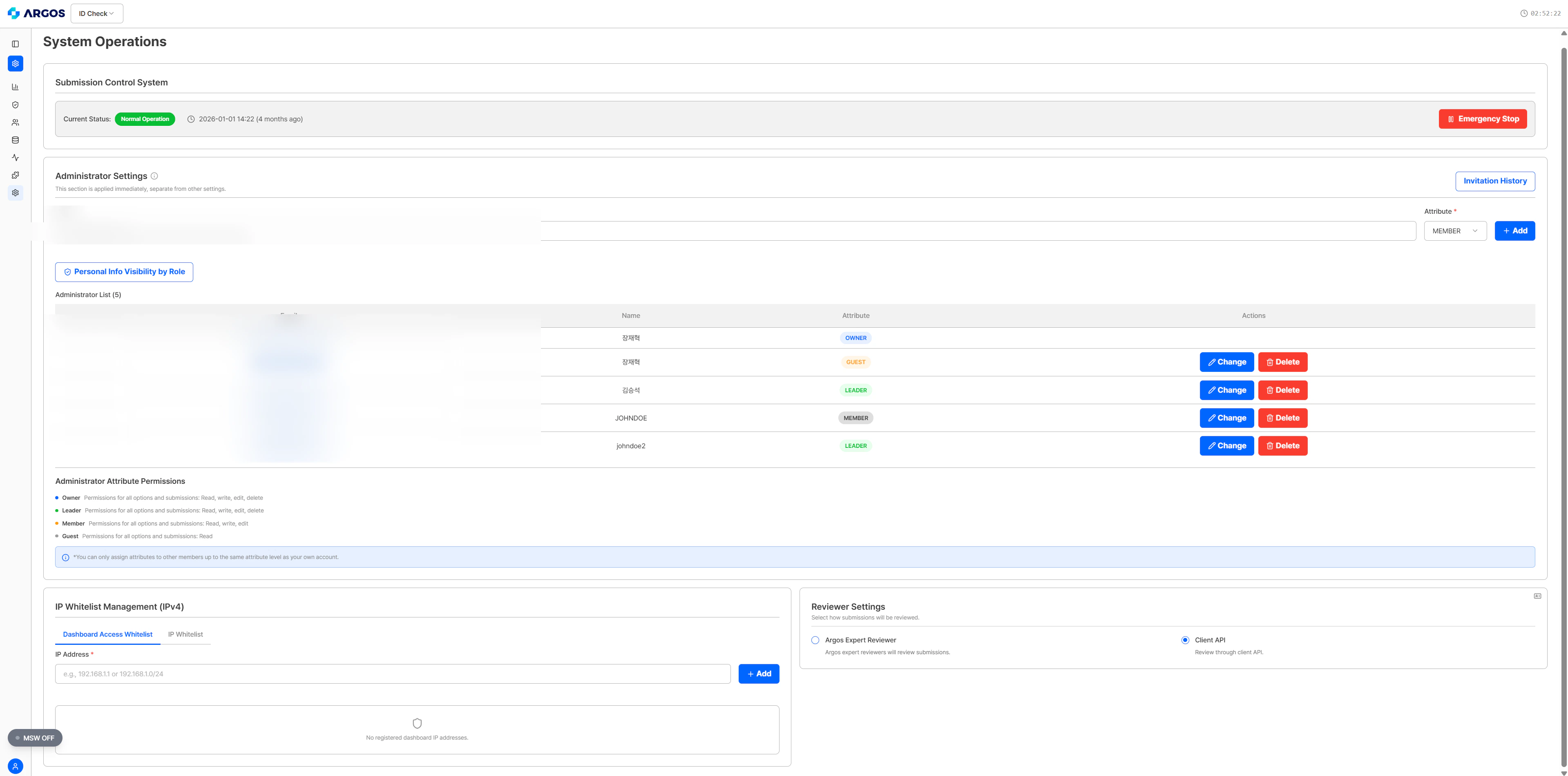
System operation functions manage core operational settings for ID check projects. You can operate safe and efficient identity authentication services through submission control system, privacy display settings, administrator settings, reviewer settings, IP whitelist management, etc.
 ***
## Submission Control System
You can prepare for emergency situations through the submission control system.
***
## Submission Control System
You can prepare for emergency situations through the submission control system.

 | Status | Description |
| -------------------- | ---------------------------------------------------------------------------------------------- |
| **Normal Operation** | All eKYC processes are operating normally. |
| **Emergency Stop** | eKYC submissions are stopped. (eKYC submissions via Liveform, submissions via Post/submission) |
**Emergency Stop Precautions**
Changing to emergency stop status immediately stops all eKYC submissions. This includes not only submissions via Liveform but also submissions via API. New submissions cannot be received until the stop status is released.
***
## Privacy Display Settings
For each role, the visibility of personal information fields in the submission detail view is controlled. Fields that are unchecked are masked for administrators with that role.
| Status | Description |
| -------------------- | ---------------------------------------------------------------------------------------------- |
| **Normal Operation** | All eKYC processes are operating normally. |
| **Emergency Stop** | eKYC submissions are stopped. (eKYC submissions via Liveform, submissions via Post/submission) |
**Emergency Stop Precautions**
Changing to emergency stop status immediately stops all eKYC submissions. This includes not only submissions via Liveform but also submissions via API. New submissions cannot be received until the stop status is released.
***
## Privacy Display Settings
For each role, the visibility of personal information fields in the submission detail view is controlled. Fields that are unchecked are masked for administrators with that role.
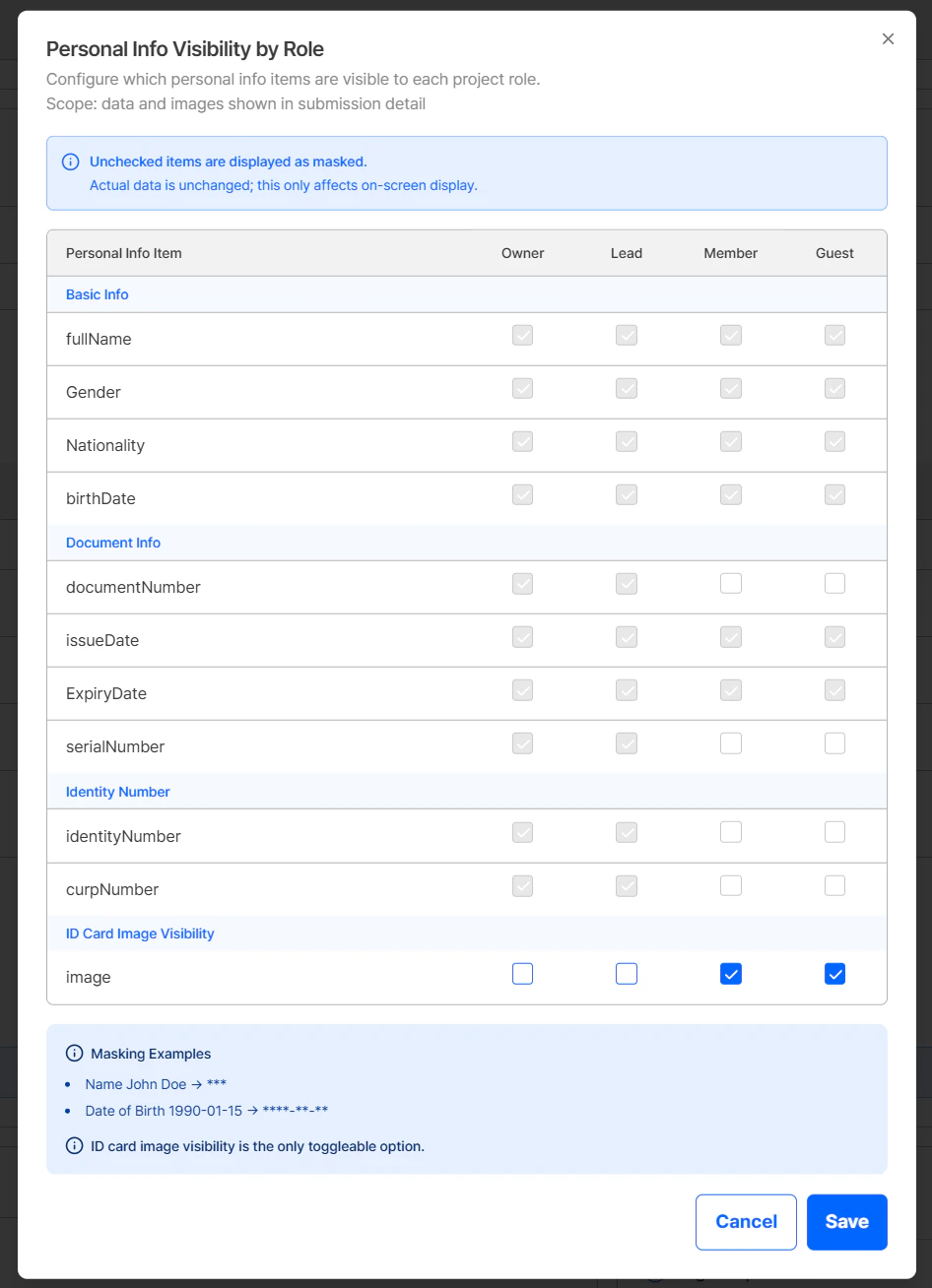 | Category | Fields | Currently configurable |
| ------------------------ | --------------------------------------------------- | ----------------------------- |
| **Basic Information** | fullName, Gender, Nationality, birthDate | Settings to be provided later |
| **Document Information** | documentNumber, issueDate, ExpiryDate, serialNumber | Settings to be provided later |
| **Identity Numbers** | identityNumber, curpNumber | Settings to be provided later |
| **ID Photo** | image | Can be toggled on/off |
Currently, only the **ID Photo (image)** field can be adjusted in the role-based PII visibility settings. The other fields cannot be adjusted yet — configurable settings will be provided later.
Role-based PII masking applies **only to what is displayed on the dashboard screen**. Actual stored data and API responses are not affected. (e.g., name `John Doe` → `***`, date of birth `1990-01-15` → `****-**-**`)
For a full overview of the role system and PII masking policy, see the [Access & Roles (RBAC)](/dashboard/en/access-and-roles) page.
***
## Administrator Settings
| Category | Fields | Currently configurable |
| ------------------------ | --------------------------------------------------- | ----------------------------- |
| **Basic Information** | fullName, Gender, Nationality, birthDate | Settings to be provided later |
| **Document Information** | documentNumber, issueDate, ExpiryDate, serialNumber | Settings to be provided later |
| **Identity Numbers** | identityNumber, curpNumber | Settings to be provided later |
| **ID Photo** | image | Can be toggled on/off |
Currently, only the **ID Photo (image)** field can be adjusted in the role-based PII visibility settings. The other fields cannot be adjusted yet — configurable settings will be provided later.
Role-based PII masking applies **only to what is displayed on the dashboard screen**. Actual stored data and API responses are not affected. (e.g., name `John Doe` → `***`, date of birth `1990-01-15` → `****-**-**`)
For a full overview of the role system and PII masking policy, see the [Access & Roles (RBAC)](/dashboard/en/access-and-roles) page.
***
## Administrator Settings
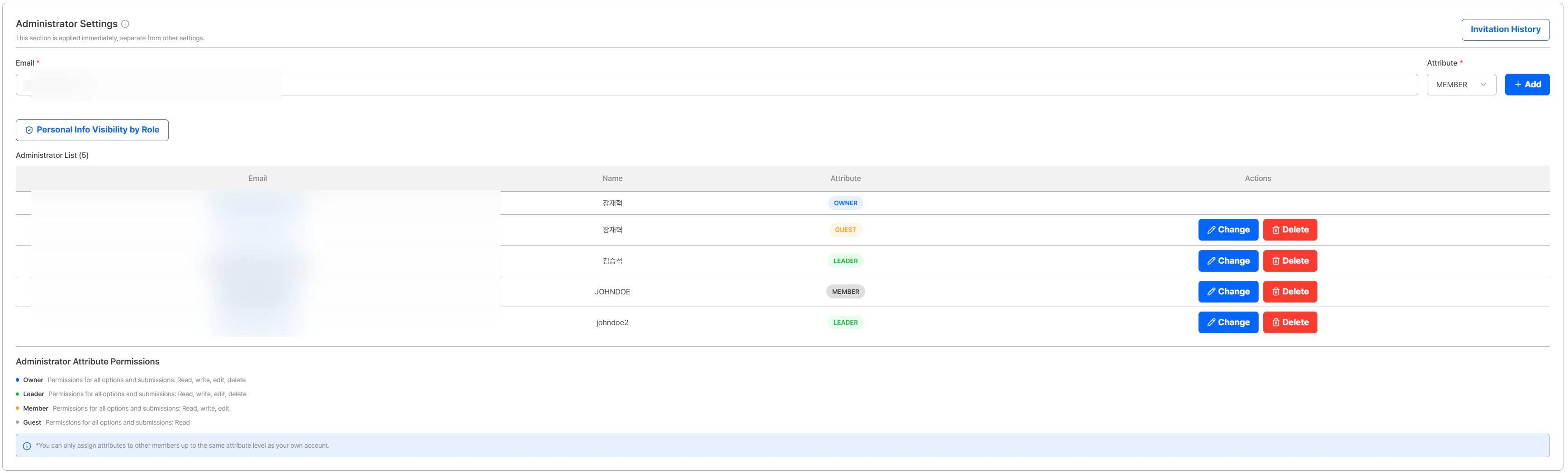 Register and manage administrators who can access the project, each assigned a role. When adding an administrator, assign one of the four roles (Owner / Leader / Member / Guest). Permissions for all options and submissions differ depending on the assigned role.
| Role | Read | Write | Edit | Delete |
| ---------- | :--: | :---: | :--: | :----: |
| **Owner** | O | O | O | O |
| **Leader** | O | O | O | O |
| **Member** | O | O | O | - |
| **Guest** | O | - | - | - |
When assigning a role to another administrator, you can only grant **up to the same role level as your own account**. For example, an administrator with the Member role can only assign Member or Guest to others.
**Key Functions:**
* **Add Administrator**: Enter the administrator's email and name, then click the **+ Add** button. When adding, assign one of the four roles (Owner/Leader/Member/Guest) to the administrator.
* **Remove Administrator**: Click the **Delete** button next to a registered administrator to remove their access permissions.
* **View Login Records**: Click on an administrator account to view login records for that account.
This section is applied immediately, separate from other settings.
For a full conceptual overview of the role system, see the [Access & Roles (RBAC)](/dashboard/en/access-and-roles) page.
### Administrator Invitation
When adding an administrator, the system behaves differently depending on the entered email:
| Condition | Behavior |
| ------------------------------------------------- | ---------------------------------------------------------------------------------------------------------------------------------------------------------- |
| **User already registered on ID Check dashboard** | The user is immediately added to the administrator list. |
| **Unregistered user** | An invitation email is sent to the entered address. The user is registered as an administrator after accepting the invitation and completing registration. |
### Invitation History
Click the **Invitation History** button to view the invitation history for the project's administrators.
Register and manage administrators who can access the project, each assigned a role. When adding an administrator, assign one of the four roles (Owner / Leader / Member / Guest). Permissions for all options and submissions differ depending on the assigned role.
| Role | Read | Write | Edit | Delete |
| ---------- | :--: | :---: | :--: | :----: |
| **Owner** | O | O | O | O |
| **Leader** | O | O | O | O |
| **Member** | O | O | O | - |
| **Guest** | O | - | - | - |
When assigning a role to another administrator, you can only grant **up to the same role level as your own account**. For example, an administrator with the Member role can only assign Member or Guest to others.
**Key Functions:**
* **Add Administrator**: Enter the administrator's email and name, then click the **+ Add** button. When adding, assign one of the four roles (Owner/Leader/Member/Guest) to the administrator.
* **Remove Administrator**: Click the **Delete** button next to a registered administrator to remove their access permissions.
* **View Login Records**: Click on an administrator account to view login records for that account.
This section is applied immediately, separate from other settings.
For a full conceptual overview of the role system, see the [Access & Roles (RBAC)](/dashboard/en/access-and-roles) page.
### Administrator Invitation
When adding an administrator, the system behaves differently depending on the entered email:
| Condition | Behavior |
| ------------------------------------------------- | ---------------------------------------------------------------------------------------------------------------------------------------------------------- |
| **User already registered on ID Check dashboard** | The user is immediately added to the administrator list. |
| **Unregistered user** | An invitation email is sent to the entered address. The user is registered as an administrator after accepting the invitation and completing registration. |
### Invitation History
Click the **Invitation History** button to view the invitation history for the project's administrators.
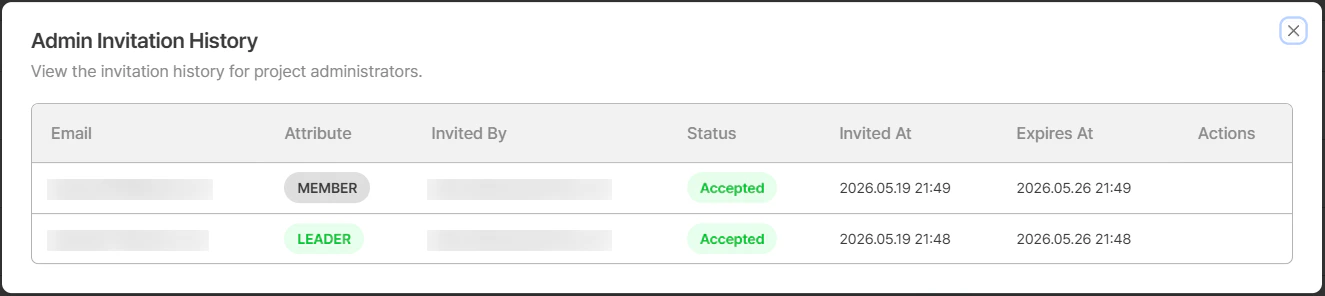 | Field | Description |
| -------------- | ------------------------------------------------------------------------------- |
| **Email** | Email address of the invited administrator |
| **Name** | Name of the invited administrator |
| **Role** | Assigned role (Owner / Leader / Member / Guest) |
| **Invited By** | Email address of the administrator who sent the invitation |
| **Status** | Invitation status (`Invited`, `Cancelled`, `Expired`, `Accepted`) |
| **Invited At** | Date and time when the invitation was sent |
| **Expires At** | Invitation expiration date and time |
| **Actions** | For `Invited` status, a **Cancel** button is available to cancel the invitation |
The invitation is valid for **7 days** from the date it was sent. If the invitation has expired, you can re-invite the user by entering their email and name again.
**Administrator Security**
Only trusted accounts should be registered as administrator emails. If an administrator account is compromised, all project data can be accessed, so caution is required.
***
## Reviewer Settings
You can configure who will review submissions that require manual review.
| Field | Description |
| -------------- | ------------------------------------------------------------------------------- |
| **Email** | Email address of the invited administrator |
| **Name** | Name of the invited administrator |
| **Role** | Assigned role (Owner / Leader / Member / Guest) |
| **Invited By** | Email address of the administrator who sent the invitation |
| **Status** | Invitation status (`Invited`, `Cancelled`, `Expired`, `Accepted`) |
| **Invited At** | Date and time when the invitation was sent |
| **Expires At** | Invitation expiration date and time |
| **Actions** | For `Invited` status, a **Cancel** button is available to cancel the invitation |
The invitation is valid for **7 days** from the date it was sent. If the invitation has expired, you can re-invite the user by entering their email and name again.
**Administrator Security**
Only trusted accounts should be registered as administrator emails. If an administrator account is compromised, all project data can be accessed, so caution is required.
***
## Reviewer Settings
You can configure who will review submissions that require manual review.
 You can register and manage reviewers who can review project submissions through reviewer settings.
**Key Functions:**
* **ARGOS Professional Reviewer**: ARGOS reviewers directly review.
You can register and manage reviewers who can review project submissions through reviewer settings.
**Key Functions:**
* **ARGOS Professional Reviewer**: ARGOS reviewers directly review.
(Reviews submissions for pending items within a maximum of 24 hours. For faster review processing, please contact sales.)
* **Client API**: The customer becomes the review entity and reviews directly.
You can directly modify kycStatus for pending items in the dashboard, and use the Review API for faster processing.
Review is needed when the submission score falls below the ARGOS Score threshold value, resulting in a pending item.
**Reviewer Usage**
If customers want to review all items directly, you can set the ARGOS score to 99.
[How to Adjust ARGOS Score](/dashboard/en/project-management/policy-and-authentication/kyc-process#argos-score-threshold) View
***
## IP Whitelist Management (IPv4)
You can restrict dashboard viewing and API access to only specified IP addresses.
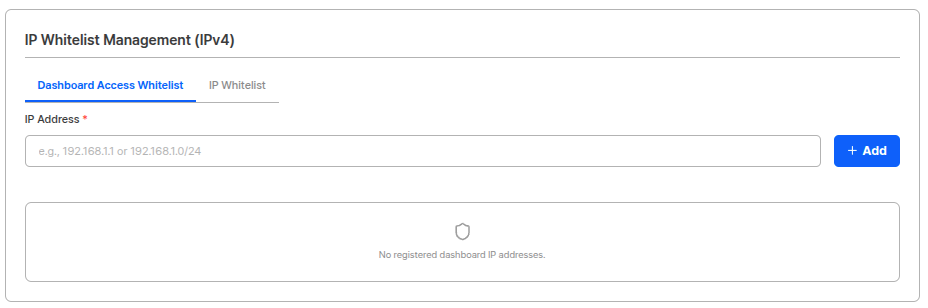 When the IP whitelist function is activated, the following access is only possible from registered IPv4 addresses:
* **Dashboard Access**: Dashboard login is only possible from registered IPs.
* **API Access**: API calls are only possible from registered IPs.
**Configuration Method:**
1. Activate the IP whitelist function.
2. Enter IPv4 addresses to allow. (One per line)
3. Click the save button to apply settings.
**IP Address Input Example:**
```
52.12.34.56
52.12.34.57
203.0.113.0/24
```
**IP Whitelist Precautions**
* When IP whitelist is activated, both dashboard and API cannot be accessed from unregistered IPs.
* **All** server IPs that will call the API must be added to the whitelist:
* Production servers
* Staging servers
* CI/CD pipeline IPs (if applicable)
* Test administrator/developer IPs
* If IP addresses change, the whitelist must be updated immediately.
**IP Whitelist Usage**
Setting up an IP whitelist can block unauthorized access from outside and strengthen security. It is recommended to set this up when handling sensitive data including customer information.
**CIDR Notation Support**
IP whitelist supports not only single IP addresses but also CIDR notation (e.g., `203.0.113.0/24`). This allows you to allow specific IP ranges at once, making management easier.
***
## Session Journey Data Retention Period
Set how long Session Journey data is retained. The period is calculated from the session creation date, and once it passes, the session data is automatically deleted.
When the IP whitelist function is activated, the following access is only possible from registered IPv4 addresses:
* **Dashboard Access**: Dashboard login is only possible from registered IPs.
* **API Access**: API calls are only possible from registered IPs.
**Configuration Method:**
1. Activate the IP whitelist function.
2. Enter IPv4 addresses to allow. (One per line)
3. Click the save button to apply settings.
**IP Address Input Example:**
```
52.12.34.56
52.12.34.57
203.0.113.0/24
```
**IP Whitelist Precautions**
* When IP whitelist is activated, both dashboard and API cannot be accessed from unregistered IPs.
* **All** server IPs that will call the API must be added to the whitelist:
* Production servers
* Staging servers
* CI/CD pipeline IPs (if applicable)
* Test administrator/developer IPs
* If IP addresses change, the whitelist must be updated immediately.
**IP Whitelist Usage**
Setting up an IP whitelist can block unauthorized access from outside and strengthen security. It is recommended to set this up when handling sensitive data including customer information.
**CIDR Notation Support**
IP whitelist supports not only single IP addresses but also CIDR notation (e.g., `203.0.113.0/24`). This allows you to allow specific IP ranges at once, making management easier.
***
## Session Journey Data Retention Period
Set how long Session Journey data is retained. The period is calculated from the session creation date, and once it passes, the session data is automatically deleted.
 Choose one of the following four retention periods.
| Retention period | Note |
| ---------------- | ------------------- |
| 30 days | Default (\~1 month) |
| 90 days | \~3 months |
| 180 days | \~6 months |
| 365 days | \~1 year |
* Changes apply **only to sessions created after the update**; existing sessions are not affected.
* When the retention period expires, the session's journey data is automatically deleted and can no longer be viewed. Secure any data you need to keep long-term before it expires.
***
## Related Documentation
Review a submission's verification progress and event flow.
View project basic information settings.
View API key, webhook settings, and return URL settings.
View data protection and security settings.
View private mode and token management settings.
Choose one of the following four retention periods.
| Retention period | Note |
| ---------------- | ------------------- |
| 30 days | Default (\~1 month) |
| 90 days | \~3 months |
| 180 days | \~6 months |
| 365 days | \~1 year |
* Changes apply **only to sessions created after the update**; existing sessions are not affected.
* When the retention period expires, the session's journey data is automatically deleted and can no longer be viewed. Secure any data you need to keep long-term before it expires.
***
## Related Documentation
Review a submission's verification progress and event flow.
View project basic information settings.
View API key, webhook settings, and return URL settings.
View data protection and security settings.
View private mode and token management settings.