> ## Documentation Index
> Fetch the complete documentation index at: https://developers.argosidentity.com/llms.txt
> Use this file to discover all available pages before exploring further.
# Project Information
> Learn how to view and configure project basic information such as project ID, status, name, and logo.
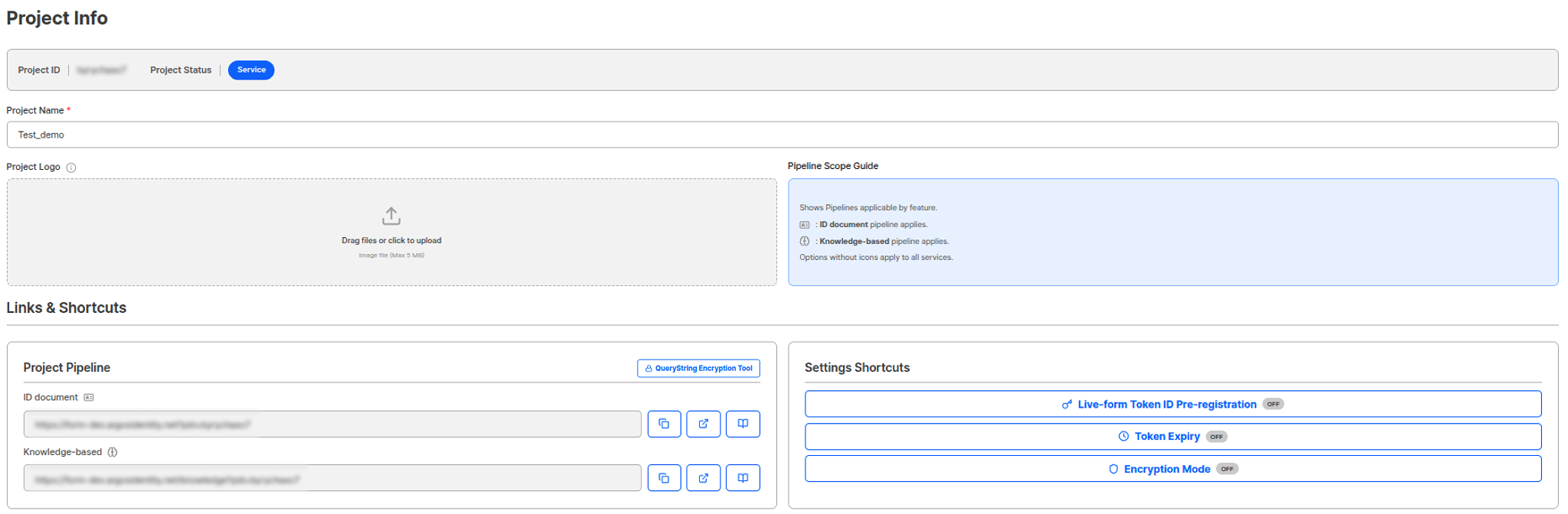
The Project Information page allows you to view and configure basic information for the current project. You can manage project ID, project status, project name changes, project logo settings, liveform URL verification, and major setting option status all in one place.
 ***
## Project Basic Information
### Project ID
A unique ID for identifying the project. Project ID cannot be changed, and providing it when contacting ARGOS customer support enables faster customer support.
**Project ID Usage**
Helps quickly find the project when contacting customer support.
### Project Status
You can view the current project's operational status.
| Status | Description |
| --------- | --------------------------------------------------------------------------------------------------------------------------------------- |
| **OPEN** | Project status that is officially in service. Billing may occur based on credit usage. |
| **TEST** | Project status for testing purposes. All operations are the same as OPEN status, but only Pending processing is automatically excluded. |
| **TRIAL** | Users can directly register with ARGOS and test with 15 or more submissions. |
| **CLOSE** | Terminated project status where submission and related functions are no longer activated. |
Project status changes and project additions should be requested through sales inquiries.
### Project Name
You can change the project name. Since the project name is displayed in the email subject when using the KYC email notification function, it is important to enter an accurate service name that users can recognize.
***
## Project Logo Settings
You can upload and manage logo images to be displayed on the liveform start page.
**Project Logo**: Upload a logo image to be displayed on the liveform start page.
| Item | Recommended Specs |
| ---------------------- | ----------------------------------- |
| Recommended Image Size | 320x240, 640x480, 800x600, 1024x768 |
| Image Type | png, jpg, jpeg |
This logo is displayed in the project list visible in the dashboard, so it is recommended for use when there are multiple administrators and multiple projects to distinguish between them.
***
## Project Pipeline
You can view liveform URLs by pipeline provided by the project.
### ID document Pipeline
You can view the liveform URL for the method that authenticates and verifies user selfie information based on ID authentication.
> `https://form.argosidentity.com?pid=xxxxxxxxx`
### Knowledge-based Pipeline
You can view the liveform URL for the method that authenticates and verifies user selfie information based on directly entered identity information and SMS authentication.
> `https://form.argosidentity.com/knowledge?pid=xxxxxxxxx`
**Liveform URL Usage**
Liveform URLs are automatically displayed as QR codes on PC, and connect directly to the identity authentication start page on mobile. You can provide this URL to users to proceed with the identity authentication process.
### Query string encryption/decryption tool
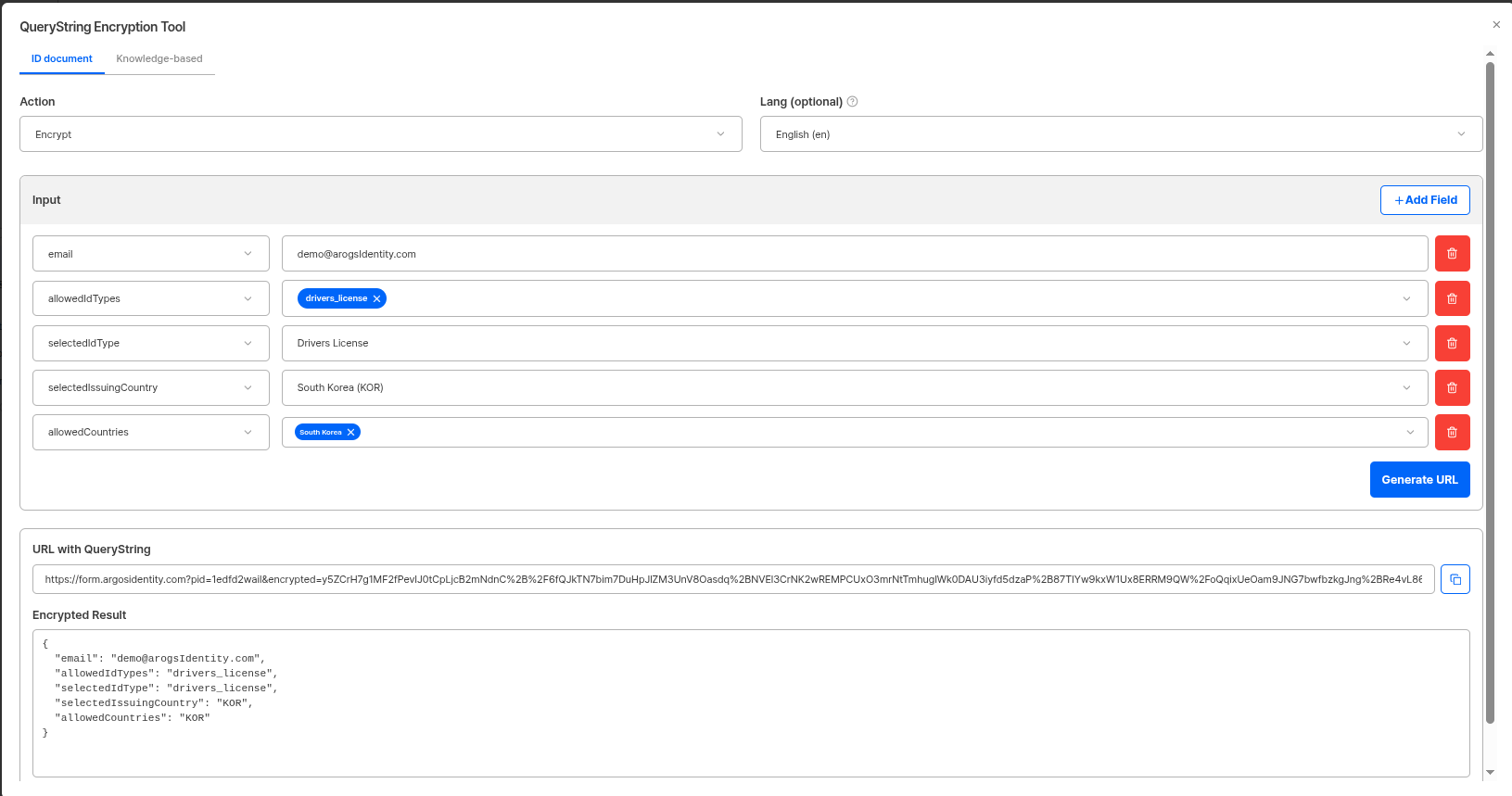
This tool lets you generate and test liveform URLs with query string options directly from the web.
| Item | Description |
| ---------------------- | ---------------------------- |
| **Supported actions** | Encrypt / Decrypt |
| **Supported products** | ID document, Knowledge-based |
* **Encrypt**: Add query string option fields such as `email`, `userid`, `selectedIdType`, `allowedIdTypes`, and `startValidUntil` to generate an encrypted URL.
* **Decrypt**: Decrypt an encrypted URL to verify the included query string options.
For more details on query strings, see the [Query string and token guide](/en/idcheck/getting-started/liveform-url/querystring-and-token-guide).
***
## Project Basic Information
### Project ID
A unique ID for identifying the project. Project ID cannot be changed, and providing it when contacting ARGOS customer support enables faster customer support.
**Project ID Usage**
Helps quickly find the project when contacting customer support.
### Project Status
You can view the current project's operational status.
| Status | Description |
| --------- | --------------------------------------------------------------------------------------------------------------------------------------- |
| **OPEN** | Project status that is officially in service. Billing may occur based on credit usage. |
| **TEST** | Project status for testing purposes. All operations are the same as OPEN status, but only Pending processing is automatically excluded. |
| **TRIAL** | Users can directly register with ARGOS and test with 15 or more submissions. |
| **CLOSE** | Terminated project status where submission and related functions are no longer activated. |
Project status changes and project additions should be requested through sales inquiries.
### Project Name
You can change the project name. Since the project name is displayed in the email subject when using the KYC email notification function, it is important to enter an accurate service name that users can recognize.
***
## Project Logo Settings
You can upload and manage logo images to be displayed on the liveform start page.
**Project Logo**: Upload a logo image to be displayed on the liveform start page.
| Item | Recommended Specs |
| ---------------------- | ----------------------------------- |
| Recommended Image Size | 320x240, 640x480, 800x600, 1024x768 |
| Image Type | png, jpg, jpeg |
This logo is displayed in the project list visible in the dashboard, so it is recommended for use when there are multiple administrators and multiple projects to distinguish between them.
***
## Project Pipeline
You can view liveform URLs by pipeline provided by the project.
### ID document Pipeline
You can view the liveform URL for the method that authenticates and verifies user selfie information based on ID authentication.
> `https://form.argosidentity.com?pid=xxxxxxxxx`
### Knowledge-based Pipeline
You can view the liveform URL for the method that authenticates and verifies user selfie information based on directly entered identity information and SMS authentication.
> `https://form.argosidentity.com/knowledge?pid=xxxxxxxxx`
**Liveform URL Usage**
Liveform URLs are automatically displayed as QR codes on PC, and connect directly to the identity authentication start page on mobile. You can provide this URL to users to proceed with the identity authentication process.
### Query string encryption/decryption tool
This tool lets you generate and test liveform URLs with query string options directly from the web.
| Item | Description |
| ---------------------- | ---------------------------- |
| **Supported actions** | Encrypt / Decrypt |
| **Supported products** | ID document, Knowledge-based |
* **Encrypt**: Add query string option fields such as `email`, `userid`, `selectedIdType`, `allowedIdTypes`, and `startValidUntil` to generate an encrypted URL.
* **Decrypt**: Decrypt an encrypted URL to verify the included query string options.
For more details on query strings, see the [Query string and token guide](/en/idcheck/getting-started/liveform-url/querystring-and-token-guide).
 ***
## Major Setting Options Verification
You can view the status of major setting options activated in the project.
### Live-form Token ID Pre-registration
You can check if the Live-form Token ID pre-registration function is activated. When this function is activated, only pre-registered Token IDs can be used.
**Token ID Pre-registration**
Detailed settings for pre-registration function can be managed on the **Security Settings > Access Control** page.
### Token Expiration Conditions
You can check if token expiration condition settings are activated. Token expiration conditions support usage-based expiration and time-based expiration.
**Token Expiration Conditions**
Detailed settings for token expiration conditions can be managed on the **Security Settings > Access Control** page.
### Encryption-only Mode
You can check if encryption-only mode is activated. When this function is activated, all query parameters must be encrypted.
**Encryption-only Mode**
Detailed settings for encryption-only mode can be managed on the **Security Settings > Data Protection** page.
***
## Related Documentation
View project status management and system operation settings.
View notices and additional information collection settings.
View Token ID pre-registration and token expiration condition settings.
View encryption-only mode and data protection settings.
***
## Major Setting Options Verification
You can view the status of major setting options activated in the project.
### Live-form Token ID Pre-registration
You can check if the Live-form Token ID pre-registration function is activated. When this function is activated, only pre-registered Token IDs can be used.
**Token ID Pre-registration**
Detailed settings for pre-registration function can be managed on the **Security Settings > Access Control** page.
### Token Expiration Conditions
You can check if token expiration condition settings are activated. Token expiration conditions support usage-based expiration and time-based expiration.
**Token Expiration Conditions**
Detailed settings for token expiration conditions can be managed on the **Security Settings > Access Control** page.
### Encryption-only Mode
You can check if encryption-only mode is activated. When this function is activated, all query parameters must be encrypted.
**Encryption-only Mode**
Detailed settings for encryption-only mode can be managed on the **Security Settings > Data Protection** page.
***
## Related Documentation
View project status management and system operation settings.
View notices and additional information collection settings.
View Token ID pre-registration and token expiration condition settings.
View encryption-only mode and data protection settings.