> ## Documentation Index
> Fetch the complete documentation index at: https://developers.argosidentity.com/llms.txt
> Use this file to discover all available pages before exploring further.
# Authentication Enhancement and Forgery Prevention
> Learn how to configure multi-factor authentication and forgery prevention settings for security enhancement including selfie process, liveness, Proxy/VPN detection, etc.
Authentication enhancement and forgery prevention functions allow you to customize the security level and verification methods of identity authentication in ID check projects. You can build optimal identity verification processes that meet customer security requirements through ID forgery prevention, face authentication, additional authentication options, meta-information-based verification, etc.
**Function Application by Identity Authentication Method**
* 🪪 **ID document**: ID photo-based identity authentication
* 🧠 **Knowledge-based**: User input information-based identity authentication
Some options have interdependencies, so other options must be activated first to activate specific functions. For example, **Selfie Process** must be activated to use **Face Duplicate Check**.
***
## Tab Structure
Authentication enhancement and forgery prevention settings consist of three tabs:
**ID forgery prevention and face authentication related options**
* ID forgery prevention: MRZ check, driver's license barcode (PDF417) check, ID liveness, streaming capture
* Face authentication: Selfie process, face duplicate check, selfie liveness, face-based age verification
**Third-party data source verification and meta-information-based verification options**
* 3rd party data sources: 1 won account authentication, government data verification, CURP third-party verification, address proof, residency expiration date query
* Meta-information-based detection: Proxy & VPN detection, regional pre-screening, email owner verification
**Device and Fingerprint-based verification options** — the **first validation performed** when entering the liveform.
* Device Verification: Browser check, Graphics check, Screen check (Static check)
* Fingerprint option: Virtual machine / Emulator / Malicious bot / Browser tampering detection + Device Duplicate Check
***
## ID and Face Based
Set ID forgery prevention and face authentication related options.
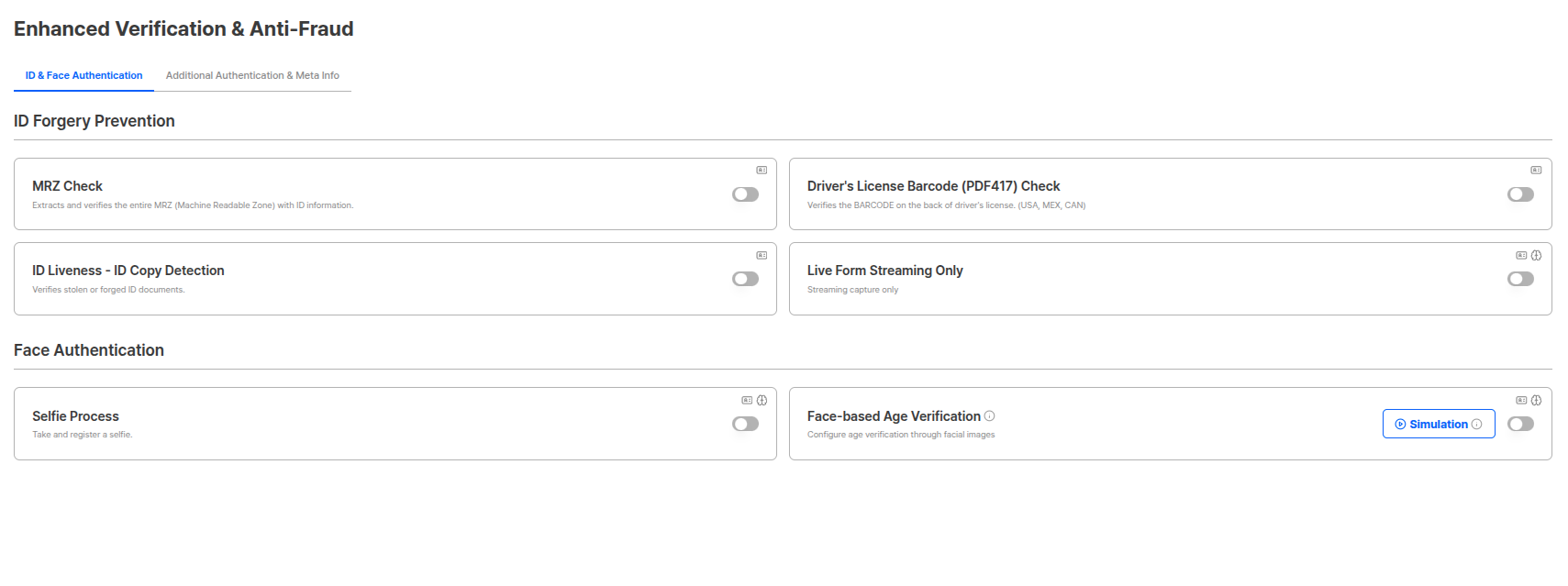 ### ID Forgery Prevention
You can set security options to block forgery and fraud attempts during the identity verification process.
#### MRZ Check
Scans MRZ (Machine Readable Zone) existing on IDs to verify information accuracy. (e.g., bottom of passport)
### ID Forgery Prevention
You can set security options to block forgery and fraud attempts during the identity verification process.
#### MRZ Check
Scans MRZ (Machine Readable Zone) existing on IDs to verify information accuracy. (e.g., bottom of passport)
 | Setting | Description |
| ------------------ | ------------------------------------------------------------------------------------------------- |
| **Name Threshold** | Can proceed only when similarity exceeds the threshold when comparing MRZ with user-entered name. |
Generally, when name order is changed, similarity of about 85 points is calculated. If typos are a concern, you can implement a stricter authentication system by setting a higher threshold.
#### Driver's License Barcode (PDF417) Check
Scans barcodes of US, Mexico, and Canada driver's licenses to verify information accuracy.
| Setting | Description |
| ------------------ | ------------------------------------------------------------------------------------------------- |
| **Name Threshold** | Can proceed only when similarity exceeds the threshold when comparing MRZ with user-entered name. |
Generally, when name order is changed, similarity of about 85 points is calculated. If typos are a concern, you can implement a stricter authentication system by setting a higher threshold.
#### Driver's License Barcode (PDF417) Check
Scans barcodes of US, Mexico, and Canada driver's licenses to verify information accuracy.
 **Supported Countries**
* United States (USA)
* Mexico (MEX)
* Canada (CAN)
#### ID liveness - ID Copy Detection
Can specifically detect forgery methods (presentation attacks) that frequently occur in ID-based authentication.
**Supported Countries**
* United States (USA)
* Mexico (MEX)
* Canada (CAN)
#### ID liveness - ID Copy Detection
Can specifically detect forgery methods (presentation attacks) that frequently occur in ID-based authentication.
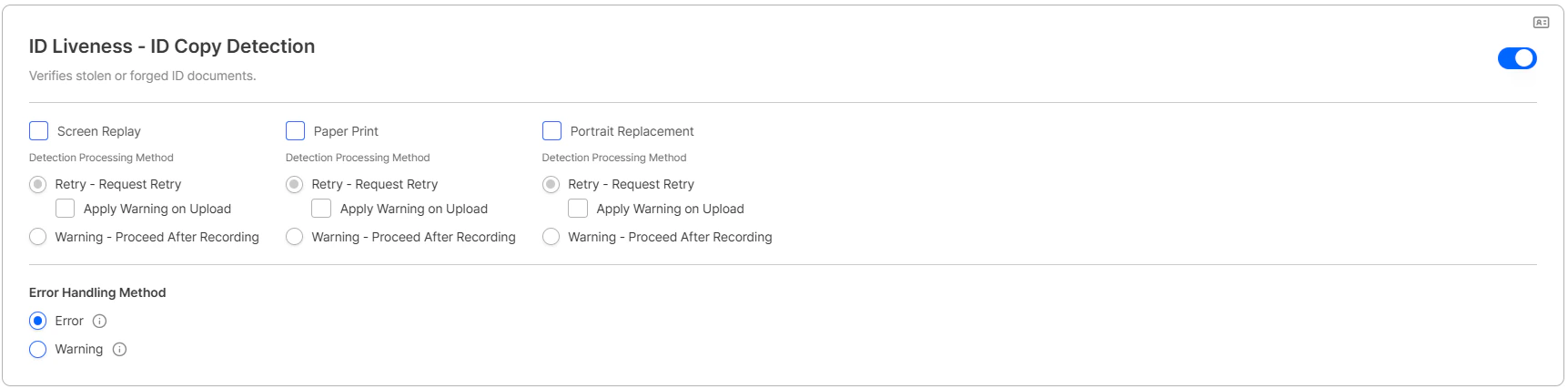 | Pipeline | Description |
| ------------------------ | ---------------------------------------------------------- |
| **Screen Replay** | Detects if ID is displayed on monitor or other displays |
| **Paper Printout** | Detects if it is a paper printout form such as color print |
| **Portrait Replacement** | Detects if a photo is pasted on an actual ID |
**Detection Processing Method per pipeline:**
Each pipeline (Screen Replay / Paper Print / Portrait Replacement) can have its detection processing method configured independently.
| Processing | Description |
| ------------------------------------- | ------------------------------------------------------------------------------------------------- |
| **Retry — Request Retry** | Blocks subsequent progress and requests retry. (Rejected if retries accumulate. Default: 3 times) |
| **Warning — Proceed After Recording** | Leaves a record on the submission and proceeds. Warnings can be reviewed in submission detail. |
When Retry and Warning occur simultaneously in settings between pipelines, it **proceeds with Retry**.
**Apply Warning on Upload** New in 2026-04
Each pipeline with **Retry** selected now exposes a sub-checkbox **Apply Warning on Upload**. When checked, the pipeline's Retry is **converted to Warning** only when the user submitted the ID via **Upload mode**, because Upload-mode users have no way to recapture.
* The checkbox can be configured independently per pipeline (e.g., enabled for Screen Replay and Paper Print but not for Portrait Replacement).
* The checkbox appears **only when Retry is selected**. It is hidden when Warning is selected.
* Submissions auto-converted to Warning under Upload mode appear in the Custom Policy list with the following values.
| Field | Value |
| --------------- | --------------------------- |
| `userDataType` | `ID_card_uploaded` |
| `relatedEngine` | `ID Liveness Screen replay` |
See the [April 2026 update](/en/idcheck/notices/2026-04-update#id-liveness-auto-warning-fallback-for-upload-mode) for details.
**Error Handling Method** New in 2026-05
Separate from the Detection Processing Method above (which applies when forgery is detected), this option defines how to handle cases where **the engine itself fails consecutively**. Select via the radio buttons at the bottom of each pipeline card.
| Error Handling Method | Behavior |
| --------------------- | ----------------------------------------------------------------------------------------------------------------------------------------------------------------------- |
| **Error** (default) | When the ID liveness engine fails consecutively, the user is redirected to the dedicated error page (`SE-50020`). |
| **Warning** | On engine failure, the verification is skipped and recorded as a Warning; the subsequent KYC process continues. This Warning can be used as a Trigger in Custom Policy. |
For the full error code reference, see [Error Codes and Pages](/en/idcheck/reference_tables/Error-codes-and-pages#-se--server-error). For how to configure Warning Triggers, see the [KYC Process](/dashboard/en/project-management/policy-and-authentication/kyc-process) guide. Full details on this feature are available in the [May 2026 update](/en/idcheck/notices/2026-05-update).
***
#### Expired ID New in 2026-04
Controls how submissions with an expired identification document are handled. Previously expired IDs were always rejected; you can now route them into **Retry** or **Warning** to match your policy.
| Pipeline | Description |
| ------------------------ | ---------------------------------------------------------- |
| **Screen Replay** | Detects if ID is displayed on monitor or other displays |
| **Paper Printout** | Detects if it is a paper printout form such as color print |
| **Portrait Replacement** | Detects if a photo is pasted on an actual ID |
**Detection Processing Method per pipeline:**
Each pipeline (Screen Replay / Paper Print / Portrait Replacement) can have its detection processing method configured independently.
| Processing | Description |
| ------------------------------------- | ------------------------------------------------------------------------------------------------- |
| **Retry — Request Retry** | Blocks subsequent progress and requests retry. (Rejected if retries accumulate. Default: 3 times) |
| **Warning — Proceed After Recording** | Leaves a record on the submission and proceeds. Warnings can be reviewed in submission detail. |
When Retry and Warning occur simultaneously in settings between pipelines, it **proceeds with Retry**.
**Apply Warning on Upload** New in 2026-04
Each pipeline with **Retry** selected now exposes a sub-checkbox **Apply Warning on Upload**. When checked, the pipeline's Retry is **converted to Warning** only when the user submitted the ID via **Upload mode**, because Upload-mode users have no way to recapture.
* The checkbox can be configured independently per pipeline (e.g., enabled for Screen Replay and Paper Print but not for Portrait Replacement).
* The checkbox appears **only when Retry is selected**. It is hidden when Warning is selected.
* Submissions auto-converted to Warning under Upload mode appear in the Custom Policy list with the following values.
| Field | Value |
| --------------- | --------------------------- |
| `userDataType` | `ID_card_uploaded` |
| `relatedEngine` | `ID Liveness Screen replay` |
See the [April 2026 update](/en/idcheck/notices/2026-04-update#id-liveness-auto-warning-fallback-for-upload-mode) for details.
**Error Handling Method** New in 2026-05
Separate from the Detection Processing Method above (which applies when forgery is detected), this option defines how to handle cases where **the engine itself fails consecutively**. Select via the radio buttons at the bottom of each pipeline card.
| Error Handling Method | Behavior |
| --------------------- | ----------------------------------------------------------------------------------------------------------------------------------------------------------------------- |
| **Error** (default) | When the ID liveness engine fails consecutively, the user is redirected to the dedicated error page (`SE-50020`). |
| **Warning** | On engine failure, the verification is skipped and recorded as a Warning; the subsequent KYC process continues. This Warning can be used as a Trigger in Custom Policy. |
For the full error code reference, see [Error Codes and Pages](/en/idcheck/reference_tables/Error-codes-and-pages#-se--server-error). For how to configure Warning Triggers, see the [KYC Process](/dashboard/en/project-management/policy-and-authentication/kyc-process) guide. Full details on this feature are available in the [May 2026 update](/en/idcheck/notices/2026-05-update).
***
#### Expired ID New in 2026-04
Controls how submissions with an expired identification document are handled. Previously expired IDs were always rejected; you can now route them into **Retry** or **Warning** to match your policy.
 **Processing Method for Expired IDs:**
| Processing | Description |
| ------------------------------------- | ------------------------------------------------------------------------------------------------------------------------------------------------------------------------------------------------------------- |
| **Retry — Request Retry** (default) | Asks the user to resubmit their ID. |
| **Warning — Proceed After Recording** | Bypasses both the Step 1 and Step 2 Expired ID conditions, records a Warning, and lets the submission continue through approval. The automatic Step 2 expiry-date reject is replaced with Approved + Warning. |
Submissions approved in Warning state leave the following Warning data on the dashboard.
| User Data | Related Engine |
| ------------ | ----------------- |
| `ID Card` | Expiry validation |
| `User Input` | Expiry validation |
A **Warning condition** has also been added to the Custom Policy Trigger list, so you can use expired-ID warnings as a trigger in your custom rules.
Example: older Korean passports whose `expiry_date` has already passed may still need to be accepted for hikorea lookups and internal records. Setting Expired ID to **Warning** lets those submissions through with only a Warning recorded, instead of being blocked at intake. See the [April 2026 update](/en/idcheck/notices/2026-04-update#expired-id-follow-up-action-options) for details.
#### Liveform Streaming Capture Only
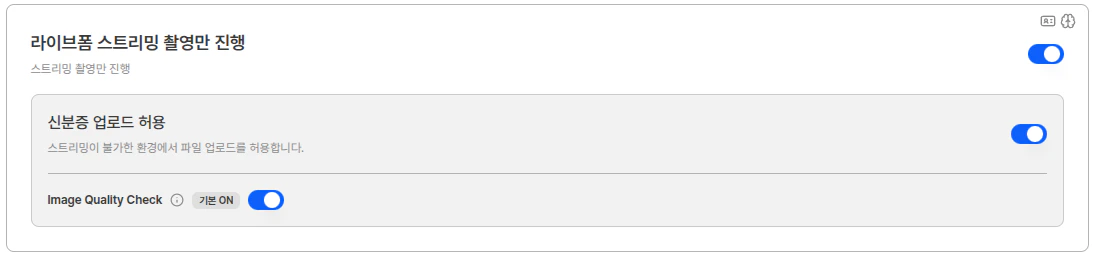
Allows only real-time capture for both ID and selfie and blocks photo uploads to configure a **live capture-based submission environment**.
Click the allow ID upload button to allow ID uploads.
**Processing Method for Expired IDs:**
| Processing | Description |
| ------------------------------------- | ------------------------------------------------------------------------------------------------------------------------------------------------------------------------------------------------------------- |
| **Retry — Request Retry** (default) | Asks the user to resubmit their ID. |
| **Warning — Proceed After Recording** | Bypasses both the Step 1 and Step 2 Expired ID conditions, records a Warning, and lets the submission continue through approval. The automatic Step 2 expiry-date reject is replaced with Approved + Warning. |
Submissions approved in Warning state leave the following Warning data on the dashboard.
| User Data | Related Engine |
| ------------ | ----------------- |
| `ID Card` | Expiry validation |
| `User Input` | Expiry validation |
A **Warning condition** has also been added to the Custom Policy Trigger list, so you can use expired-ID warnings as a trigger in your custom rules.
Example: older Korean passports whose `expiry_date` has already passed may still need to be accepted for hikorea lookups and internal records. Setting Expired ID to **Warning** lets those submissions through with only a Warning recorded, instead of being blocked at intake. See the [April 2026 update](/en/idcheck/notices/2026-04-update#expired-id-follow-up-action-options) for details.
#### Liveform Streaming Capture Only
Allows only real-time capture for both ID and selfie and blocks photo uploads to configure a **live capture-based submission environment**.
Click the allow ID upload button to allow ID uploads.
 When streaming capture only option is activated, users cannot upload photo files and must submit ID and selfie through real-time camera capture.
Must be used together when using active liveness.
#### Allow ID Upload — Image Quality Check (2026-04)
When the liveform streaming capture only option is ON and **Allow ID Upload** is turned ON, users can upload an image as an alternative to camera capture to submit their ID document. The **Image Quality Check** toggle appears alongside this option, allowing you to decide whether to apply the same frontend quality checks as the camera capture.
When streaming capture only option is activated, users cannot upload photo files and must submit ID and selfie through real-time camera capture.
Must be used together when using active liveness.
#### Allow ID Upload — Image Quality Check (2026-04)
When the liveform streaming capture only option is ON and **Allow ID Upload** is turned ON, users can upload an image as an alternative to camera capture to submit their ID document. The **Image Quality Check** toggle appears alongside this option, allowing you to decide whether to apply the same frontend quality checks as the camera capture.
 | Image Quality Check | Behavior |
| ------------------- | -------------------------------------------------------------------------------------------------------------------------------------------------------------- |
| **ON** (default) | Performs FE Image Quality Check on uploaded images. If the image does not meet internal quality standards, an alert message is displayed requesting re-upload. |
| **OFF** | Skips FE Image Quality Check on uploaded images and proceeds with subsequent backend processes and existing policies. |
The Image Quality Check toggle is only visible when **Liveform Streaming is ON and Allow ID Upload is ON**. If either condition is OFF, the toggle is not displayed.
If you encounter cases where IQC repeatedly fails due to upload environment conditions, you can switch to OFF to allow users to complete the authentication flow.
***
### Face Authentication
Set user authentication and verification options through face recognition.
#### Selfie Process
You can register user face information through face recognition. When used in ID document pipeline, it compares the portrait on the ID with the user's Selfie.
| Image Quality Check | Behavior |
| ------------------- | -------------------------------------------------------------------------------------------------------------------------------------------------------------- |
| **ON** (default) | Performs FE Image Quality Check on uploaded images. If the image does not meet internal quality standards, an alert message is displayed requesting re-upload. |
| **OFF** | Skips FE Image Quality Check on uploaded images and proceeds with subsequent backend processes and existing policies. |
The Image Quality Check toggle is only visible when **Liveform Streaming is ON and Allow ID Upload is ON**. If either condition is OFF, the toggle is not displayed.
If you encounter cases where IQC repeatedly fails due to upload environment conditions, you can switch to OFF to allow users to complete the authentication flow.
***
### Face Authentication
Set user authentication and verification options through face recognition.
#### Selfie Process
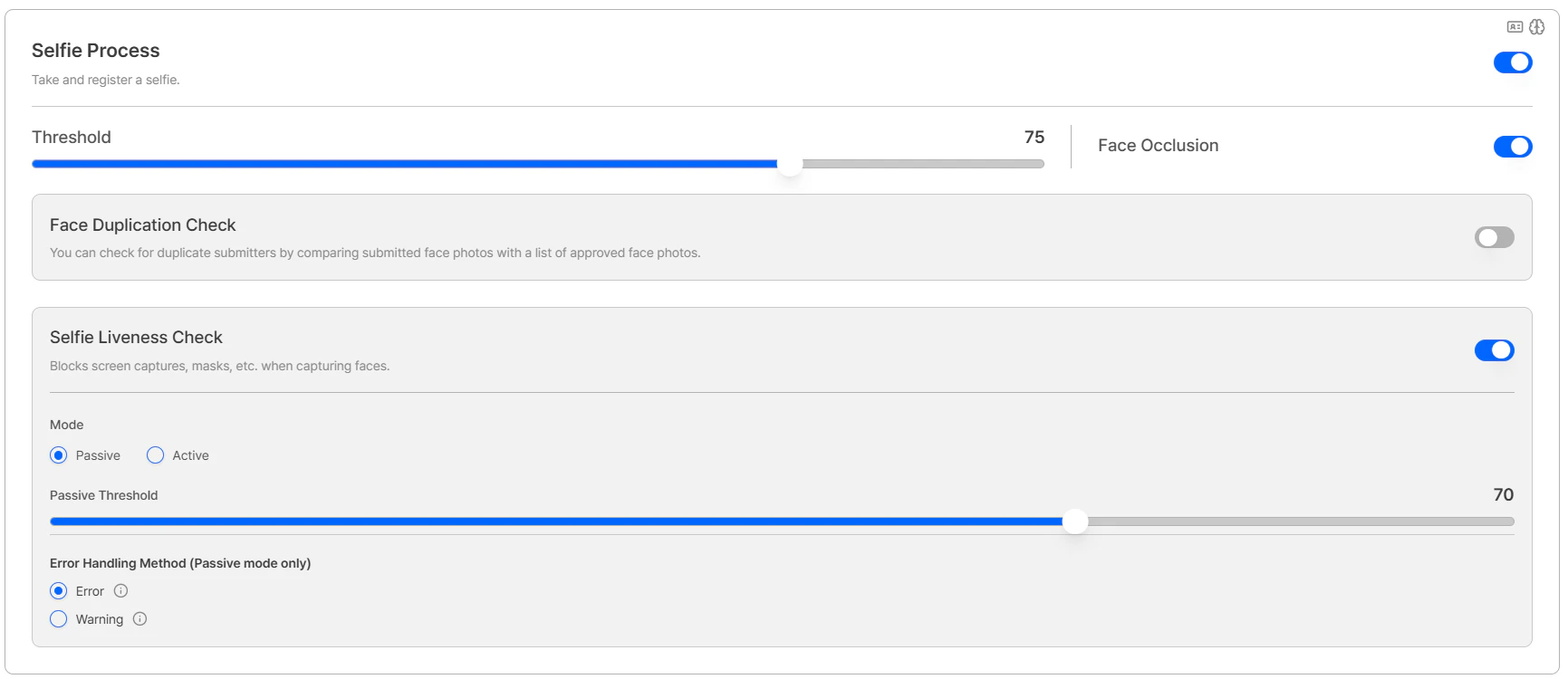
You can register user face information through face recognition. When used in ID document pipeline, it compares the portrait on the ID with the user's Selfie.
 | Setting | Description |
| ------------------ | --------------------------------------------------------------------------------------------------------------------------------------------------------------------------------------- |
| **Threshold** | Sets the threshold to apply when comparing portrait with Selfie. (Default: 85 points) |
| **Face Occlusion** | Authentication fails when face is covered by glasses, mask, etc. during Selfie authentication. If multiple faces exist in the image, it checks based on the face closest to the camera. |
**Selfie Process Usage**
When selfie process is activated, you can use additional face authentication functions such as face duplicate check, selfie liveness, face-based age verification, etc.
#### Face Duplicate Check
You can check for duplicates with already approved person photos. Requires selfie process to be activated.
| Setting | Description |
| ------------------------- | ------------------------------------------------------------------------------ |
| **Threshold** | Judges duplicate criteria through face similarity with approved person photos. |
| **Duplicate Face Policy** | Determines how to proceed with the process after detecting duplicates. |
**Duplicate Face Policy Options:**
1. **Register and Proceed**: Records duplicate submissions for the case and continues the process.
2. **Reject if Duplicate**: Rejects authentication when duplicates occur above the set count.
To activate face duplicate check function, **Selfie Process** must be activated first.
#### Selfie Liveness
You can choose between Active mode (deepfake detection) and Passive mode (texture-based detection). Requires selfie process to be activated.
| Mode | Description |
| ---------------- | --------------------------------------------------------------------------------------------------------------------- |
| **Active Mode** | Mode specialized for deepfake detection, performs biometric authentication by requesting specific actions from users. |
| **Passive Mode** | Texture-based liveness detection, performs biometric authentication with images only without user actions. |
| Setting | Description |
| ------------- | ------------------------------------------------------------------------------------------------------------------------------- |
| **Threshold** | Sets the pass criteria for each mode. **85 points or above is recommended** when having high security policies against forgery. |
**Mode Selection Guide**
* **Active Mode**: Can more effectively block deepfakes or presentation attacks, but user experience may become somewhat complex.
* **Passive Mode**: User experience is more convenient, but detection rate may be lower than active mode for some advanced attacks.
**Passive Face Auto Capture** (2026-04)
Passive-mode face capture in the liveform now uses **Auto Capture** — once the user aligns their face with the guide, capture completes automatically without any button press, and the capture standby time is reduced from 2 seconds to **1 second**. See the [April 2026 update](/en/idcheck/notices/2026-04-update#passive-face-auto-capture) for details.
When using active liveness, **streaming capture only** option must be used together.
| Setting | Description |
| ------------------ | --------------------------------------------------------------------------------------------------------------------------------------------------------------------------------------- |
| **Threshold** | Sets the threshold to apply when comparing portrait with Selfie. (Default: 85 points) |
| **Face Occlusion** | Authentication fails when face is covered by glasses, mask, etc. during Selfie authentication. If multiple faces exist in the image, it checks based on the face closest to the camera. |
**Selfie Process Usage**
When selfie process is activated, you can use additional face authentication functions such as face duplicate check, selfie liveness, face-based age verification, etc.
#### Face Duplicate Check
You can check for duplicates with already approved person photos. Requires selfie process to be activated.
| Setting | Description |
| ------------------------- | ------------------------------------------------------------------------------ |
| **Threshold** | Judges duplicate criteria through face similarity with approved person photos. |
| **Duplicate Face Policy** | Determines how to proceed with the process after detecting duplicates. |
**Duplicate Face Policy Options:**
1. **Register and Proceed**: Records duplicate submissions for the case and continues the process.
2. **Reject if Duplicate**: Rejects authentication when duplicates occur above the set count.
To activate face duplicate check function, **Selfie Process** must be activated first.
#### Selfie Liveness
You can choose between Active mode (deepfake detection) and Passive mode (texture-based detection). Requires selfie process to be activated.
| Mode | Description |
| ---------------- | --------------------------------------------------------------------------------------------------------------------- |
| **Active Mode** | Mode specialized for deepfake detection, performs biometric authentication by requesting specific actions from users. |
| **Passive Mode** | Texture-based liveness detection, performs biometric authentication with images only without user actions. |
| Setting | Description |
| ------------- | ------------------------------------------------------------------------------------------------------------------------------- |
| **Threshold** | Sets the pass criteria for each mode. **85 points or above is recommended** when having high security policies against forgery. |
**Mode Selection Guide**
* **Active Mode**: Can more effectively block deepfakes or presentation attacks, but user experience may become somewhat complex.
* **Passive Mode**: User experience is more convenient, but detection rate may be lower than active mode for some advanced attacks.
**Passive Face Auto Capture** (2026-04)
Passive-mode face capture in the liveform now uses **Auto Capture** — once the user aligns their face with the guide, capture completes automatically without any button press, and the capture standby time is reduced from 2 seconds to **1 second**. See the [April 2026 update](/en/idcheck/notices/2026-04-update#passive-face-auto-capture) for details.
When using active liveness, **streaming capture only** option must be used together.
Also, if user's screen brightness is low, low scores may result.
**Error Handling Method — Passive mode only** New in 2026-05
This option appears only in Passive mode. Separate from the liveness detection result (which applies when a spoofing attack is detected), this controls how to handle cases where **the Passive liveness engine itself fails consecutively**.
| Error Handling Method | Behavior |
| --------------------- | ----------------------------------------------------------------------------------------------------------------------------------------------------------------------- |
| **Error** (default) | When the Passive liveness engine fails, the user is redirected to the dedicated error page (`SE-50021`). |
| **Warning** | On engine failure, the verification is skipped and recorded as a Warning; the subsequent KYC process continues. This Warning can be used as a Trigger in Custom Policy. |
For the full error code reference, see [Error Codes and Pages](/en/idcheck/reference_tables/Error-codes-and-pages#-se--server-error). For how to configure Warning Triggers, see the [KYC Process](/dashboard/en/project-management/policy-and-authentication/kyc-process) guide. Full details on this feature are available in the [May 2026 update](/en/idcheck/notices/2026-05-update).
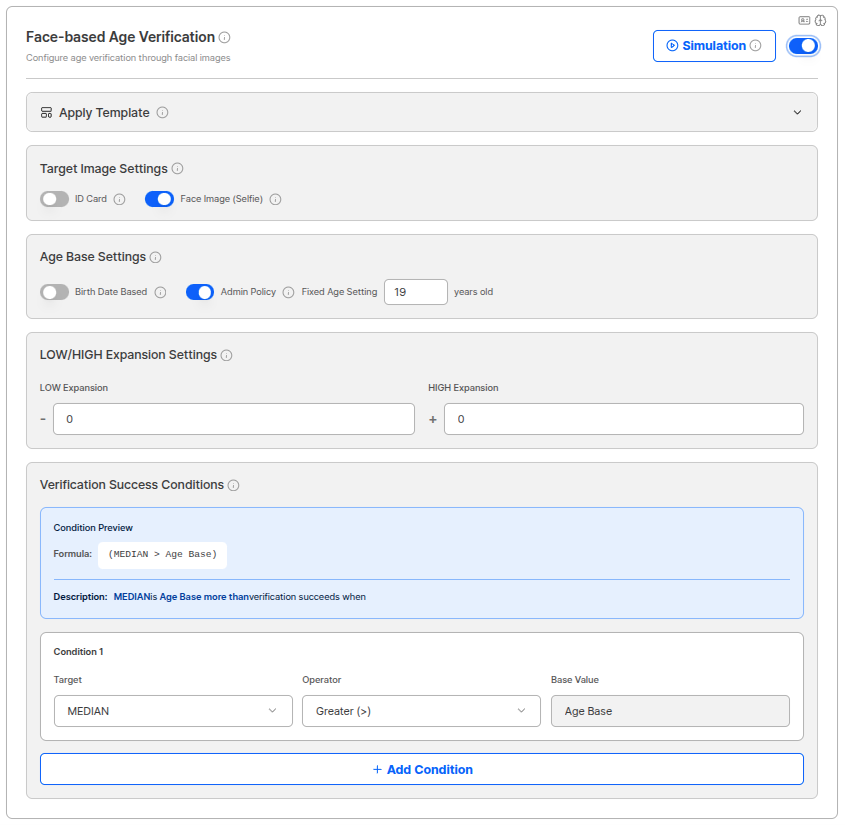
#### Face-based Age Verification
A function that analyzes face images to estimate age range and verifies by comparing with set reference age. Provides **age range (Low, High)** rather than exact age, and verification criteria can be set by applying Buffer.
 | Setting | Description |
| ----------------------------------- | -------------------------------------------------------------------------------------------------------------------- |
| **Target Image** | Selects the image to measure age information. Can choose between ID portrait or selfie photo. |
| **Reference Age Setting** | Customers can directly set a fixed age or choose to compare with age on ID (date of birth based). |
| **Verification Success Conditions** | Can set up to 3 conditions by combining Low, Median, High. Each condition verifies considering age range and Buffer. |
**Age Range and Buffer**
Face-based age verification does not provide exact age but provides **age range (Low, High)** that the person likely belongs to. When verifying, Buffer can be applied to set verification criteria considering age range errors.
**Verification Condition Settings**
By combining and setting Low, Median, High conditions, customers can directly set age verification criteria suitable for service characteristics. For example, stricter conditions can be set when minor blocking is needed.
**Usage Scenarios**
When using only selfie (proceeding with face authentication only without ID), it is useful for age verification to block minors. You can implement minor blocking policies by setting target image as selfie photo and reference age as fixed value.
**Simulation Function**
A simulation button is provided on the face-based age verification settings screen to test if the set conditions work correctly.
***
## Additional Authentication & Meta Information
Set third-party data source verification and meta-information-based verification options.
| Setting | Description |
| ----------------------------------- | -------------------------------------------------------------------------------------------------------------------- |
| **Target Image** | Selects the image to measure age information. Can choose between ID portrait or selfie photo. |
| **Reference Age Setting** | Customers can directly set a fixed age or choose to compare with age on ID (date of birth based). |
| **Verification Success Conditions** | Can set up to 3 conditions by combining Low, Median, High. Each condition verifies considering age range and Buffer. |
**Age Range and Buffer**
Face-based age verification does not provide exact age but provides **age range (Low, High)** that the person likely belongs to. When verifying, Buffer can be applied to set verification criteria considering age range errors.
**Verification Condition Settings**
By combining and setting Low, Median, High conditions, customers can directly set age verification criteria suitable for service characteristics. For example, stricter conditions can be set when minor blocking is needed.
**Usage Scenarios**
When using only selfie (proceeding with face authentication only without ID), it is useful for age verification to block minors. You can implement minor blocking policies by setting target image as selfie photo and reference age as fixed value.
**Simulation Function**
A simulation button is provided on the face-based age verification settings screen to test if the set conditions work correctly.
***
## Additional Authentication & Meta Information
Set third-party data source verification and meta-information-based verification options.
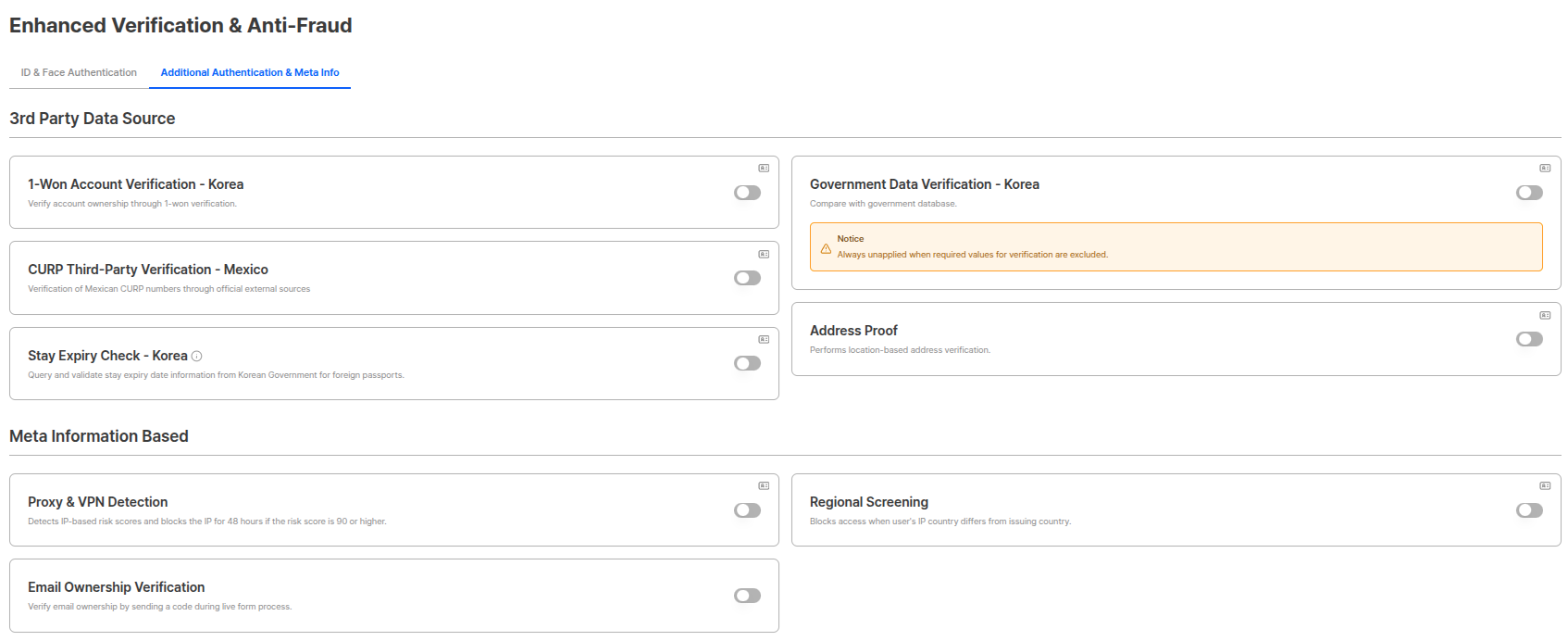 ### 3rd party Data Sources
Set additional verification options using external data sources.
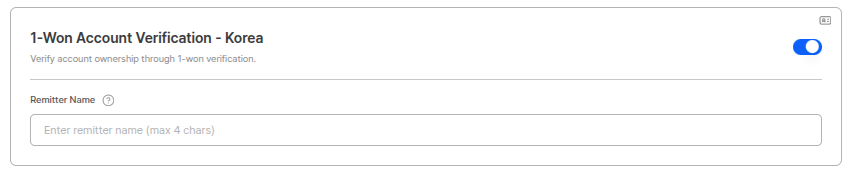
#### 1 Won Account Authentication - Korea
Confirms account possession through 1 won authentication.
### 3rd party Data Sources
Set additional verification options using external data sources.
#### 1 Won Account Authentication - Korea
Confirms account possession through 1 won authentication.
 | Setting | Description |
| ------------------ | ---------------------------------------------------------------- |
| **Depositor Name** | Can set depositor name up to 4 characters when depositing 1 won. |
**1 Won Account Authentication Process**
1. User enters account information.
2. System deposits 1 won to the account.
3. User confirms and enters the depositor name.
4. When depositor name matches, account possession confirmation is complete.
#### Government Data Verification - Korea
2026-04 Redesigned
Performs government data verification for IDs issued in Korea. Starting with the 2026-04 update, the previous single ON/OFF toggle has been split into **individual switches per ID type**, allowing you to choose which Korean ID types to perform authenticity verification for.
| Setting | Description |
| ------------------ | ---------------------------------------------------------------- |
| **Depositor Name** | Can set depositor name up to 4 characters when depositing 1 won. |
**1 Won Account Authentication Process**
1. User enters account information.
2. System deposits 1 won to the account.
3. User confirms and enters the depositor name.
4. When depositor name matches, account possession confirmation is complete.
#### Government Data Verification - Korea
2026-04 Redesigned
Performs government data verification for IDs issued in Korea. Starting with the 2026-04 update, the previous single ON/OFF toggle has been split into **individual switches per ID type**, allowing you to choose which Korean ID types to perform authenticity verification for.
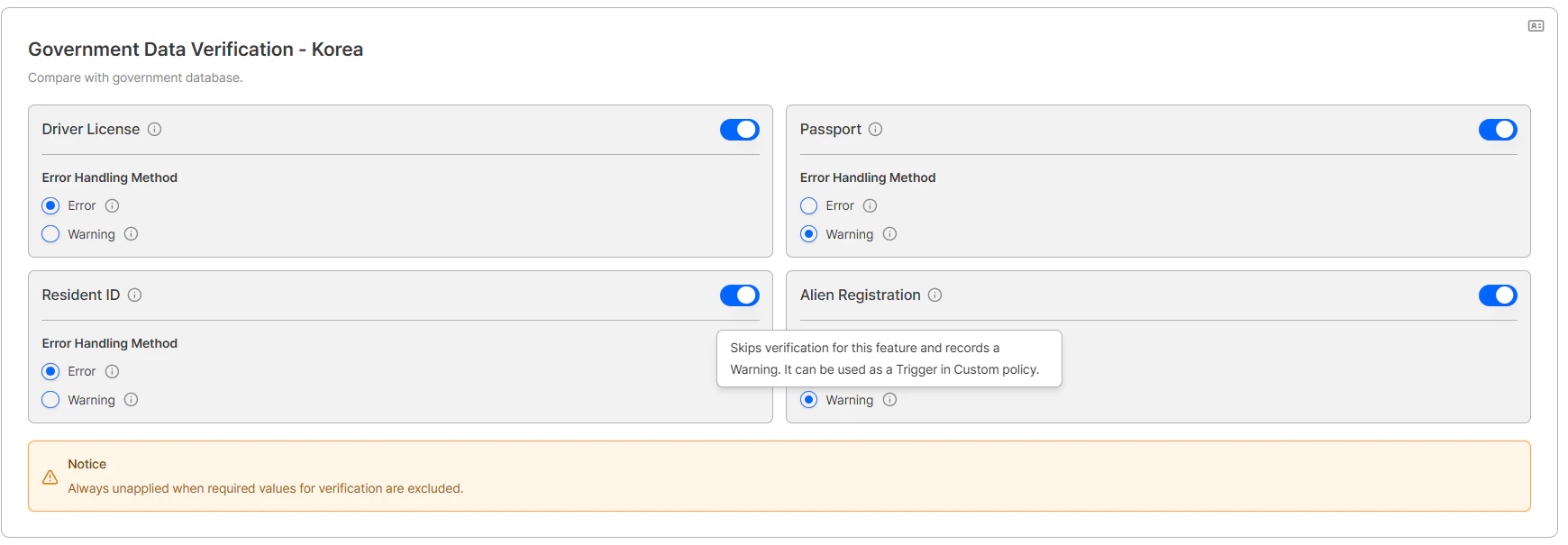 **Individual control switches:**
| Switch | Target ID |
| ---------------------- | ----------------------------------------------------------------------------------------------------------------------------------------- |
| **Resident ID** | Resident registration card |
| **Driver License** | Driver's license |
| **Passport** | Passport |
| **Alien Registration** | Alien registration card / Domestic residence report for foreign nationals of Korean descent / Permanent residence card (3 types combined) |
**Scope of the Alien Registration switch**
The single **Alien Registration** switch controls authenticity verification for all three ID types simultaneously: alien registration card, domestic residence report for foreign nationals of Korean descent, and permanent residence card. All foreign-national-related IDs are managed under one switch.
**When required values for authenticity verification are missing**
If values required for authenticity verification (name, date of birth, resident registration number, etc.) are absent from the submitted data, the switch is **always treated as not applied** even when it is ON.
**Error Handling Method** New in 2026-05
The error handling method can be configured individually per ID type. Separate from forgery detection, this applies when **the authenticity verification engine itself fails consecutively**. Select via the radio buttons below each ID type switch.
| Error Handling Method | Behavior |
| --------------------- | ----------------------------------------------------------------------------------------------------------------------------------------------------------------------------------------------------- |
| **Error** (default) | On engine failure, the user is redirected to the dedicated error page for that ID type — Resident ID: `SE-50030`, Driver's License: `SE-50031`, Passport: `SE-50032`, Alien Registration: `SE-50033`. |
| **Warning** | The verification for that ID type is skipped and a Warning record is provided. This Warning can be used as a Trigger in Custom Policy. |
For the full error code reference, see [Error Codes and Pages](/en/idcheck/reference_tables/Error-codes-and-pages#-se--server-error). For how to configure Warning Triggers, see the [KYC Process](/dashboard/en/project-management/policy-and-authentication/kyc-process) guide. Full details on this feature are available in the [May 2026 update](/en/idcheck/notices/2026-05-update).
Previously, all Korean IDs were controlled by a single toggle. For the background and detailed behavior of this redesign, see the [April 2026 update](/en/idcheck/notices/2026-04-update#government-data-verification-split-by-id-type).
#### CURP Third-party Verification - Mexico
Performs Mexico CURP number verification through official external sources.
**Individual control switches:**
| Switch | Target ID |
| ---------------------- | ----------------------------------------------------------------------------------------------------------------------------------------- |
| **Resident ID** | Resident registration card |
| **Driver License** | Driver's license |
| **Passport** | Passport |
| **Alien Registration** | Alien registration card / Domestic residence report for foreign nationals of Korean descent / Permanent residence card (3 types combined) |
**Scope of the Alien Registration switch**
The single **Alien Registration** switch controls authenticity verification for all three ID types simultaneously: alien registration card, domestic residence report for foreign nationals of Korean descent, and permanent residence card. All foreign-national-related IDs are managed under one switch.
**When required values for authenticity verification are missing**
If values required for authenticity verification (name, date of birth, resident registration number, etc.) are absent from the submitted data, the switch is **always treated as not applied** even when it is ON.
**Error Handling Method** New in 2026-05
The error handling method can be configured individually per ID type. Separate from forgery detection, this applies when **the authenticity verification engine itself fails consecutively**. Select via the radio buttons below each ID type switch.
| Error Handling Method | Behavior |
| --------------------- | ----------------------------------------------------------------------------------------------------------------------------------------------------------------------------------------------------- |
| **Error** (default) | On engine failure, the user is redirected to the dedicated error page for that ID type — Resident ID: `SE-50030`, Driver's License: `SE-50031`, Passport: `SE-50032`, Alien Registration: `SE-50033`. |
| **Warning** | The verification for that ID type is skipped and a Warning record is provided. This Warning can be used as a Trigger in Custom Policy. |
For the full error code reference, see [Error Codes and Pages](/en/idcheck/reference_tables/Error-codes-and-pages#-se--server-error). For how to configure Warning Triggers, see the [KYC Process](/dashboard/en/project-management/policy-and-authentication/kyc-process) guide. Full details on this feature are available in the [May 2026 update](/en/idcheck/notices/2026-05-update).
Previously, all Korean IDs were controlled by a single toggle. For the background and detailed behavior of this redesign, see the [April 2026 update](/en/idcheck/notices/2026-04-update#government-data-verification-split-by-id-type).
#### CURP Third-party Verification - Mexico
Performs Mexico CURP number verification through official external sources.
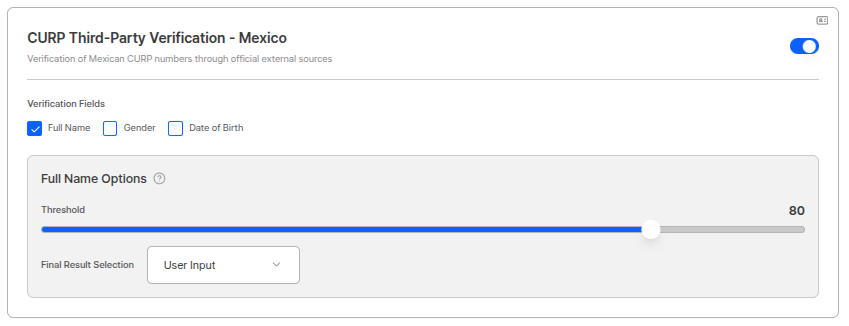 | Setting | Description |
| -------------------------- | ---------------------------------------------------------------------------------------------------------- |
| **Full Name** | Similarity threshold to apply when comparing user-submitted value with name confirmed based on CURP number |
| **Final Result Selection** | Determines which name to use as final when verification passes |
| **Date of Birth** | Compares and verifies user-submitted value with date of birth confirmed based on CURP number |
| **Gender** | Compares and verifies user-submitted value with gender confirmed based on CURP number |
#### Address Proof
Performs location-based address verification.
| Setting | Description |
| -------------------------- | ---------------------------------------------------------------------------------------------------------- |
| **Full Name** | Similarity threshold to apply when comparing user-submitted value with name confirmed based on CURP number |
| **Final Result Selection** | Determines which name to use as final when verification passes |
| **Date of Birth** | Compares and verifies user-submitted value with date of birth confirmed based on CURP number |
| **Gender** | Compares and verifies user-submitted value with gender confirmed based on CURP number |
#### Address Proof
Performs location-based address verification.
 #### Residency Expiration Date Query - Korea
Queries and verifies Korean government's residency expiration date information for passports from other countries.
#### Residency Expiration Date Query - Korea
Queries and verifies Korean government's residency expiration date information for passports from other countries.
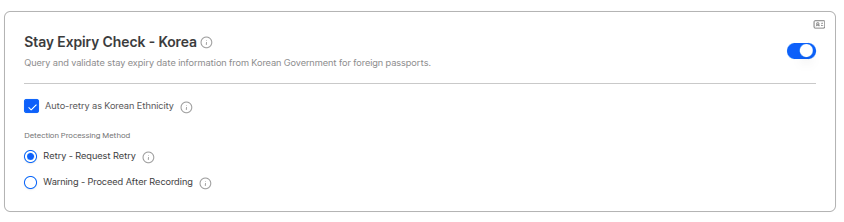 **Residency Expiration Date Query Usage**
When verifying identity for foreign residents or visa holders, you can query residency expiration date information from Korean government database to verify residency qualifications.
***
### Meta Information-based Detection
Set risk detection options based on IP addresses, regional information, etc.
#### Proxy & VPN Detection
Detects IP-based risk and blocks the IP for 48 hours when risk score is 90 or above.
**Residency Expiration Date Query Usage**
When verifying identity for foreign residents or visa holders, you can query residency expiration date information from Korean government database to verify residency qualifications.
***
### Meta Information-based Detection
Set risk detection options based on IP addresses, regional information, etc.
#### Proxy & VPN Detection
Detects IP-based risk and blocks the IP for 48 hours when risk score is 90 or above.
 Learn how to view Proxy & VPN detection results.
**Device Verification option moved (2026-04)**
The former **Device Verification** option has been moved to the dedicated [Device Info](#device-info) tab as of the 2026-04 update. The new tab also includes the **Fingerprint option** and **Device Duplicate Check**.
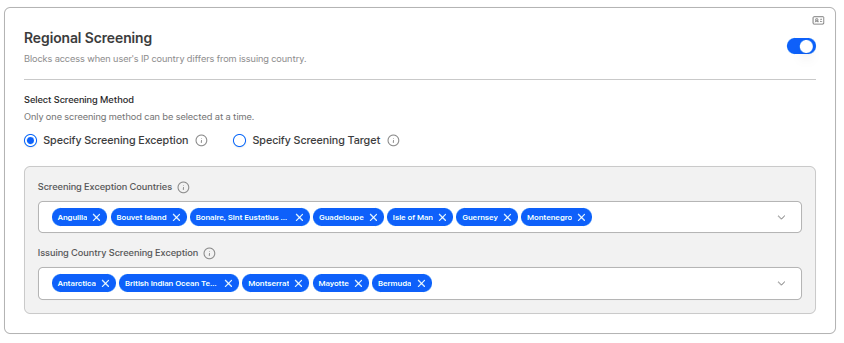
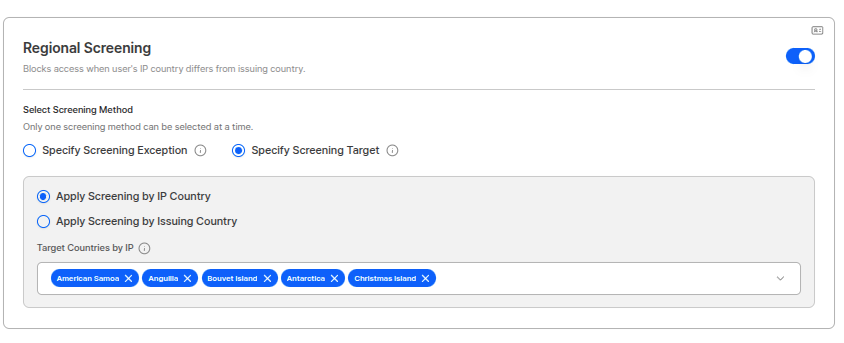
#### Regional Pre-screening
A function that controls access by comparing user's IP country with ID issuing country. By default, it blocks access when user's IP country differs from issuing country, and detailed policies can be configured through exception settings and target designation.
Learn how to view Proxy & VPN detection results.
**Device Verification option moved (2026-04)**
The former **Device Verification** option has been moved to the dedicated [Device Info](#device-info) tab as of the 2026-04 update. The new tab also includes the **Fingerprint option** and **Device Duplicate Check**.
#### Regional Pre-screening
A function that controls access by comparing user's IP country with ID issuing country. By default, it blocks access when user's IP country differs from issuing country, and detailed policies can be configured through exception settings and target designation.
 ### Exception Settings
You can set countries to process as exceptions in regional pre-screening.
#### Pre-screening Exception Countries
When IP address belongs to the country, pre-screening passes even if IP country and issuing country differ.
**Operation Method:**
* If user's IP address is included in the exception country list, access is allowed even if IP country and issuing country do not match.
* For example, if "United States" is added to exception countries, pre-screening passes when accessing from US IP regardless of issuing country.
#### Issuing Country Pre-screening Exception
When ID issuing country belongs to the country, pre-screening passes even if IP country and issuing country differ.
**Operation Method:**
* If the issuing country of the ID submitted by the user is included in the exception country list, access is allowed even if IP country and issuing country do not match.
* For example, if "Korea" is added to exception countries, pre-screening passes when using IDs issued in Korea regardless of IP country.
### Target Designation
You can designate targets to apply regional pre-screening. It is not an OR condition, but selects one of **IP country based** or **Issuing country based** to designate targets.
**Setting Options:**
| Criteria | Description |
| ------------------------- | ------------------------------------------------------------------------------------- |
| **IP Country Based** | Performs pre-screening only when accessing from IP addresses of designated countries. |
| **Issuing Country Based** | Performs pre-screening only when using IDs issued from designated countries. |
**Operation Method:**
* When accessing from IP addresses of countries designated as screening targets or using IDs issued from those countries, **always compares IP address and issuing country** and blocks access if they do not match.
* For countries not designated as screening targets, pre-screening check is not performed.
**Regional Pre-screening Usage Examples**
* **Allow only Korean ID + Korean IP**: If "Korea" is designated as issuing country based in target designation, when using IDs issued in Korea, access is only allowed from Korean IP.
* **Specific Country Exception Processing**: If "United States" is added to pre-screening exception countries for overseas-residing Koreans, access is allowed even when using Korean IDs from US IP.
* **Specific Issuing Country Exception**: If "Passport" is added to issuing country pre-screening exceptions, access is allowed regardless of IP country when using passports.
**Exception settings and target designation cannot be used simultaneously**
Regional pre-screening can only be used by selecting one of **exception settings** or **target designation**. The two methods cannot be activated simultaneously, so select and set the method suitable for your service requirements.
#### Email Owner Verification
Performs email ownership verification by sending code during liveform process.
### Exception Settings
You can set countries to process as exceptions in regional pre-screening.
#### Pre-screening Exception Countries
When IP address belongs to the country, pre-screening passes even if IP country and issuing country differ.
**Operation Method:**
* If user's IP address is included in the exception country list, access is allowed even if IP country and issuing country do not match.
* For example, if "United States" is added to exception countries, pre-screening passes when accessing from US IP regardless of issuing country.
#### Issuing Country Pre-screening Exception
When ID issuing country belongs to the country, pre-screening passes even if IP country and issuing country differ.
**Operation Method:**
* If the issuing country of the ID submitted by the user is included in the exception country list, access is allowed even if IP country and issuing country do not match.
* For example, if "Korea" is added to exception countries, pre-screening passes when using IDs issued in Korea regardless of IP country.
### Target Designation
You can designate targets to apply regional pre-screening. It is not an OR condition, but selects one of **IP country based** or **Issuing country based** to designate targets.
**Setting Options:**
| Criteria | Description |
| ------------------------- | ------------------------------------------------------------------------------------- |
| **IP Country Based** | Performs pre-screening only when accessing from IP addresses of designated countries. |
| **Issuing Country Based** | Performs pre-screening only when using IDs issued from designated countries. |
**Operation Method:**
* When accessing from IP addresses of countries designated as screening targets or using IDs issued from those countries, **always compares IP address and issuing country** and blocks access if they do not match.
* For countries not designated as screening targets, pre-screening check is not performed.
**Regional Pre-screening Usage Examples**
* **Allow only Korean ID + Korean IP**: If "Korea" is designated as issuing country based in target designation, when using IDs issued in Korea, access is only allowed from Korean IP.
* **Specific Country Exception Processing**: If "United States" is added to pre-screening exception countries for overseas-residing Koreans, access is allowed even when using Korean IDs from US IP.
* **Specific Issuing Country Exception**: If "Passport" is added to issuing country pre-screening exceptions, access is allowed regardless of IP country when using passports.
**Exception settings and target designation cannot be used simultaneously**
Regional pre-screening can only be used by selecting one of **exception settings** or **target designation**. The two methods cannot be activated simultaneously, so select and set the method suitable for your service requirements.
#### Email Owner Verification
Performs email ownership verification by sending code during liveform process.
 **Email Owner Verification Process**
1. User enters email address.
2. System sends authentication code to the email.
3. User enters the received authentication code.
4. When code matches, email ownership verification is complete.
***
## Device Info
2026-04 New Tab
A dedicated tab for configuring device-based pre-blocking options. Device Info verification is performed **first when entering the liveform**. If blocked at this stage, the user cannot proceed to subsequent pre-verification steps (Turnstile, Proxy & VPN) or the KYC process itself.
**Device Info is the first validation upon liveform entry**
Pre-verification runs in the following order. If the Device Info stage fails, the user is immediately redirected to an error page and no subsequent stages are performed.
`Device Verification` → `Fingerprint option` → `Turnstile` → `Proxy & VPN Detection` → `KYC Process`
### Device Verification
A Static check that analyzes browser, GPU, and touch information to preemptively block access from **non-mobile devices (desktops, virtual environments, automated bots, etc.)**.
**Email Owner Verification Process**
1. User enters email address.
2. System sends authentication code to the email.
3. User enters the received authentication code.
4. When code matches, email ownership verification is complete.
***
## Device Info
2026-04 New Tab
A dedicated tab for configuring device-based pre-blocking options. Device Info verification is performed **first when entering the liveform**. If blocked at this stage, the user cannot proceed to subsequent pre-verification steps (Turnstile, Proxy & VPN) or the KYC process itself.
**Device Info is the first validation upon liveform entry**
Pre-verification runs in the following order. If the Device Info stage fails, the user is immediately redirected to an error page and no subsequent stages are performed.
`Device Verification` → `Fingerprint option` → `Turnstile` → `Proxy & VPN Detection` → `KYC Process`
### Device Verification
A Static check that analyzes browser, GPU, and touch information to preemptively block access from **non-mobile devices (desktops, virtual environments, automated bots, etc.)**.
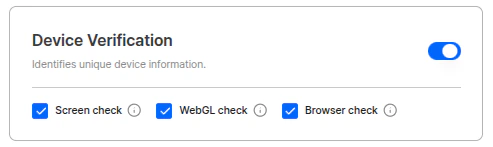 **Static check — performed on liveform entry**
| Verification Item | Description |
| ------------------ | -------------------------------------------------------------------------------------------------------------------------------------------------------- |
| **Browser check** | Analyzes the browser's User-Agent value and blocks the request if the accessing device is identified as a desktop PC or bot. |
| **Graphics check** | Detects GPU information via WebGL and blocks the request if a desktop-only GPU or virtual environment that cannot be used in mobile devices is detected. |
| **Screen check** | Analyzes the number of simultaneous touch points and blocks devices that do not support mobile-level multi-touch. |
If even one of the enabled checks fails, the user is redirected to an error page (`DE-20000`) and cannot proceed with KYC.
View the Device Verification result list and detail fields.
### Fingerprint option
2026-04 New
Advanced threat detection options based on device fingerprinting. Detects virtual environments, emulators, malicious bots, and tampered browsers, and controls repeated approvals from the same device through **Device Duplicate Check**.
**Static check — performed on liveform entry**
| Verification Item | Description |
| ------------------ | -------------------------------------------------------------------------------------------------------------------------------------------------------- |
| **Browser check** | Analyzes the browser's User-Agent value and blocks the request if the accessing device is identified as a desktop PC or bot. |
| **Graphics check** | Detects GPU information via WebGL and blocks the request if a desktop-only GPU or virtual environment that cannot be used in mobile devices is detected. |
| **Screen check** | Analyzes the number of simultaneous touch points and blocks devices that do not support mobile-level multi-touch. |
If even one of the enabled checks fails, the user is redirected to an error page (`DE-20000`) and cannot proceed with KYC.
View the Device Verification result list and detail fields.
### Fingerprint option
2026-04 New
Advanced threat detection options based on device fingerprinting. Detects virtual environments, emulators, malicious bots, and tampered browsers, and controls repeated approvals from the same device through **Device Duplicate Check**.
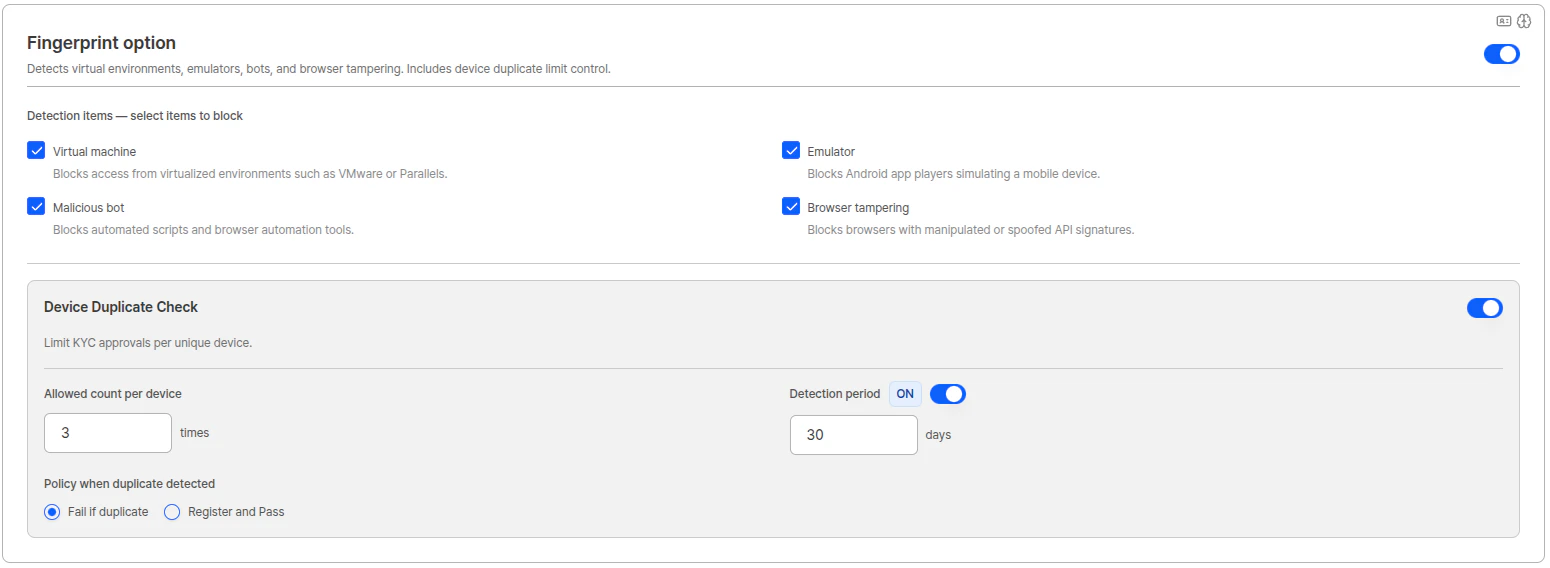 #### Detection items
Select the items to block using individual checkboxes. If any checked item is detected, the user is redirected to an error page (`DE-30000`).
| Item | Blocked target |
| --------------------- | ---------------------------------------------------------------- |
| **Virtual machine** | Access from virtualized environments such as VMware or Parallels |
| **Emulator** | Android app players that simulate mobile devices |
| **Malicious bot** | Automated scripts and browser automation tools |
| **Browser tampering** | Browsers with manipulated or forged API signatures |
#### Device Duplicate Check
Limits the number of times a KYC approval can occur from the same device. Can be toggled ON/OFF independently while the Fingerprint option is enabled.
| Setting | Description |
| -------------------------------- | ----------------------------------------------------------------------------------------------------------------------------------------------------- |
| **Allowed count per device** | Maximum number of KYC approvals allowed from the same device. (Default: 3) |
| **Detection period** | The time window for counting duplicates. When ON, specify the number of days (default: 30). When **OFF, all past approvals accumulate indefinitely**. |
| **Policy on duplicate detected** | Select how to handle requests that exceed the allowed count. |
**Policy on duplicate detected:**
| Policy | Behavior |
| --------------------- | ----------------------------------------------------------------------------------------------------- |
| **Fail if duplicate** | Blocks requests that exceed the allowed count. The user is redirected to an error page (`DE-40000`). |
| **Register and Pass** | Allows KYC to continue even when the allowed count is exceeded, and records the duplicate occurrence. |
**Meaning of Detection period OFF**
When the detection period toggle is set to OFF, **all past approval history accumulates**. Using this setting in long-running projects may unintentionally block legitimate users, so configure carefully together with the allowed count.
For details on the new error codes `DE-30000` and `DE-40000`, see the [Error Codes and Pages](/en/idcheck/reference_tables/Error-codes-and-pages#-de--device-error) reference. The background and purpose of this feature are covered in the [April 2026 update](/en/idcheck/notices/2026-04-update#device-info-tab-and-fingerprint-option).
***
## Use Cases
Banks or securities companies can secure the highest level of security by activating multiple authentication options such as government data verification, 1 won account authentication, face duplicate check, etc. Deepfakes or presentation attacks can be effectively blocked through active mode of selfie liveness and ID attack prevention functions.
Companies providing global services can accurately authenticate IDs from each region by utilizing country-specific verification options such as MRZ check (passport), PDF417 barcode check (North American driver's license), CURP third-party verification (Mexico), etc.
E-commerce or sharing economy platforms can preemptively block fake account creation or ID forgery attempts through forgery prevention options such as Proxy & VPN detection, ID validity verification, mandatory real-time camera capture, etc.
***
## Recommended Settings
* Liveness ON (≥80)
* Proxy/VPN ON
* MRZ/PDF417 ON
* Government data verification ON
* Streaming capture only
* Face duplicate check ON
* Proxy/VPN ON
Excessive security option activation may hinder user experience, so it is important to set **appropriate security policy levels suitable for service characteristics**.
***
## Related Documentation
View basic authentication policies.
View VPN & Proxy and Device Verification pre-verification results.
Learn how to manage authentication data.
Please contact us if you have additional questions.
#### Detection items
Select the items to block using individual checkboxes. If any checked item is detected, the user is redirected to an error page (`DE-30000`).
| Item | Blocked target |
| --------------------- | ---------------------------------------------------------------- |
| **Virtual machine** | Access from virtualized environments such as VMware or Parallels |
| **Emulator** | Android app players that simulate mobile devices |
| **Malicious bot** | Automated scripts and browser automation tools |
| **Browser tampering** | Browsers with manipulated or forged API signatures |
#### Device Duplicate Check
Limits the number of times a KYC approval can occur from the same device. Can be toggled ON/OFF independently while the Fingerprint option is enabled.
| Setting | Description |
| -------------------------------- | ----------------------------------------------------------------------------------------------------------------------------------------------------- |
| **Allowed count per device** | Maximum number of KYC approvals allowed from the same device. (Default: 3) |
| **Detection period** | The time window for counting duplicates. When ON, specify the number of days (default: 30). When **OFF, all past approvals accumulate indefinitely**. |
| **Policy on duplicate detected** | Select how to handle requests that exceed the allowed count. |
**Policy on duplicate detected:**
| Policy | Behavior |
| --------------------- | ----------------------------------------------------------------------------------------------------- |
| **Fail if duplicate** | Blocks requests that exceed the allowed count. The user is redirected to an error page (`DE-40000`). |
| **Register and Pass** | Allows KYC to continue even when the allowed count is exceeded, and records the duplicate occurrence. |
**Meaning of Detection period OFF**
When the detection period toggle is set to OFF, **all past approval history accumulates**. Using this setting in long-running projects may unintentionally block legitimate users, so configure carefully together with the allowed count.
For details on the new error codes `DE-30000` and `DE-40000`, see the [Error Codes and Pages](/en/idcheck/reference_tables/Error-codes-and-pages#-de--device-error) reference. The background and purpose of this feature are covered in the [April 2026 update](/en/idcheck/notices/2026-04-update#device-info-tab-and-fingerprint-option).
***
## Use Cases
Banks or securities companies can secure the highest level of security by activating multiple authentication options such as government data verification, 1 won account authentication, face duplicate check, etc. Deepfakes or presentation attacks can be effectively blocked through active mode of selfie liveness and ID attack prevention functions.
Companies providing global services can accurately authenticate IDs from each region by utilizing country-specific verification options such as MRZ check (passport), PDF417 barcode check (North American driver's license), CURP third-party verification (Mexico), etc.
E-commerce or sharing economy platforms can preemptively block fake account creation or ID forgery attempts through forgery prevention options such as Proxy & VPN detection, ID validity verification, mandatory real-time camera capture, etc.
***
## Recommended Settings
* Liveness ON (≥80)
* Proxy/VPN ON
* MRZ/PDF417 ON
* Government data verification ON
* Streaming capture only
* Face duplicate check ON
* Proxy/VPN ON
Excessive security option activation may hinder user experience, so it is important to set **appropriate security policy levels suitable for service characteristics**.
***
## Related Documentation
View basic authentication policies.
View VPN & Proxy and Device Verification pre-verification results.
Learn how to manage authentication data.
Please contact us if you have additional questions.